SSD vs HDD in a Laptop: Speed, Battery and Lifespan
Quick Answer: An SSD is the better drive for almost every laptop. A SATA SSD reads at up to 550 MB/s and a modern NVMe SSD at 2,000 to 7,000 MB/s, while a hard drive manages about 80 to 160 MB/s, so Windows boots in seconds instead of a minute and apps open without the wait. An SSD also uses less battery, makes no noise and survives being carried around, because it has no moving parts. A hard drive still wins on one thing only: cost per gigabyte, so it makes sense as cheap secondary or backup storage, not as the drive your laptop runs on.
What is an SSD?
An SSD, or solid state drive, stores your files on flash memory chips, the same kind of memory as in a USB stick or a phone, only much faster and more durable. There are no spinning parts inside. When you open a file, the drive reads it straight from the chips, which is why everything feels instant.
There are two kinds of SSD you will meet in laptops. A SATA SSD uses the older SATA connection and tops out at about 550 MB/s, because the SATA III interface itself caps at around 600 MB/s. An NVMe SSD plugs into a small M.2 slot and uses PCIe lanes, the same fast connection graphics cards use, so it runs far faster: a PCIe Gen 3 drive reads at 2,000 to 3,500 MB/s, a Gen 4 drive at 5,000 to 7,000 MB/s, and a Gen 5 drive at 10,000 to 14,000 MB/s. The fastest consumer drive tested in 2026, the Crucial T705, reads at 14,500 MB/s.
NVMe is not a different kind of storage. It is a faster way for an SSD to talk to your laptop. Both SATA and NVMe drives are SSDs, and both are far faster than any hard drive. If you are buying a laptop in 2026, the drive will almost always be an NVMe SSD. SATA SSDs now show up mainly as upgrade parts for older machines.
What is an HDD?
An HDD, or hard disk drive, stores your files on spinning magnetic platters, read by a moving arm, a bit like a record player. The platters in a laptop drive spin at 5,400 revolutions per minute, and the arm has to physically move to the right spot before it can read anything. That mechanical step is the whole reason a hard drive is slow.
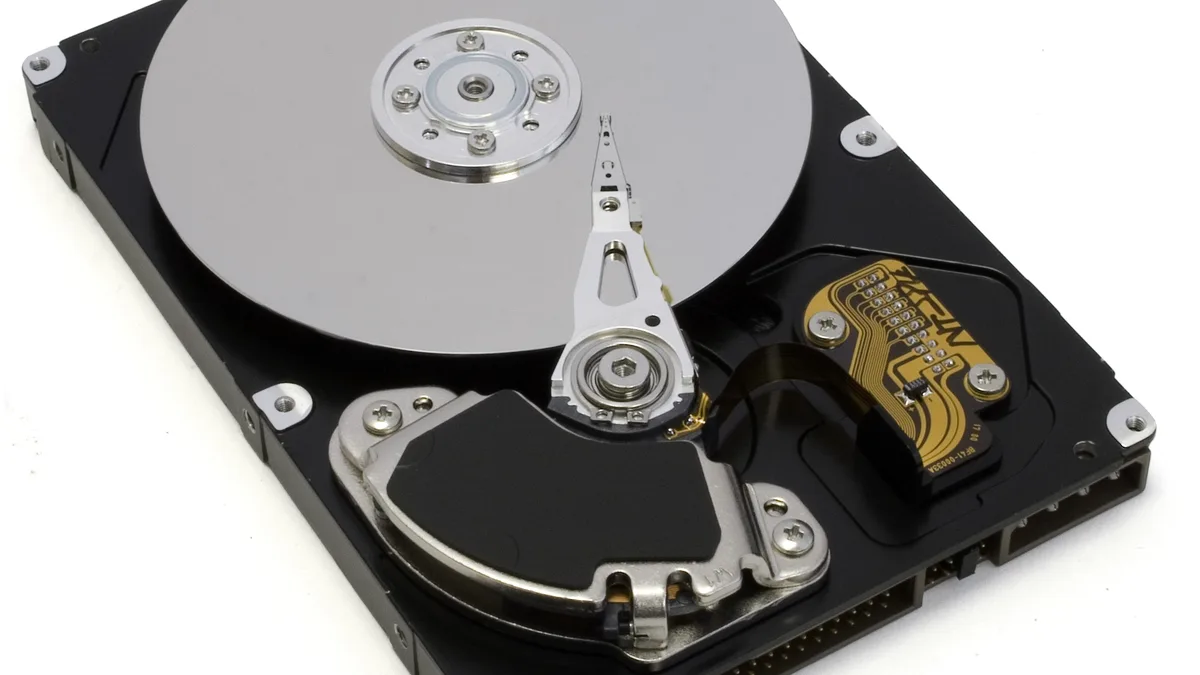
Hard drives are an old technology, and they show it in a laptop. They are heavy for what they hold, they vibrate and hum, they use more power, and a knock while the platters are spinning can damage the drive or corrupt data. They do have one real strength, which is capacity for the money: a hard drive is still the cheapest way to store a lot of data, which is why they live on in external backup drives, home servers and network storage.
Almost no new laptop in 2026 ships with a hard drive as its main storage. If you see one listed, it is usually old stock or a very cheap large laptop. But plenty of older laptops still run on hard drives, and for those machines the drive is usually the single biggest reason the laptop feels slow.
SSD vs HDD speed: the numbers
Speed is where the difference is biggest, and it is also the difference you feel every day. The table below uses typical sequential read speeds, which is the speed for reading large files in one go. Real results vary by model, but the gaps between the drive types are always this large.
| Drive type | Sequential read | Sequential write | Windows boot time |
|---|---|---|---|
| Hard drive (5,400 RPM) | 80 to 160 MB/s | 80 to 150 MB/s | 30 to 60 seconds |
| SATA SSD | Up to 550 MB/s | 400 to 530 MB/s | 10 to 15 seconds |
| NVMe SSD (Gen 3) | 2,000 to 3,500 MB/s | 2,000 to 3,000 MB/s | 5 to 10 seconds |
| NVMe SSD (Gen 4) | 5,000 to 7,000 MB/s | 4,000 to 7,000 MB/s | 5 to 10 seconds |
Sequential speed is only part of the story. The bigger gap is in random reads, the small scattered reads a laptop does constantly when it opens apps, switches windows and loads system files. A hard drive manages about 0.5 to 2 MB/s on small random reads, because the arm has to seek for every one. A SATA SSD does 40 to 90 MB/s, and a Gen 4 NVMe drive does 400 to 700 MB/s. That is why a laptop with an SSD feels fast even when you are not copying big files: it is hundreds of times quicker at the small jobs that make up most of everyday use.
Here is what that means in real tasks:
- Starting Windows. A laptop with a hard drive takes 30 to 60 seconds to reach the desktop, and sometimes over a minute on an older system. The same laptop with a SATA SSD boots in 10 to 15 seconds, and with an NVMe SSD in under 10 seconds.
- Opening apps. A browser, Word or Photoshop opens in a second or two from an SSD. From a hard drive, the same apps take several seconds each, and the wait grows when several apps are open at once.
- Copying a 10 GB video file. At 120 MB/s a hard drive needs about 85 seconds. A SATA SSD at 550 MB/s needs about 19 seconds. A Gen 4 NVMe drive at 7,000 MB/s needs under 2 seconds.
- Loading games. Games installed on an SSD load noticeably faster, with shorter loading screens and less stuttering when the game streams in new areas. The frame rate itself does not change, because that depends on the processor and graphics card, not the drive. If your games feel slow for a different reason, our guide to how to increase FPS on a gaming laptop covers the settings that actually raise frame rate.
- Multitasking. A hard drive stutters when you switch between many tasks, because the arm cannot be in two places at once. An SSD handles scattered, random access with ease, so switching between a browser with twenty tabs, a document and a video call stays smooth.
One honest caveat: the jump from a SATA SSD to a fast NVMe SSD is much smaller in everyday use than the jump from a hard drive to any SSD. Boot times and app launches barely change between the two, because those jobs are limited by the processor and the software as much as by the drive. The NVMe advantage shows up in big file transfers, video editing and large game installs. For browsing, study and office work, even a budget SATA SSD feels fast.
SSD vs HDD: the full comparison
| Feature | Hard drive (HDD) | SATA SSD | NVMe SSD |
|---|---|---|---|
| Read speed | 80 to 160 MB/s | Up to 550 MB/s | 2,000 to 7,000 MB/s |
| Boot time | 30 to 60 seconds | 10 to 15 seconds | 5 to 10 seconds |
| Moving parts | Yes, spinning platters and arm | None | None |
| Noise | Audible hum and clicks | Silent | Silent |
| Power use (active) | 3 to 5 watts | 2 to 3 watts | 2 to 3 watts |
| Shock resistance | Low, drops can damage it | High | High |
| Weight (typical) | About 100 g (2.5 inch) | About 50 g (2.5 inch) | About 7 g (M.2 stick) |
| Typical laptop capacity | 500 GB to 2 TB | 256 GB to 2 TB | 256 GB to 4 TB |
| Cost per gigabyte | Lowest | Moderate | Moderate to high |
Battery life: SSD vs HDD
An SSD uses less power than a hard drive, because it has no motor to spin and no arm to move. Typical figures from guides put a hard drive at 3 to 5 watts while active and an SSD at 2 to 3 watts. The saving is real but modest: most guides report roughly 30 to 60 minutes of extra battery life on the same laptop after switching from a hard drive to an SSD.
That is a genuine gain, but keep it in perspective. The screen and the processor use far more power than the drive, so an SSD will not double your battery life. It is one small part of why an SSD laptop lasts longer away from the charger, alongside the fact that the laptop spends less time working hard to load things. If your battery life has already dropped, the drive is probably not the cause: our guide to how to check battery health on a Windows 11 laptop shows how to measure what capacity is left.
Durability and reliability
A laptop gets carried, bumped and dropped into bags, and that is hard on a spinning hard drive. A drop onto a hard floor while the drive is spinning can corrupt data or damage the read and write head. An SSD has no moving parts, so it handles bumps and vibration far better, which is a meaningful advantage in a portable device. For students, frequent travellers or anyone who moves their machine regularly, this alone makes an SSD the safer choice. It is also one reason the toughest laptops are built around SSDs: our roundup of the best laptop for outdoor use compares machines designed to survive rough handling.
The large-scale failure data backs this up. Backblaze, a cloud storage company that publishes drive failure rates every year, recorded an annualized failure rate of 1.36 percent for its hard drives in 2025, across 344,196 drives. Its earlier SSD report found that SSD boot drives failed at 0.92 percent a year in their fifth year, against 3.55 percent for hard drives of the same age. Those are data centre drives, not laptop drives, but the direction is clear: in the same kind of service, flash fails less often than spinning disks.
One warning applies to both types. A hard drive often gives you a warning before it dies: clicking sounds, slow reads, files that will not open. An SSD can fail suddenly, with little warning, when its controller or electronics give out. Either way, a drive is not a backup. Keep a copy of anything you cannot lose on a second drive or in the cloud, whichever type you use.
How long does an SSD last?
SSDs wear out differently from hard drives. Flash memory cells can only be written a limited number of times, so every SSD carries a TBW rating, terabytes written, from the manufacturer. A typical 1 TB consumer SSD such as the Samsung 870 EVO is rated for 600 TBW. That sounds small until you do the maths: writing 50 GB a day, every day, would take over 30 years to reach it. Normal use writes far less than that, so for almost everyone the SSD will outlast the laptop it sits in.
Hard drives wear out mechanically instead. Bearings, motors and the actuator arm slowly degrade, and the usual planning figure quoted for a laptop hard drive is 3 to 5 years of regular use, against 5 to 10 years for an SSD. Those round numbers have no single study behind them, so treat them as a planning habit rather than a promise. The measured failure rates above are the more honest guide: SSDs fail less often, and a hard drive that is still spinning after five years is living on borrowed time either way.
Age matters here. If you are trying to work out whether an old laptop is worth an upgrade or should be replaced, our guide to how to tell how old your laptop is shows how to find its real age from the serial number and the hardware. A five year old laptop with a hard drive is the classic case where an SSD swap makes sense, and a ten year old one usually is not.
Capacity and price: where a hard drive still wins
The one contest a hard drive wins is cost per gigabyte. An SSD costs several times more per terabyte than a hard drive, and the gap is not closing: NAND flash prices have been under pressure from data centre demand in 2026, while hard drives remain the cheapest way to store large amounts of data. That is why hard drives still make sense for bulk storage, just not inside a laptop as the main drive.
Size is a separate decision from speed, and it trips people up. A laptop sold as 256 GB does not give you 256 GB of free space: part of it is taken by the operating system and apps, and a 256 GB drive shows about 238 GB in Windows, while a 1 TB drive shows about 931 GB. Our guide to how much storage you need on a laptop works through the right size for each kind of user, and the short version is 512 GB for most people, 1 TB if you game or edit video, and 256 GB only for light, mostly cloud based use.
Price also decides what you get at the budget end. The cheapest laptops, under 700 dollars, now ship with SSDs as standard, so you no longer have to choose between a fast drive and a low price. Our roundup of the best gaming laptops under 700 dollars shows what an SSD equipped budget machine looks like in 2026. And if you are weighing the whole purchase, not just the drive, our guide to how much a laptop costs breaks down what each price tier actually buys.
Is a 256GB SSD better than a 1TB hard drive?
This is the choice shops used to push, and it is the question that confuses buyers most, because it mixes up two different things: capacity and speed. A bigger storage number does not automatically mean a faster or better laptop.
| Feature | 256 GB SSD | 1 TB hard drive |
|---|---|---|
| Storage space | Smaller, about 238 GB usable | Much larger, about 931 GB usable |
| System responsiveness | Fast, boots in seconds | Slow, boots in up to a minute |
| App loading | Near instant | Noticeable wait, worse with many apps |
| Durability | Shock resistant, no moving parts | Fragile if dropped while spinning |
| Battery life | Better, lower power draw | Worse, motor always spinning |
| Best for | Windows, apps, everyday work | Large file storage and archives |
For speed and day to day responsiveness, a 256 GB SSD easily beats a 1 TB hard drive. Windows starts faster, apps open faster, and the whole machine feels newer. For raw capacity, the 1 TB drive holds four times as much, which matters if you keep a large photo or video library on the machine itself.
Choose the 256 GB SSD if you mostly browse, study, work in documents and stream media, especially if your photos and files live in the cloud. Choose the 1 TB hard drive only if you need to store a very large amount of video, movies or photos locally at the lowest possible cost, and you can live with the slowness. The best answer, and the one most laptops now give you, is neither on its own: a 512 GB SSD as the main drive, with a cheap external hard drive or cloud storage for the archive.
Which should you choose?
For almost everyone buying a laptop in 2026, the answer is an SSD, and specifically an NVMe SSD, because that is what new laptops ship with. The cases below cover the exceptions.
- Students and office work: SSD, 512 GB. Speed matters more than capacity, and a laptop that boots in seconds and survives being carried around is worth more than a bigger, slower drive.
- Gaming: SSD, 1 TB NVMe. Games are large and several installed at once need real space, and many 2025 and 2026 releases list an SSD as a minimum requirement. Load times improve, even though frame rate does not.
- Video editing and large files: SSD, 1 TB or 2 TB NVMe. Scrubbing through footage and exporting depend on fast reads and writes, and a hard drive becomes the bottleneck.
- Budget buyers: SSD, even if it means less capacity. A 256 GB SSD laptop will feel faster every day than a 1 TB hard drive laptop, and you can add cheap external storage later.
- Photo and video archives: hard drive, but as a second drive, not the main one. Keep the operating system and apps on the SSD and the archive on a hard drive, internal or external.
- Backups: hard drive. For a backup drive that sits on a shelf or a desk, capacity per dollar matters more than speed, and a hard drive wins easily.
If you are buying a laptop and the listing does not say which type of drive it has, check before you pay: a model name containing SSD, NVMe or PCIe is a good sign, while a listing that only says 1 TB storage with no mention of SSD is usually hiding a hard drive. Our buying checklist in what to consider when buying a laptop puts storage next to the processor and the screen for exactly this reason.
Can a laptop have both an SSD and a hard drive?
Yes, and for some people it is the best setup of all. The SSD holds Windows, apps and the files you use every day, and the hard drive holds the archive: photos, videos and backups you rarely touch. Some larger laptops, mostly 15.6 inch and 17 inch models, have both an M.2 slot for an NVMe SSD and a 2.5 inch bay for a second drive. Smaller thin laptops usually have one M.2 slot only, so the second drive has to live outside the machine.
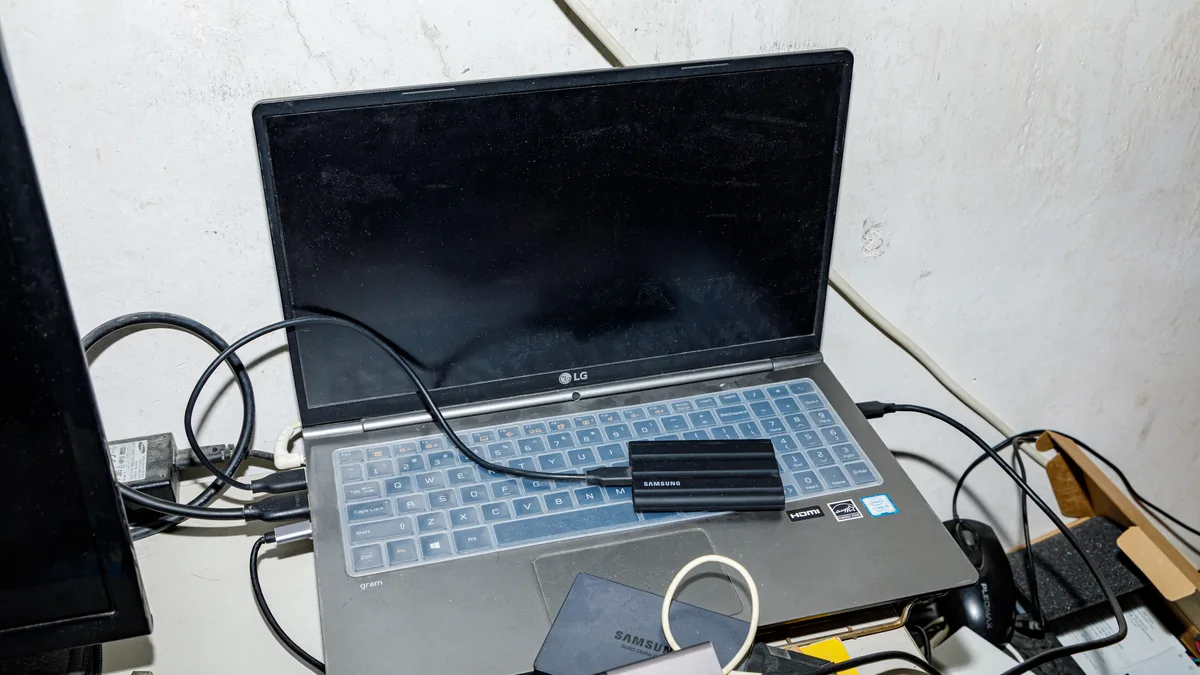
The external version of the same idea is simpler and works on any laptop: a fast portable SSD for the files you carry, and a cheap external hard drive for backups at home. A drive such as the Samsung T7 Portable SSD 1TB is a pocket sized way to carry large files at SSD speed, and it pairs well with a big external hard drive that stays on the desk for backups. If you go this route, our list of essential laptop accessories covers the other add ons worth buying alongside it.
There was also a hybrid drive, called an SSHD, that put a small amount of flash memory inside a hard drive to speed up the files you use most. It was a compromise from the days when SSDs were expensive, and it has mostly disappeared now that SSD prices have fallen. Do not go looking for one.
How to check if your laptop has an SSD or HDD
Before you buy an upgrade, or before you blame the wrong part for a slow laptop, check what you actually have. Windows tells you in a few clicks, with no extra software.
- Press Ctrl + Shift + Esc to open Task Manager.
- Click Performance in the left menu.
- Click Disk 0, or Disk 1 if you have more than one drive.
- Look at the type label near the drive name. Windows shows SSD or HDD, and often the model name too, such as Samsung SSD 980 PRO 1TB.
If you have more than one disk, check each one separately: the system drive may be an SSD while a secondary storage drive is a hard drive. A second method is the Optimize Drives tool, which lists the media type for each drive, and Settings, System, Storage, Disks and volumes shows the same information with the bus type, NVMe or SATA.
While you are there, remember that storage is not the only upgrade that matters. Adding RAM helps too, and the two get confused often: an SSD makes files and apps load faster, RAM lets you keep more apps open at once. Our comparison of DDR4 vs DDR5 RAM in laptops explains the memory side of the same decision.
Upgrading a laptop from HDD to SSD
Swapping a hard drive for an SSD is the cheapest upgrade that makes an old laptop feel new, and on many laptops from 2015 to 2019 it is a straightforward job. If Task Manager says HDD and the laptop takes minutes to start, the drive is very likely your bottleneck, and an SSD will make a bigger difference than adding RAM.
Check what your laptop supports before you spend anything:
- Look up your exact model number, on the sticker underneath the laptop, with the words service manual or SSD upgrade. The manual tells you whether it has a 2.5 inch drive bay, an M.2 slot, or both.
- Check whether the M.2 slot supports NVMe or only SATA. Some older slots only take SATA M.2 drives, and an NVMe drive will not work in them. The 2280 size, 22 mm wide and 80 mm long, is the most common.
- Check whether the RAM and drive are soldered. Some thin laptops have soldered parts that cannot be upgraded at all, so the manual check matters before you order.
For a straight swap in the 2.5 inch bay, a SATA SSD such as the Samsung 870 EVO 1TB SATA SSD is the usual pick: it reads at up to 560 MB/s, it fits the same bay and connector as the hard drive it replaces, and it is the sweet spot for an older laptop. For a laptop with an NVMe M.2 slot, buy an NVMe drive of the right generation instead, since a SATA drive cannot use the faster slot.
You have two ways to move your system across. Cloning copies everything, including Windows, apps and files, onto the SSD, using free software from the SSD maker, and you keep your setup exactly as it is. You need a USB to SATA adapter or an enclosure to connect the new drive while you clone. A fresh install of Windows is cleaner but means reinstalling your apps and copying your files back by hand. Either way, back up your files first: cloning goes wrong rarely, but when it does, the backup is what saves you.
After the swap, check in Task Manager that Windows is now running from the SSD, then enjoy the difference: a laptop that boots in seconds, opens apps without the wait, and no longer shows the disk at 100 percent in Task Manager for no reason. If the old laptop is beyond saving, the money is better spent elsewhere, and our guide to how to sell your used laptop covers getting what it is still worth.
The bottom line
For a laptop, an SSD wins on every measure that matters day to day: speed, battery life, silence and surviving being carried around. A SATA SSD is 3 to 7 times faster than a hard drive, and a modern NVMe SSD is 12 to 40 times faster, and the difference shows up in the first minute you use the machine.
The hard drive is not dead, it has just moved. It is still the cheapest way to store a lot of data, so it belongs in external backup drives, home servers and archives, where its slowness does not matter and its price does. Inside a laptop, as the drive the system runs on, its time has passed.
So when you buy your next laptop, check the drive type before the brand or the processor: SSD, 512 GB or more, NVMe if the price allows. And if your current laptop still runs on a hard drive, an SSD swap is the single upgrade most likely to make it feel new again.
Frequently Asked Questions
Is an SSD better than an HDD for a laptop?
Yes, for almost every laptop use. An SSD is several times faster, uses less battery, makes no noise and survives bumps and drops far better because it has no moving parts. A hard drive only wins on cost per gigabyte, so it still makes sense as cheap secondary or backup storage, not as the drive your laptop runs on.
Is a 256GB SSD better than a 1TB hard drive?
For speed and everyday responsiveness, yes. A 256GB SSD boots Windows in seconds and opens apps near instantly, while a 1TB hard drive takes 30 to 60 seconds to boot and feels slow with several apps open. The 1TB drive only wins on raw capacity, holding about four times as much, so pick it only if you need to store a very large media library locally at the lowest cost.
Can I replace the HDD with an SSD in my laptop?
In most laptops from 2015 onwards, yes. Check your exact model number against the service manual to see whether it has a 2.5-inch drive bay or an M.2 slot, and whether the M.2 slot supports NVMe or only SATA. Then either clone your old drive onto the new SSD with the maker’s free software, or do a fresh Windows install. Some thin laptops have soldered storage that cannot be upgraded.
Does an SSD improve battery life on a laptop?
Yes, by a modest amount. An SSD uses about 2 to 3 watts while active against 3 to 5 watts for a hard drive, because it has no motor to spin. Most guides report roughly 30 to 60 minutes of extra battery life on the same laptop after switching from a hard drive to an SSD. The screen and processor use far more power, so the gain is real but not dramatic.
Do SSDs last longer than HDDs?
Yes, on the available evidence. Backblaze recorded a 1.36 percent annualized failure rate for its hard drives in 2025, while its SSD boot drives failed at 0.92 percent a year in their fifth year against 3.55 percent for hard drives of the same age. A typical 1TB consumer SSD is also rated for 600 terabytes written, which is decades of normal use. Either way, keep a backup, because an SSD can fail suddenly with little warning.
Is a hard drive still worth it in 2026?
Yes, but not as the main drive in a laptop. Hard drives are still the cheapest storage per gigabyte, so they make sense for external backup drives, home servers and large photo or video archives. For the drive your laptop boots from and runs apps on, an SSD is the right choice in 2026, and almost every new laptop ships with one.