How to Check Battery Health on a Windows 11 Laptop
Quick Answer: Windows 11 has no battery health percentage in Settings, so use the built-in battery report. Open Command Prompt as administrator, run powercfg /batteryreport, open the battery-report.html file it creates, and divide Full Charge Capacity by Design Capacity, then multiply by 100. A result of 80 percent or higher means a healthy battery, 60 to 80 percent means noticeable wear, and below 60 percent means a replacement is worth planning. The whole check takes about two minutes and needs no download.
Why Windows 11 hides the health number
Open Settings, go to System, then Power and battery, and you will see the current charge level, which apps used the battery, Energy saver, and the power mode. What you will not see is a health percentage. Windows 11 simply does not print one, and there is no hidden switch to turn it on.
That gap is why so many people assume their battery is fine until the runtime collapses. A battery can show 100 percent charged while holding far less energy than it did when new. The charge percentage tells you how full the tank is. Battery health tells you how big the tank has become.
Method 1: Generate the battery report with one command
This is the most accurate method on any Windows laptop, whatever the brand. It takes about a minute.
- Press the Windows key, type cmd, right-click Command Prompt, and choose Run as administrator.
- Type powercfg /batteryreport and press Enter. Include the space before the slash.
- Windows prints the path where it saved the file. It is usually C:\WINDOWS\system32\battery-report.html. To save it somewhere easier to find, run powercfg /batteryreport /output "%USERPROFILE%\Desktop\battery-report.html" instead.
- Open the file in your browser. It reads like an ordinary web page.
The command works on Windows 10 as well as Windows 11. Running it changes nothing on the laptop. It only reads data Windows already records, so it cannot reset the battery, change any setting, or improve the capacity. It is a measurement, not a repair.
How to read the report: design capacity vs full charge capacity
Scroll to the Installed batteries section near the top of the report. Two numbers there carry the whole health check.
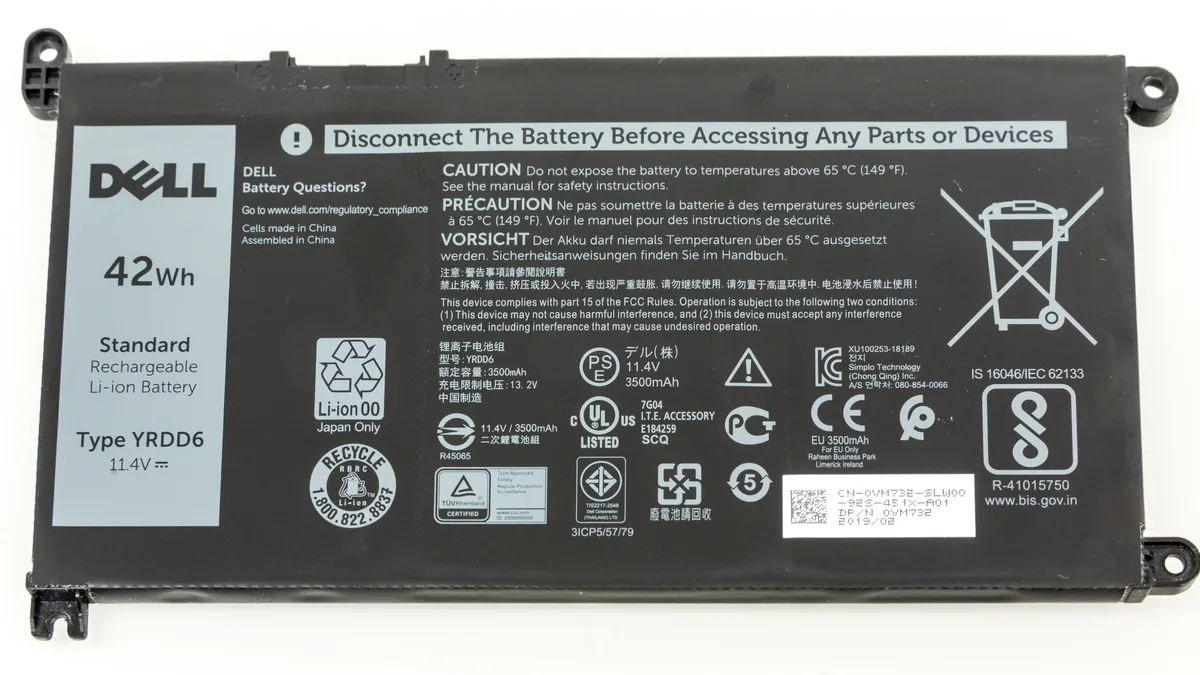
Design Capacity is the energy the battery was rated to hold when it was new. Full Charge Capacity is the energy it can hold now when fully charged. The gap between them is the wear. The health percentage is simply the second number divided by the first, times 100.
Full Charge Capacity divided by Design Capacity, multiplied by 100, equals battery health percent.
A real example makes it concrete. A battery report generated in November 2026 showed a Design Capacity of 52,330 mWh and a Full Charge Capacity of 45,450 mWh. Divide 45,450 by 52,330 and multiply by 100, and the result is 86.9 percent. That battery had lost about 13 percent of its original capacity, which is normal wear for a laptop in regular use.
| Health percentage | What it means | What to do |
|---|---|---|
| 80 to 100 percent | Healthy | Nothing needed, keep using it normally |
| 60 to 80 percent | Noticeable wear | Shorter runtime, start planning ahead |
| Below 60 percent | Worn | A replacement is worth budgeting for |
Treat these bands as a rule of thumb, not an official grade. Microsoft publishes no health thresholds of its own, and its Intune battery health documentation treats capacity under 60 percent as the most impacted range. A battery showing 100 percent charged can still have reduced capacity, so the charge percentage on the taskbar never answers this question.
Two cautions before you act on the number. First, readings can shift by a few percent between reports because of temperature and how the battery measures itself, so look at the trend over a few weeks rather than one number. Second, the same Installed batteries section shows the cycle count when the battery firmware reports it, and our guide to what battery cycle count means explains how to read that number and the 300 to 500 cycle rating most Windows laptops carry.
What else the battery report shows
Recent usage covers the last three days and shows when the laptop ran on battery, when it charged, and when it slept. Battery usage breaks the drain down session by session, so a single bad afternoon stands out. Usage history stretches back weeks and shows charge and discharge patterns over time. Battery capacity history tracks how the full charge capacity changed across that whole period, which is the trend line that matters most: a slow, steady slope down is normal wear, while a sudden drop points to a fault or a bad update. Battery life estimates give a runtime figure based on the drain Windows actually observed, which is usually more honest than the maker's headline number.
If the capacity history shows a sharp drop that lines up with the laptop running hot, heat is the prime suspect. Our guide to how to check laptop temperature shows how to read the numbers and confirm it.
Method 2: Check the maker's own app
Every major laptop maker ships an app that shows battery health in friendlier form than the raw report. If the app is already on the laptop, this is the fastest check of all. If it is missing, install it free from the Microsoft Store.
| Brand | App | Where to look |
|---|---|---|
| Lenovo | Lenovo Vantage | Device, then Power, then See Battery Details for capacity, cycle count and a health rating |
| Dell | Dell Power Manager | Battery Information, health shown as Excellent, Good, Fair or Poor |
| HP | HP Support Assistant | Battery check under the components list |
| ASUS | MyASUS | System Diagnosis, then Battery |
| Acer | Acer Care Center | Battery check on the main screen |
These apps read the same battery data Windows does, but they show less detail than the report, and the health label is the maker's own judgment. Use the app for a quick verdict and the battery report when you want the exact numbers.
Method 3: What Settings can (and cannot) tell you
Settings still earns a look, just not for the health number. Open Settings, go to System, then Power and battery, and you get three useful things. Battery usage per app shows which apps drained the battery over the last 24 hours or 7 days. Energy saver stretches the remaining charge by dimming the screen and limiting background activity. Power mode trades speed for runtime with one click.
That app breakdown solves a different problem. If one app eats a third of the battery, the fix is closing or limiting that app, not buying a new battery.
What makes battery health drop faster
Batteries wear out from use, but four things speed it up. Charge cycles are the slow baseline: every full cycle shaves a little capacity, and heavy daily use on battery reaches the rated life in three to four years. Heat is the biggest accelerator, and a laptop that runs hot ages its battery far faster than a cool one. Our guide to keeping a gaming laptop cool covers the habits that help, and they apply to any laptop that runs warm, not just gaming machines.
Sitting at 100 percent charge is the third factor. A lithium-ion battery is under the most stress when it is full, so a laptop that lives on a desk charger all day wears faster than one that stops at 80 percent. Our guide to limiting laptop battery charge to 80 percent walks through the setting brand by brand. A charger that runs very hot while charging is also worth a look, and our guide to why a laptop charger gets hot explains which warmth is normal and which is a warning. Age is the last factor: even a lightly used battery loses capacity over the years, which is one more reason the manufacture date matters, and our guide to how to tell how old your laptop is shows how to find it from the serial number.
When to replace the battery
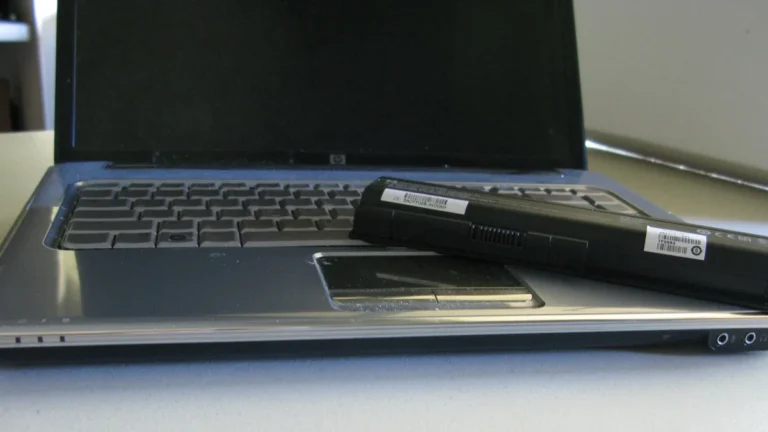
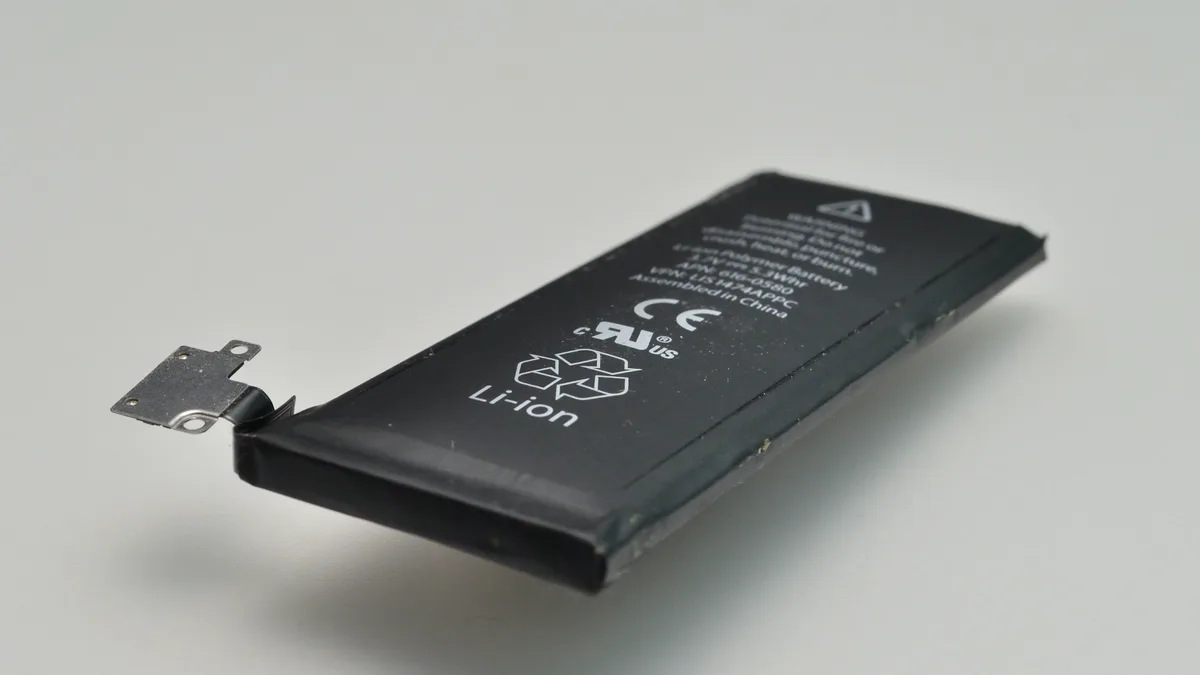
A low health percentage is a planning signal, not an emergency. These are the signs that replacement time has actually arrived: health below 60 percent with a runtime that no longer covers your day, a laptop that shuts down suddenly while still showing 20 or 30 percent charge, a battery that drains in under an hour of light use, or a swollen battery. Swelling shows up as a trackpad that lifts, a keyboard that bulges, or a case seam that opens. Stop using a swollen battery right away and get it replaced, because a swollen lithium battery is a safety issue, not just an inconvenience.
Our guide to how to know if your laptop battery is dead lists the confirming signs in detail, so check them before you spend money. When replacement is the answer, our guide to how much it costs to replace a laptop battery gives you the price range before you book a repair. Most laptop batteries are rated for 300 to 500 cycles, so a high cycle count plus a low health percentage together make the decision easy.
How to slow down battery wear
You cannot stop battery wear, but you can slow it down enough to add a year or more of useful life. Cap the charge at 80 percent when the laptop lives on a desk charger, and only charge to 100 percent on the days you actually need the full runtime. Keep the laptop cool by cleaning the vents and avoiding soft surfaces that block airflow. Avoid regular deep discharges down to zero; topping up in the middle of the day is kinder to the cells than running them flat. If you store a laptop unused for weeks, leave it near 50 percent charge rather than full or empty.
Frequently Asked Questions
How do I check battery health on Windows 11 without installing anything?
Open Command Prompt as administrator, run powercfg /batteryreport, and open the battery-report.html file it creates. In the Installed batteries section, divide Full Charge Capacity by Design Capacity and multiply by 100. That is the health percentage, and the whole check needs no download.
What is a good battery health percentage for a laptop?
80 percent or higher is healthy, and a new laptop should read close to 100 percent. Between 60 and 80 percent the battery is usable but the runtime is noticeably shorter. Below 60 percent, plan for a replacement. Microsoft publishes no official thresholds, so these bands are a widely used rule of thumb.
Does Windows 11 Settings show battery health?
No. Settings shows the charge level, battery usage per app, Energy saver, and power mode, but no health percentage. For the health number, use the powercfg battery report or your laptop maker's app, such as Lenovo Vantage, Dell Power Manager, HP Support Assistant, or MyASUS.
How many charge cycles is a laptop battery good for?
Most Windows laptops are rated for 300 to 500 full charge cycles, while modern MacBooks are rated for 1,000. The count alone does not decide replacement. Pair it with the capacity the battery still holds, and replace the battery when the runtime no longer covers your day.
Can a battery report tell me if my battery is swollen or damaged?
No. The report shows capacity, cycle count, and usage history only. Swelling, unusual heat, and sudden shutdowns are physical signs the report cannot see. If the battery is swollen, stop using the laptop and get the battery replaced right away.