What to Consider When Buying a Laptop: A Simple Checklist
Quick Answer: Start with what you do with the laptop, not with the spec sheet. For most buyers in 2026, the right machine has a current mid-range processor such as a Core 5 or Ryzen 5, 16 GB of RAM, a 512 GB SSD, a bright 1080p screen and a battery that lasts a real working day. Choose Windows if you need the widest software choice, macOS if you live in Apple’s world, or ChromeOS if your work lives in a browser. Set your budget before you compare models, check the return policy and the warranty, and buy the machine for the work you actually do, not the work you imagine doing one day.
Buying a laptop is harder than it looks, and not because the machines are complicated. It is because every listing throws a wall of numbers at you: processor names, RAM sizes, screen resolutions, battery claims and prices that swing by hundreds of dollars between stores. Without a plan, you end up comparing the wrong things, and you either overspend on power you never use or underspend on a machine that feels slow within a year.
This guide gives you a simple order to follow: each step answers one decision, and each decision narrows the choice until only a few machines are left. The spec targets are for 2026. If you also want the money side, our guide to how much a laptop costs breaks down what each price band buys, and our comparison of the best laptop brands shows how Dell, HP, Lenovo, Apple and ASUS stack up.
Step 1: Write down what you actually do with it
Every good laptop decision starts here, because the workload decides the spec, not the other way round. A student who writes essays and streams lectures needs a different machine from a video editor or a gamer, and the gap between their budgets is several hundred dollars. Before you look at a single listing, write down the three or four things you do most on a laptop, and be honest about them. “Browsing and email” is a real answer, and it points to a cheaper machine than “editing 4K video”.
Be specific about the apps, not just the activity. “Photo editing” could mean cropping holiday photos in a browser app, which any modern laptop handles, or working with raw files in Lightroom, which needs a strong processor, lots of RAM and a colour-accurate screen. If you play games, name the games: a laptop that runs Minecraft comfortably may struggle with a demanding new release, and our guide to how to check VRAM explains why the graphics card matters more than the processor for gaming.

The table below is a starting point for the most common workloads. These are buying targets, not laws, and the sections after it explain each one in detail.
| What you do most | Sensible starting point | Budget to expect |
|---|---|---|
| Web, email, documents, streaming | Current mid-range CPU, 8 to 16 GB RAM, 256 to 512 GB SSD | $400 to $700 |
| School or university work | Core 5 or Ryzen 5, 16 GB RAM, 512 GB SSD, light body | $500 to $900 |
| Office work and video calls | Core 5 or Ryzen 5, 16 GB RAM, 512 GB SSD, good webcam | $600 to $1,000 |
| Photo editing and design | Core 7 or Ryzen 7, 16 to 32 GB RAM, colour-accurate screen | $1,000 to $1,800 |
| Video editing and 3D work | Strong CPU and discrete GPU, 32 GB RAM, 1 TB SSD | $1,500 to $2,500 |
| Gaming | Discrete GPU, 16 GB RAM, high-refresh screen | $900 to $1,800 |
One more check at this stage: think about how long you plan to keep the machine. A laptop you buy today should still feel fast in three or four years, because software only gets heavier. Buying slightly above your current needs is usually cheaper than buying twice.
Step 2: Pick the operating system before the hardware
Choose the platform first, because it decides which machines are even on your list. There are three real choices in 2026, and each one suits a different kind of buyer.
Windows is the safest default. It runs the widest range of software, from specialist business tools to PC games, and it comes on laptops at every price from $300 to $3,000. If you need a particular program for work or study, check that it runs on your chosen platform before you buy anything else. One practical note: Windows 10 support has ended, so any new laptop you buy in 2026 should run Windows 11.
macOS is the right choice if your work or your school already runs on Apple software, or if you own an iPhone and an iPad and want them to work together smoothly. MacBooks are more expensive than comparable Windows laptops, and the range is narrower: the cheapest new Mac is the MacBook Neo, which launched in March 2026 at $599, while the MacBook Air with the M5 chip starts at $1,299. What you get for the premium is a silent design on the Air, a trackpad and speakers that are still the best in the business, and a battery that routinely outlasts Windows rivals.
ChromeOS is the simple, low-cost option, and it suits buyers whose work lives in a browser: email, documents, video calls and streaming. Chromebooks are cheap, secure and long-lived on battery, but they cannot run full Windows or Mac software, so check your must-have apps first. Before buying a used Chromebook, look up the model’s Auto Update Expiration date in Google’s ChromeOS update policy, because support eventually ends.
One newer factor is chip architecture. Most laptops still run on Intel or AMD chips, but a growing number use Arm-based processors: every MacBook runs on Apple Silicon, and a rising number of Windows laptops run on Qualcomm Snapdragon X chips. Arm laptops typically offer excellent battery life and run cooler and quieter, though a few specialist apps still do not run natively on them, so check yours before committing.
Step 3: Get the processor right
The processor is the brain of the laptop, and it is the single biggest driver of price after the screen. The good news is that you do not need to memorise model numbers. For most buyers, the choice comes down to two questions: which brand, and which tier.
On Windows laptops, the brands are Intel Core, AMD Ryzen and Qualcomm Snapdragon. Intel rebranded its Core lineup in 2023, dropping the “i” from the names, so the current tiers are Core 3, Core 5, Core 7 and Core 9, with AMD’s equivalents called Ryzen 3, Ryzen 5, Ryzen 7 and Ryzen 9. For a typical user, a Core 5, Ryzen 5 or Snapdragon X is fast enough. For intensive work, or if you plan to keep the laptop for many years, step up to a Core 7, Ryzen 7 or Snapdragon X Plus.
Generation matters more than the tier number alone. A current mid-range processor beats an older high-end one in most everyday tasks, because each generation brings better efficiency and better battery life. When you compare two laptops, check the generation first: an Intel Core 5 from 2026 outperforms a Core 7 from three years ago while using less power. If a deal looks too good, check the processor’s age before you celebrate.
For gaming and creative work, the graphics card matters as much as the processor, sometimes more. Integrated graphics, built into the processor, handle browsing, office work, streaming and light photo editing without any trouble. A discrete graphics card, a separate chip from NVIDIA or AMD, is what you need for modern games, video editing and 3D work. If you game, check the graphics card before the processor, and our guide to how to increase FPS on a gaming laptop shows how much difference the right settings make. If you are choosing between a gaming laptop and a regular one, our gaming laptop vs regular laptop comparison explains where the extra money goes.
Step 4: RAM: 16 GB is the 2026 starting point
If there is one place where buyers under-spec their laptop, it is memory. In 2026, 16 GB of RAM is the practical starting point for most Windows and Mac laptops. It is the cheapest meaningful upgrade you can buy, and it is the difference between a machine that multitasks smoothly and one that stutters when you open a dozen browser tabs during a video call.
Eight gigabytes is the floor, and it feels tight within a year. It works for a Chromebook or a very light Windows machine used only for browsing and documents, but on Windows 11 it leaves little headroom once the system and a few apps are running. Our guide to how much RAM you need for gaming goes deeper on the numbers for players, but the same logic applies to everyone: RAM is what lets you do several things at once without the machine slowing down.
Move to 24 or 32 GB only if your work justifies it: heavy multitasking, video editing, virtual machines, large photo libraries or very large files. For everyone else, the money is better spent on a better screen or a bigger SSD. And check whether the RAM is soldered to the board or socketed. Many thin laptops now ship with soldered memory, which means the amount you buy is the amount you keep for the life of the machine.
Step 5: Storage: buy an SSD, and buy enough of it
Storage is simple in 2026: buy an SSD, not a hard drive. A mechanical hard drive is too slow for a modern laptop, and it makes the whole machine feel sluggish no matter how fast the processor is. Every new laptop worth buying ships with an SSD, and if a listing shows a hard drive as the main storage, it is old stock.
Size is the real decision. A 256 GB SSD can work for a browser-first user who keeps files online, but the operating system, applications, cached files and updates consume space before your own photos arrive. For most people, 512 GB is the comfortable middle ground, and it is the value sweet spot in 2026. Choose 1 TB or more if you store photo libraries, raw video, game installs or local backups. Our guide to how much storage you need on a laptop walks through the maths for different kinds of users, but the short version is this: storage is cheap compared to the cost of running out of it, and moving to a bigger drive later is a hassle you can avoid now.
Also check the type of SSD. Most modern laptops use NVMe drives, which are far faster than older SATA SSDs, and the difference is noticeable when you boot the machine or open large files. The listing rarely makes a fuss about it, so look for “NVMe” or “PCIe” in the spec sheet.
Step 6: Pick the screen for your eyes and your bag
You stare at the screen for every minute you use the laptop, so it deserves more attention than it usually gets. Three things matter: size, resolution and brightness, in that order of importance for most buyers.
Size is a trade between comfort and portability. A 14-inch laptop is the sweet spot for most people: big enough to work on comfortably, small enough to carry every day. A 15.6-inch screen gives you more room but adds weight and bulk. Our guide to laptop screen sizes lays out the dimensions of every common size, and our 14 vs 15.6 inch comparison explains the real-world difference between the two most popular sizes.
Resolution is the number of pixels on the screen. Most laptops have Full HD screens at 1920 by 1080 pixels, and that is the minimum you should accept. A higher resolution is worth paying for if you edit photos or video, but you do not need a 4K screen on a laptop: the extra pixels are barely visible at normal viewing distance, and they cost more and drain the battery faster. Our 4K vs 1080p comparison puts the price premium at roughly $200 to $500 on the same laptop, and for most buyers a sharp 1080p or 1440p panel is the smarter buy.
Brightness matters more than resolution, and it is the spec buyers most often ignore. A screen rated at 250 nits washes out near a window or outdoors, while 300 to 400 nits stays readable in bright rooms and daylight. If you work near windows, in cafes or outside, brightness is worth paying for. Our guide to how to make a laptop screen brighter than max covers the settings that help when the panel itself is dim, but no setting fixes a screen that was too dim to begin with.
Panel type is the last screen decision. IPS panels are the standard on good laptops, with wide viewing angles and decent colours. OLED panels look stunning, with deep blacks and vivid colour, and they are increasingly common on premium machines, but they cost more. TN panels, the cheapest type, have narrow viewing angles and washed-out colours, and they are a sign of a budget machine cutting corners. If the listing does not name the panel type, assume the worst.
Step 7: Battery life: read the claim, not the headline
Battery life is one of the most abused marketing claims in the laptop market. Vendors quote results from light local video playback under ideal settings, with the screen dimmed and Wi-Fi off. Real-world battery life is usually lower, because brightness, browser activity, video calls and background sync all drain power faster. A laptop advertised at 18 hours may deliver 10 or 12 in normal use, and a machine advertised at 10 hours may deliver 7.
So how do you judge it? Look for independent reviews that measure battery life with a real workload, not just the manufacturer’s number. Look at the battery capacity in watt-hours as well: a bigger battery usually means longer life, though a power-hungry screen or processor can eat the advantage.
Charging matters too. USB-C charging is now standard on most good laptops, and it means you can charge from a portable battery pack or a phone charger in a pinch. Fast charging, which tops the battery up to 50 or 80 percent in half an hour, is a genuine convenience if you move between meetings. And if you plan to keep the laptop for years, check how the battery holds up over time: our guide to how to check battery health on Windows 11 shows how to measure what a battery actually delivers.
Step 8: Keyboard, trackpad, webcam and ports
The parts you touch every day shape your experience more than an extra benchmark point ever will. The keyboard, the trackpad, the webcam and the ports are the difference between a laptop that feels good to use and one that quietly annoys you for years.
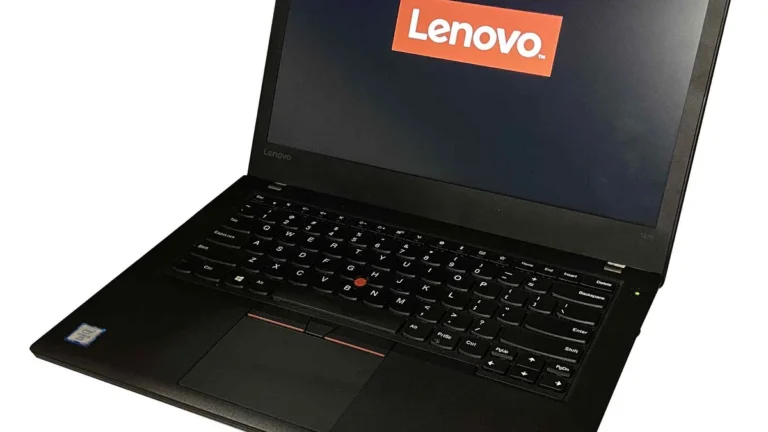
Test the keyboard if you can. Key travel, the distance a key moves when you press it, is what makes a keyboard feel solid or mushy, and it varies a lot between models. Lenovo’s ThinkPads are famous for their keyboards, and our ThinkPad vs IdeaPad vs Yoga guide explains what the ThinkPad premium actually buys. Backlit keys are worth having if you ever work in dim rooms.
The webcam matters more than it used to, because video calls are now a daily fact of work and study. A 1080p webcam looks noticeably better than the old 720p standard, and a physical privacy shutter is a small feature that is genuinely useful.
Ports decide what you can plug in without carrying dongles. At minimum, look for two USB-C ports, at least one USB-A port for older accessories, and an HDMI port if you connect to monitors or projectors. In 2026 it is smart to favour USB-C with Thunderbolt or USB4 support where possible, especially if you plan to connect an external display or a dock. An SD card slot is a bonus for photographers, and a headphone jack is still worth checking, because some thin laptops have dropped it.
Step 9: Weight, build quality and repairability
A laptop you carry every day should be light enough that you actually carry it. Under 1.4 kg is genuinely portable, 1.4 to 1.8 kg is manageable in a bag, and anything over 2 kg starts to feel like luggage. If you commute, study on campus or travel, weight deserves as much attention as the processor.
Build quality is what you feel when you pick the machine up. A metal body feels solid, resists flex and usually lasts longer than plastic, but it costs more. Plastic is lighter and cheaper, and on a good machine it is perfectly durable, but cheap plastic flexes, creaks and cracks around the hinges. Open the lid with one hand if you can: a well-built laptop opens smoothly without the base lifting off the desk. If you need a machine that survives rough treatment, rugged laptops are a separate category, and our fully rugged vs semi-rugged comparison explains the difference, while our guide to the best laptop for outdoor use covers machines built for work away from a desk.
Repairability is the factor most buyers skip, and it decides how long the laptop lasts. Search for the exact model’s repair manual and parts availability before you buy, and check the warranty terms: how long the battery is covered, whether accidental damage is included, and whether repairs are done locally or by mail. A laptop with a soldered battery and soldered storage is a laptop you throw away when one part fails, while a machine with replaceable parts can be kept going for years.
Step 10: Set the budget, then check the price
Set the budget before you compare models, not after. The workload you wrote down in step 1 already points to a price band, and our guide to how much a laptop costs lays out what each band buys. Most buyers land in the $500 to $900 range, where a mid-range processor, 16 GB of RAM and a 512 GB SSD cover school, office work and everyday multitasking for four or five years.
Inside your budget, compare exact configurations, not just model names. The same laptop name can hide very different machines: one configuration may have 8 GB of RAM and a dim screen, while another has 16 GB and a bright panel, for a price difference of a few hundred dollars. Write the complete specification in one line before you buy: model, processor, RAM, SSD, screen, operating system, keyboard layout, charger and warranty.
A safe everyday pick in the mid-range is a mainstream machine with a current Core 5 or Ryzen 5 processor, 16 GB of RAM and a 512 GB SSD. The Lenovo IdeaPad Slim 5 14 is a good example of that formula: a light 14-inch body with the spec combination this guide keeps recommending, at a price that leaves room in most budgets. If you are willing to spend more for a premium everyday machine, the MacBook Air with the M5 chip starts at $1,299 and is the benchmark for a silent, light laptop with outstanding battery life. For a sense of what the money buys at the budget end, our roundups of the best gaming laptops under $700 and the best business laptops under $800 show how far a modest budget stretches when the spec is right.
Do not let a small discount push you below the requirement you wrote in step one. A laptop that is $100 cheaper but has half the RAM or a dim screen is not a bargain, it is a compromise you will feel every day. And remember that prices swing: a machine that lists at $900 in September can sell for $600 in November, and the hardware is identical, so if you can wait for a sale, do.
The 2-minute checklist before you pay
Run through this list before you hand over any money, whether you are buying online or in a shop. It takes two minutes and it catches the mistakes that cost the most.
- Does it run the software you need? Check your must-have apps against the operating system and the chip, especially on Arm-based machines.
- Is the processor current? A current mid-range chip beats an older high-end one. Check the generation, not just the tier number.
- Is it 16 GB of RAM and a 512 GB SSD? That is the 2026 starting point for most buyers. If it is less, know exactly why.
- Is the screen at least 1080p and 300 nits? A dim or low-resolution screen is the hardest flaw to live with, because you see it every minute.
- Can the RAM or storage be upgraded later? If both are soldered, buy the spec you will need in three years, not the one you need today.
- What is the return window? A 14 or 30 day return policy is your safety net if the keyboard, screen or fan noise bothers you in real use.
- What does the warranty cover? Check the battery warranty separately, ask about accidental damage cover, and find out whether repairs are local.
- Does the box include the charger? Some thin laptops now ship without one, or with a slow charger that takes hours to fill the battery.
- Have you compared the exact configuration? Write the full spec in one line and compare it against other listings of the same model name.
- Is the price a sale price or the real price? Check the price history if you can. A “50 percent off” tag on a machine that is always discounted is not a deal.
Mistakes to avoid
The most expensive mistake is buying too much laptop. A $2,000 gaming machine for someone who writes essays and watches videos is $1,000 spent on a graphics card that idles. The second mistake is the opposite: buying the cheapest laptop available and replacing it in two years, which costs more than buying a decent mid-range machine once. A $700 laptop that lasts five years costs $140 a year. A $350 laptop replaced after two years costs $175 a year, and you spend those two years waiting for it.
Other common mistakes are smaller but easy to make. Buying a laptop with 8 GB of RAM in 2026, which saves about $50 now and costs you the machine’s useful life later. Ignoring weight, then carrying a 2.3 kg machine to class every day. Paying for a 4K screen on a 13-inch laptop you use at arm’s length, where the extra pixels are barely visible.
One last check if you are replacing an old machine rather than buying your first: look at what the old one still does well. If it is three years old and only the battery is tired, a new battery costs far less than a new laptop. Our guide on how to tell how old your laptop is helps you judge where it stands, and if you do replace it, our guide on how to sell your used laptop shows how to get value back from the old one.
What should I consider when buying a laptop?
Start with what you will use the laptop for, then choose the operating system, the processor, the RAM, the storage, the screen and the battery in that order. For most buyers in 2026, the right machine has a current mid-range processor such as a Core 5 or Ryzen 5, 16 GB of RAM, a 512 GB SSD, a bright 1080p screen and a battery that lasts a working day. Set your budget before you compare models, and check the return policy and the warranty before you pay.
How much RAM do I need in a laptop in 2026?
Most buyers need 16 GB of RAM in 2026. It is the practical starting point for Windows and Mac laptops, and it keeps multitasking smooth as software grows heavier. Eight gigabytes is the floor and feels tight within a year, especially on Windows 11. Move to 24 or 32 GB only for video editing, virtual machines or very large files. If the RAM is soldered to the board, buy 16 GB now, because you cannot upgrade it later.
Is 512 GB storage enough for a laptop?
Yes, 512 GB is enough storage for most laptop buyers. The operating system, applications and updates take a share of it, but 512 GB still leaves comfortable room for documents, photos and everyday files. Choose 1 TB if you store large photo libraries, raw video, many game installs or local backups. Always buy an SSD rather than a hard drive, because a hard drive makes the whole machine feel slow.
What processor should I get in a laptop?
For most buyers, a current mid-range processor is the right choice: an Intel Core 5, an AMD Ryzen 5 or a Qualcomm Snapdragon X. Step up to a Core 7, Ryzen 7 or Snapdragon X Plus for intensive work or if you plan to keep the laptop for many years. Generation matters more than tier: a current Core 5 beats an older Core 7 while using less power. For gaming and creative work, the graphics card matters as much as the processor.
How important is battery life when buying a laptop?
Battery life matters a lot if you work away from a charger, but treat the manufacturer’s headline number with care, because it is measured under ideal conditions with a dim screen and light use. Real-world battery life is usually lower. Look for independent reviews that measure battery life with a real workload, check the battery capacity in watt-hours, and remember that efficient Arm-based chips, including Apple Silicon and Snapdragon X, typically outlast Intel and AMD rivals on the same battery size.
Should I buy a laptop with Windows, macOS or ChromeOS?
Choose Windows if you need the widest software choice, from specialist business tools to PC games, and the most choice at every price. Choose macOS if your work or school runs on Apple software, or if you already use an iPhone and iPad and want them to work together, and you are willing to pay more for it. Choose ChromeOS if your work lives in a browser, you want a simple, secure and low-cost machine, and your must-have apps all run on the web.