What Is Thermal Throttling on a Laptop?
Quick Answer: Thermal throttling is your laptop’s built-in safety response. When the CPU or GPU gets close to its maximum safe temperature, the chip cuts its own clock speed so it makes less heat. The laptop does not break, it just gets slower, sometimes much slower. On a gaming laptop the classic sign is a game that runs smoothly for the first few minutes and then loses frame rate as the machine warms up. Throttling itself is normal protection, but if it happens during light work, or all the time, the cooling system needs attention.
What thermal throttling actually is
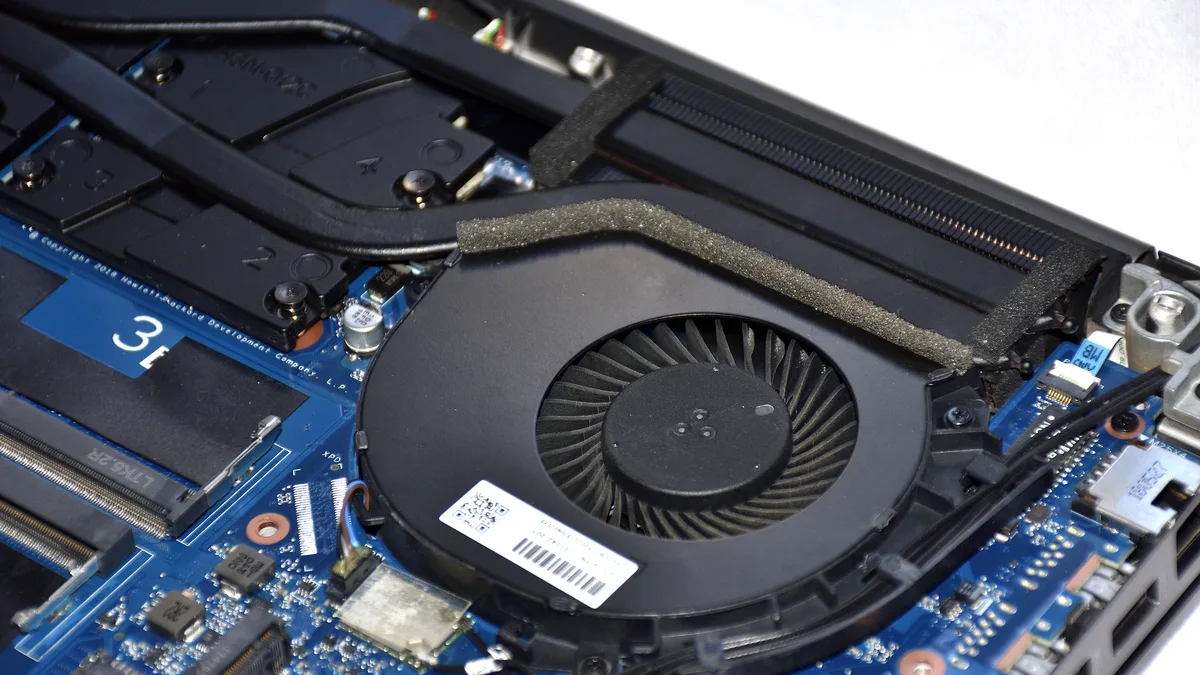
Every laptop chip turns electricity into heat. A CPU or GPU switching billions of times per second generates a lot of it, and in a chassis thinner than a paperback book there is very little room to get rid of it. The cooling system, a set of copper heat pipes, a heatsink and one or two small blower fans, can only move heat so fast.
Each chip has a maximum safe temperature, called TjMax by Intel and the maximum operating temperature by NVIDIA. When the sensors on the chip report that the temperature is approaching that limit, the firmware steps in. It lowers the clock speed and the voltage, which lowers the power draw and the heat output. That deliberate slowdown is thermal throttling.
It is a safety feature, not a fault. A slow laptop is better than a dead chip, so the manufacturer builds this protection into every machine. Modern laptop chips are even designed to run close to their limits under a sustained load. An Intel laptop CPU running at 95 to 100 degrees while gaming is usually working as intended, and an AMD Ryzen 9 HX chip is engineered to sustain around 95 degrees under a full gaming load. The number on its own is not the problem. The throttling is.
How much heat a GPU can make in the first place depends on its power budget. Our guide to what TGP means in a gaming laptop explains why two laptops with the same RTX badge can run at very different speeds: the one with the higher wattage limit has more heat to get rid of, and in a thin chassis that often means more throttling.
The signs your laptop is thermal throttling
Throttling is invisible unless you go looking for it. There is no warning light and no pop-up. What you notice is the performance, and the pattern is always the same: fast at first, then slower.
The most common signs are:
- Frame rate drops after a few minutes. A game starts at 90 frames per second and settles at 45 or 50 once the laptop warms up. If you want to recover some of that lost performance, our guide to how to increase FPS on a gaming laptop covers the settings that help most, and turning on DLSS can raise frame rate while putting less load on the GPU, which means less heat.
- Stuttering under load. The game or video render runs smoothly, then hitches, then recovers, then hitches again as the chip bounces against its temperature limit.
- Fans at full speed with falling performance. Loud fans alone are normal during a game. Loud fans plus a machine that keeps getting slower is the throttling signature.
- Clock speeds below the base clock. A CPU rated for a 4.5 GHz boost that settles at 2.0 to 2.5 GHz under load is being held back by heat, not by the workload.
- Slow renders and exports. A video export or a compile job that starts fast and then crawls is often the same story on the CPU side.
- A hot keyboard and palm rest. Heat you can feel through the chassis is normal on a gaming laptop, but if the machine is uncomfortable to touch during ordinary work, something is wrong.
One quick reality check: throttling should not happen during light work. If your laptop slows down during a video call and a browser, that is not normal protection doing its job. It is a cooling problem.
At what temperature does a laptop start throttling?
There is no single number, because every chip has its own limit. The table below shows the typical throttle points for current laptop chips, taken from the manufacturers’ own specifications.
| Chip | Typical throttle point | Where the number comes from |
|---|---|---|
| Intel laptop CPU (12th and 13th Gen) | 100 degrees C | Intel ARK, TjMax |
| Intel laptop CPU (other generations) | 100 to 110 degrees C | Intel ARK, varies by model |
| AMD Ryzen laptop CPU | 90 to 95 degrees C, some models 105 degrees C | AMD specifications |
| NVIDIA RTX 30 series laptop GPU | 87 degrees C | NVIDIA specifications |
| NVIDIA RTX 50 series laptop GPU | 85 to 90 degrees C by model | NVIDIA product pages |
A few details in that table are worth knowing. On the RTX 50 series the limit is not one number: the RTX 5070 laptop GPU tops out at 85 degrees, the RTX 5060 Ti at 87, the RTX 5080 and 5070 Ti at 88, the RTX 5060 at 89 and the RTX 5090 at 90. GIGABYTE’s own support pages give the same picture in plain terms: Intel laptop CPUs can run up to 100 degrees and NVIDIA laptop GPUs up to 87 to 95 degrees depending on the model.
It also helps to know what normal looks like, so a warm reading does not cause a false alarm. During gaming, a laptop CPU at 80 to 95 degrees and a laptop GPU at 72 to 85 degrees are both ordinary. The throttle point is a ceiling the chip is allowed to touch, not a line it must stay far below. If you want the full picture for your own machine, read our guide to what a good GPU temperature is for a gaming laptop before deciding that a number is a problem.
How to check if your laptop is thermal throttling
Guessing from fan noise is not enough. The free tool for this job is HWiNFO64, and the test takes about half an hour.
- Download HWiNFO64 from hwinfo.com and open it in sensors-only mode.
- Find the CPU temperature, the CPU clock speed, the CPU package power, and the line labelled Thermal Throttling. Do the same for the GPU if you are testing a game.
- Put the laptop under a sustained load: a demanding game, a long video export, or a stress test. Light use will not trigger throttling, so the test has to be a real workload.
- Watch the clock speed for 15 to 30 minutes. The tell-tale signature is unmistakable: the CPU boosts to around 4.5 GHz in the first 30 seconds, then settles at 2.0 to 2.5 GHz after two or three minutes while the temperature sits pinned at the limit.
- Check the Thermal Throttling flag. If it reads YES while the clock has collapsed, the diagnosis is confirmed. HWiNFO64 also has a separate Power Limit flag, which matters for the next section.
Two readings together tell the story. Temperature pinned at the limit plus a collapsed clock speed means thermal throttling. Temperature well below the limit with a flat clock speed usually means something else is holding the chip back. For the temperature side of this test, our guide to how to check laptop temperature walks through the same tools step by step.
Thermal throttling vs power limit throttling
Not every slowdown under load is caused by heat. Many laptops throttle because of firmware power limits instead, and the fix is different, so it is worth telling the two apart.
Every laptop CPU has two power limits set by the manufacturer: PL1, the sustained wattage the chip is allowed to draw indefinitely, and PL2, the short burst wattage it can draw for a few seconds or minutes. A thin laptop might allow a 45 watt PL1 on a chip that could use 90 watts if it had the cooling for it. When the chip hits PL1, it slows down even though the temperature is fine.
HWiNFO64 shows the difference clearly. If the Thermal Throttling flag reads YES and the temperature is pinned at the limit, the problem is heat. If the Power Limit flag reads YES while the temperature sits well below the limit and the power draw is flat at a ceiling, the problem is the firmware limit. Clean the vents all you like and a power-limited laptop will not go faster, because heat was never the constraint.
Power limit throttling is common in thin and light laptops, where the chassis simply cannot cool the chip at full power. It is a design trade-off, not a defect, and it is one reason a gaming desktop beats a gaming laptop on sustained performance: the desktop has the cooling headroom to hold its power limits for hours.
What causes thermal throttling on a laptop?
Throttling is almost never caused by one thing. It is usually a stack of small problems that add up: a bit of dust here, slightly tired thermal paste there, and a habit of using the laptop on a soft surface.
Dust in the vents and heatsink fins. This is the most common cause, and the easiest to fix. Dust builds up on the fan blades and packs into the thin fins of the heatsink, blocking airflow even while the fan spins at full speed. The photo below shows what that looks like up close: a vent grille choked with dust and fibres, leaving the fan almost no air to move.

Dried-out thermal paste. Thermal paste sits between the CPU and GPU dies and the heatsink, filling microscopic gaps so heat can transfer into the cooling system. After two to three years of regular use it dries out and cracks, and heat transfer gets worse. Testing published by Evetech found that repasting a two to three year old laptop typically lowers temperatures by 8 to 15 degrees, which is often enough to stop throttling entirely. If you are wondering whether your machine is old enough for this to matter, our guide to how to tell how old your laptop is shows how to find its real age from the serial number and the hardware.
Blocked air vents. Laptop vents sit on the bottom and sides of the chassis. Using the machine on a bed, a blanket or your lap blocks the intake, and the fans end up recirculating their own hot air. This is the single most common cause on laptops that are otherwise healthy.
A failing fan. A fan with worn bearings spins slower than it should, or makes a grinding or clicking noise. Some laptops also stop the fans entirely at idle, which is normal: the zero-decibel mode on current machines keeps the fans off below roughly 50 degrees. A fan that never spins up under load is a different story and needs a repair.
A thin chassis with a hot chip. Some laptops are simply built with more power than their cooling can handle. A high wattage GPU in a slim body will throttle under a sustained load no matter how clean it is, because the cooling system was never sized for the full power draw. This is the trade-off you accept with an ultra-thin gaming laptop, and it is worth checking before you buy: our roundup of which laptop has the best cooling system compares the machines that handle heat best.
Hot VRAM and a hot room. The graphics memory chips sit next to the GPU and share its cooling, so a GPU that is working hard heats its memory too. If you want to see how much memory your graphics card has and whether it is the bottleneck, our guide to how to check VRAM on a laptop covers that. Room temperature matters as well: a laptop in a 32 degree room has far less thermal headroom than the same machine in an air-conditioned office.
How to fix thermal throttling
Work through these in order. The first three fix most cases, and they cost nothing or nearly nothing.
- Clean the vents. Shut the laptop down, then blow the vents out with short bursts of compressed air duster for electronics. Hold the fan still with a toothpick or a finger while you do it, so it does not spin up faster than it is built for. Do this every three to six months if you use the laptop daily.
- Use a hard, flat surface. A desk or a table lets the intake vents breathe. If you must use the laptop on your lap, a lap desk or even a hardcover book underneath it helps. Lifting the rear of the laptop by a centimetre or two also improves airflow noticeably.
- Try a cooling pad. A simple stand with fans, such as the Havit HV-F2056 laptop cooling pad, pushes extra air into the intake vents and typically drops temperatures by a few degrees. It will not fix a dust-clogged heatsink, but it helps a healthy machine hold its boost clocks longer.
- Switch the power and fan mode. Most gaming laptops have a performance, balanced and quiet mode in their control software. Quiet mode caps the fans and the power draw, which makes throttling worse under load. Use the performance or turbo mode when you are gaming, and save quiet mode for browsing.
- Update the BIOS and drivers. Manufacturers regularly adjust fan curves and power limits in BIOS updates, and a new graphics driver can fix a game that was pushing the GPU harder than it should. Check the laptop maker’s support page for your exact model.
- Lower the load. Cap the frame rate at 60, drop the resolution one step, or turn on DLSS. A game running at a steady 60 frames with the GPU at 75 percent load makes far less heat than the same game chasing 120 frames at full load, and the difference on screen is small.
- Replace the thermal paste. On a laptop that is two or three years old and still throttles after cleaning, fresh paste is the fix that matters. It means opening the machine and removing the heatsink, so if you are not comfortable doing that, a repair shop will do it for a modest fee.
- Consider undervolting, with a warning. Reducing the voltage the CPU gets can cut heat without cutting speed, using tools such as ThrottleStop or Intel XTU. But Intel locked voltage control on many laptops after its December 2019 Plundervolt fix, so this option simply is not available on a lot of current machines. Check whether your model supports it before spending time on it.
For the full routine, including the settings and habits that keep a gaming laptop cool day to day, read our guide to how to keep the gaming laptop cool. It covers the same ground in more depth, including the cleaning schedule and the fan profiles that work best.
Does thermal throttling damage your laptop?
No. Throttling is the mechanism that prevents damage. The chip slows itself down precisely so it stays inside its safe temperature range, and if throttling is not enough, the firmware will cut power harder and, as a last resort, shut the machine down rather than let the silicon cook itself.
That does not mean sustained heat is harmless. Heat speeds up the ageing of everything around the chip. The battery is the most affected part: a battery that spends its life above 40 degrees loses capacity faster than one kept cool, so a laptop that runs hot all day will need a battery replacement sooner. If your battery life has already dropped, our guide to how to check battery health on a Windows 11 laptop shows how to measure what is left. Thermal paste also dries out faster in a hot machine, which makes the throttling worse over time, a slow cycle that cleaning and repasting breaks.
Can you turn off thermal throttling?
There is no safe off switch, and you should not go looking for one. The temperature limits are set in firmware to protect the hardware, and defeating them risks a shutdown at best and a dead chip at worst. Some BIOS menus let you raise the power limits or the temperature ceiling by a few degrees, but that trades a small speed gain for more heat, more fan noise and a shorter life for the battery and the paste.
The right question is not how to turn throttling off, but why it is happening. If a clean, well-ventilated laptop still throttles during light work, the cooling system has a fault: a dead fan, a heatsink that has come loose, or paste that has completely dried out. That is a repair, not a setting.
The bottom line
Thermal throttling is your laptop protecting itself. A chip that slows down under a heavy load is doing its job, and the temperatures that trigger it, around 100 degrees for an Intel CPU and 85 to 90 degrees for an NVIDIA laptop GPU, are the manufacturer’s own limits, not a sign of failure.
What matters is the pattern. Throttling during a long gaming session is normal. Throttling during a video call is not. Check it properly with HWiNFO64, clean the vents, give the machine air to breathe, and most laptops go back to holding their boost clocks. And if you are buying your next laptop, put cooling on the checklist next to the processor and the screen: our guide to what to consider when buying a laptop explains why the cooling system deserves the same attention as the specs on the box.
Frequently Asked Questions
Is thermal throttling bad?
No, not by itself. Thermal throttling is a safety feature that stops the CPU or GPU from overheating by slowing it down. It becomes a problem when it happens constantly or during light work, because that means the cooling system cannot keep up and you are losing performance you paid for.
Is 90 degrees C too hot for a laptop CPU?
For most modern laptop CPUs, no. Intel laptop CPUs are designed to run up to a TjMax of 100 degrees, and AMD Ryzen laptop chips typically throttle at 90 to 95 degrees, so 90 degrees under a heavy gaming or rendering load is within spec. What matters is whether the chip is throttling at that temperature, not the number alone.
Is 85 degrees C too hot for a laptop GPU?
Usually not. Most NVIDIA laptop GPUs start throttling between 85 and 90 degrees depending on the model, so 85 degrees during gaming is at the edge of normal. If the frame rate is steady and the clock speed is holding, the GPU is fine. If the frame rate drops as the temperature sits at 85, the card is throttling and the cooling needs attention.
How do I stop my laptop from thermal throttling while gaming?
Start with the free fixes: clean the vents with compressed air, use the laptop on a hard flat surface, and switch the fan profile to performance mode. Then lower the load by capping the frame rate or turning on DLSS. If it still throttles, a cooling pad helps, and on a laptop over two years old, replacing the dried-out thermal paste is the fix that usually makes the biggest difference.
Why does my laptop throttle even when it is new?
Some thin laptops are built with more power than their cooling can handle, so they throttle under a sustained load from day one. That is a design trade-off, not a defect. But if a new laptop throttles during light work such as browsing or video calls, that is not normal, and you should contact the seller or use the warranty, because a fan or heatsink fault is likely.
Does cleaning the fans stop thermal throttling?
Often, yes. Dust clogging the vents and heatsink fins is the most common cause of throttling, and cleaning it out with compressed air every three to six months restores airflow and can drop temperatures by several degrees. If cleaning does not help, the next likely cause is dried-out thermal paste, which needs replacing.