How to Turn Off the Touchpad When a Mouse Is Connected
Quick Answer: To turn off touchpad when mouse is connected on Windows 11, press Win + I, go to Bluetooth and devices, then Touchpad, expand the Touchpad toggle, and clear the checkbox labelled “Leave touchpad on when a mouse is connected”. Windows then ignores the touchpad while a mouse is connected and turns it back on the moment you unplug the mouse. No restart is needed, and nothing is uninstalled. On Windows 10 the same checkbox sits under Settings, Devices, Touchpad. On a Mac, the matching setting is “Ignore built-in trackpad when mouse or wireless trackpad is present” in System Settings, Accessibility, Pointer Control.
Why a mouse and a touchpad fight each other
A laptop touchpad is a fine pointing device on its own, but it shares the palm rest with your hands. While you type, the heel of your palm or the side of your thumb can brush the touchpad, and the cursor jumps to another line, selects a block of text, or clicks something you never meant to click. It is the most common complaint about laptop keyboards, and it gets worse on small machines where the touchpad sits close to the keys.
An external mouse solves the problem by giving your hand a job away from the keyboard, but only if the touchpad stops listening at the same time. If both stay live, a stray palm touch can still move the cursor while your other hand is on the mouse. That is why the automatic setting exists: the touchpad turns itself off when a mouse appears and turns itself back on when the mouse goes away, so you never have to remember to switch it by hand.
Touchpad size is part of the story too. A 14 inch machine usually has a smaller touchpad than a 16 inch one, which changes how often your palm catches it, and the palm rest layout differs across laptop screen sizes in ways that are easy to miss when you buy. Our comparison of a 14 inch vs 16 inch laptop covers how the bigger chassis changes the typing experience, touchpad included.
Turn off touchpad when mouse is connected in Windows 11
This is the method most people want. It uses a built-in Windows setting, it takes about ten seconds, and it works on any laptop with a Precision touchpad driver, which covers nearly every Windows laptop sold in the last several years.
- Press Win + I to open Settings.
- Select Bluetooth and devices in the left sidebar.
- Click Touchpad.
- Make sure the Touchpad toggle at the top is set to On. If it is off, the options below it stay hidden.
- Click the small arrow next to the Touchpad heading to expand the extra options.
- Clear the checkbox labelled Leave touchpad on when a mouse is connected.
That is the whole job. Plug in a mouse and slide a finger across the touchpad: the pointer should not move, while the mouse still moves it. Unplug the mouse and the touchpad works again at once, with no restart and no second visit to Settings.
Two details catch people out. First, the checkbox is a condition, not a power switch. Clearing it does not switch the touchpad off; it tells Windows to ignore the touchpad only while a mouse is connected. Second, the master Touchpad toggle above it is a different thing. Turning that toggle off disables the touchpad for good, until you turn it back on. Leave the master toggle on and clear only the checkbox, and the touchpad behaves exactly the way you want at a desk and on the move.
This setting pairs well with a desk setup. If your laptop sits on a stand with an external screen, the same mouse is doing all the pointing, so the touchpad has no job at all while you are docked. Our guide to using a laptop with the lid closed covers the rest of that setup, including the power setting that keeps the laptop awake when the lid shuts.
Turn off touchpad when mouse is connected in Windows 10
The Windows 10 path is nearly identical, with one menu name changed.
- Press Win + I to open Settings.
- Select Devices.
- Click Touchpad in the left sidebar.
- Clear the checkbox labelled Leave touchpad on when a mouse is connected. On Windows 10 this checkbox sits right on the Touchpad page, with no arrow to expand first.
The result is the same: the touchpad turns off when a mouse is connected and back on when you unplug it. One thing to know is that Microsoft ended support for Windows 10 on 14 October 2025. The touchpad setting still works, but the machine no longer gets regular security updates unless it is enrolled in the Extended Security Updates program, which Microsoft lists as running for consumers through 12 October 2027. If your laptop still runs Windows 10, this is a good moment to plan the move to Windows 11 rather than only fixing the touchpad.
What the checkbox actually does
It helps to know exactly what Windows is doing, because the behaviour surprises people in two specific cases.
When the checkbox is cleared, Windows watches for an external pointing device. A wired USB mouse counts. A wireless mouse with a USB receiver counts. A Bluetooth mouse counts. The moment one is detected, input from the touchpad is ignored. The moment the mouse disappears, touchpad input works again. Nothing is disabled in Device Manager, no driver is removed, and no setting has to be undone by hand.
The two surprises both involve wireless mice. First, a Bluetooth mouse can go to sleep or drop its connection. When that happens, Windows treats the mouse as disconnected and the touchpad comes back, sometimes in the middle of a sentence. Second, a mouse with a USB receiver stays “connected” as long as the receiver is plugged in, even if the mouse itself is switched off or sitting in your bag. If you pack the mouse away without removing the dongle, your touchpad stays off until the receiver comes out. Dell’s own help pages flag this exact catch, and it is the most common reason people think the setting is broken.
| Method | Where to find it | Turns off automatically? | Best for |
|---|---|---|---|
| Windows 11 Settings checkbox | Settings, Bluetooth and devices, Touchpad | Yes, while a mouse is connected | Most Windows 11 laptops |
| Windows 10 Settings checkbox | Settings, Devices, Touchpad | Yes, while a mouse is connected | Windows 10 laptops |
| Synaptics or ELAN setting | Control Panel, Mouse, manufacturer tab | Yes, when a USB mouse is attached | Older laptops without a Precision driver |
| macOS Pointer Control | System Settings, Accessibility, Pointer Control | Yes, while a mouse or trackpad is present | MacBook users |
| Fn key shortcut | Fn plus the key with a touchpad icon | No, manual on and off | A quick manual toggle |
| Device Manager | Mice and other pointing devices | No, stays off until re-enabled there | Turning the touchpad off for good |
If the checkbox is missing
On some laptops the “Leave touchpad on when a mouse is connected” checkbox simply is not there. That almost always means the laptop is not using a Precision touchpad driver. Instead it runs the touchpad maker’s own driver, usually Synaptics or ELAN, and Windows hides the checkbox because the maker controls the behaviour instead.
Before doing anything else, check for a driver update. Open Settings, Windows Update, and install anything pending, then restart. If that does not bring the checkbox back, open Device Manager, expand “Mice and other pointing devices”, right-click the touchpad entry, and choose “Update driver”, then “Search automatically for drivers”. As a last step, get the touchpad driver from the laptop maker’s own support site, using your exact model number, because a generic driver from Windows Update sometimes lacks the maker’s control panel.
Older machines are the ones that usually hit this. If your laptop is several years old and you are not sure which generation it belongs to, our guide on how to tell how old your laptop is shows how to find its age from the serial number and the original release date. Age alone does not decide it, but a laptop from the early Precision era is far more likely to need the manufacturer method in the next section.
Synaptics and ELAN laptops: use the manufacturer setting
If the Windows checkbox is missing, the same automatic behaviour is usually available one menu deeper, in the touchpad maker’s own settings.
- Open Control Panel and select Mouse. If Control Panel shows categories, switch the view to large or small icons first.
- Click the touchpad tab. Depending on the driver it may be called Clickpad, Device Settings, Touchpad, or carry the maker name, Synaptics or ELAN.
- Check the box labelled Disable internal pointing device when external USB pointing device is attached. The wording varies slightly by driver version, but it always mentions the internal device and the external USB device.
- Click OK.
Some makers also ship their own utility with the same option under a different name. Lenovo laptops may show it in Lenovo Vantage or the Synaptics control panel, Dell machines in the Dell Touchpad settings, and HP laptops in the HP Control Zone or the Synaptics panel. The option is the same in every case: the internal touchpad stops when an external USB mouse is attached.
One limit to know: the manufacturer setting usually reacts to USB mice only. A Bluetooth mouse with no receiver may not trigger it, because the driver watches the USB port, not the Bluetooth radio. If you use a Bluetooth mouse on a Synaptics or ELAN laptop, test it after changing the setting. If the touchpad stays live, use a receiver mouse instead, or use the Fn key toggle in the section below.

Turn off the trackpad when a mouse is connected on a Mac
MacBooks call it a trackpad, and the setting works the same way, with one difference: it reacts to a mouse or to an external wireless trackpad, not only to a mouse.
- Open System Settings from the Apple menu.
- Select Accessibility in the left sidebar.
- Click Pointer Control.
- Turn on Ignore built-in trackpad when mouse or wireless trackpad is present.
With that on, the built-in trackpad stops responding while a mouse or a Magic Trackpad is connected, and it wakes up again when you disconnect. The setting is easy to miss because it lives under Accessibility rather than under Trackpad, where most people look first.
MacBooks are also the laptops where the trackpad is genuinely good enough that many people never plug in a mouse at all. If you are still deciding between the two platforms, our comparison of a MacBook vs Windows laptop for college students covers the trackpad, the keyboard, and the rest of the daily experience side by side.
What about a Chromebook?
ChromeOS has no built-in setting that turns the touchpad off automatically when a mouse is connected. There is a touchpad section in Settings, under Device, Touchpad, but it only covers speed, scrolling direction, and tap to click. The automatic option that Windows has does not exist there.
The practical workaround is the keyboard shortcut Search + Shift + P, which toggles the touchpad on and off by hand. Press it once when you sit down with a mouse, and press it again when you unplug the mouse and need the touchpad back. It is manual rather than automatic, so it is easy to forget, but it is the only built-in option ChromeOS offers.
That gap is worth knowing before you buy a Chromebook as a desk machine. Our comparison of a Chromebook vs Windows laptop for students covers the other places where ChromeOS behaves differently from Windows, so the trade-offs are clear before you commit.
Other ways to stop the touchpad getting in the way
The automatic checkbox is the best answer for most people, but it is not the only one. These methods help when the checkbox is missing, when you want the touchpad off for good, or when the problem is palm touches rather than the touchpad itself.
Use the Fn key shortcut
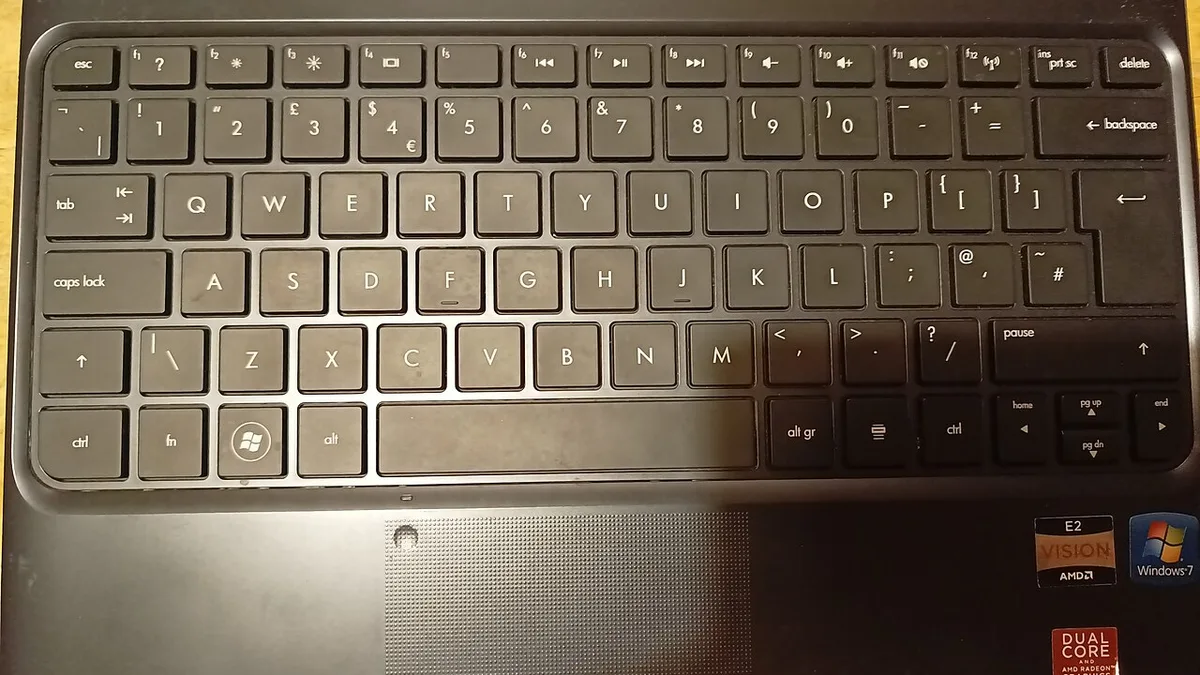
Many laptops have a function key with a touchpad icon, often F5, F6, F7, or F9. Pressing Fn plus that key toggles the touchpad on and off. HP laptops also have a double-tap spot in the top-left corner of the touchpad that does the same thing. This is a manual switch, so it does not react to a mouse being plugged in, but it is the fastest fix when you only need the touchpad off for an hour.
Raise the touchpad sensitivity threshold
Sometimes the touchpad does not need to be off, it only needs to stop reacting to your palms. In Windows 11, go to Settings, Bluetooth and devices, Touchpad, Taps, and set “Touchpad sensitivity” to Low or Medium low. That makes the touchpad ignore light accidental brushes while still responding to a deliberate finger. It is a good middle ground if you use the touchpad sometimes and a mouse the rest of the time.
Turn the touchpad off in Device Manager
Device Manager is the hard off. Open it, expand “Mice and other pointing devices”, right-click the touchpad entry, which is usually named for the maker, such as Synaptics, ELAN, or HID-compliant touch pad, and select “Disable device”. Only use this when a working mouse is already connected, and only when you want the touchpad gone in every situation, not just while a mouse is connected. The touchpad stays off until you re-enable it in the same place, so if the mouse dies and the touchpad is off, you will need the keyboard to get back in: press Win + X, choose Device Manager with the arrow keys, and use Shift + F10 to open the menu on the touchpad entry.
Turn the touchpad off in BIOS or UEFI
Some laptops let you disable the touchpad in BIOS or UEFI, usually under Advanced or Integrated Peripherals, as “Internal Pointing Device” or “Touch Pad”. This is the most permanent option and the least convenient, because changing it means a restart and a trip into firmware settings. Use it only if you never want the touchpad at all.
Use a third-party tool
If none of the built-in options exist on your laptop, the free tool Touchpad Blocker can disable the touchpad while you type and re-enable it when you stop, which solves the palm-touch problem without touching any setting. It is a workaround rather than a proper fix, so try the Windows setting first and keep this as the fallback for older machines.
If the touchpad itself is misbehaving rather than just getting in the way, jumping, freezing, or not responding at all, the cause may be hardware rather than settings. Touchpad repairs usually mean a palm rest replacement, and the cost picture is similar to other input hardware. Our guide to how much it costs to replace a laptop keyboard explains how repair pricing works and when a repair is worth it versus replacing the machine.
A mouse that makes this setup work
The automatic setting is only half of a good desk setup. The other half is a mouse you actually enjoy using for hours, because a small travel mouse that cramps your hand will send you back to the touchpad by lunchtime.
For a desk, the Logitech MX Master 3S is the usual recommendation, and it earns it: a full-size sculpted shape that fits a palm, quiet clicks, a precise sensor that tracks on almost any surface, and both Bluetooth and a USB receiver in the box, so it works with the automatic touchpad setting either way you connect it. It also pairs with up to three devices, which matters if the same mouse serves a laptop and a desktop. If your laptop travels with you, the compact Logitech MX Anywhere 3S is the same idea in a smaller body that fits a laptop bag, with the same dual Bluetooth and receiver connection.
Two practical notes before you buy. First, a receiver mouse triggers the automatic setting the moment the receiver is plugged in, while a Bluetooth mouse triggers it only when the mouse is awake and paired, so a receiver connection is the more reliable choice if you want the touchpad off every time you sit down. Second, a mouse matters more in games than anywhere else, because a touchpad cannot match a mouse for aim. Our guide to how to increase FPS on a gaming laptop covers the settings side, and the difference a proper mouse makes shows up in the same way in our gaming laptop vs desktop comparison and our best laptops for Fortnite picks, where every recommendation assumes a mouse is connected.
Troubleshooting: when it does not work as expected
The checkbox is missing
Your laptop uses a manufacturer driver instead of a Precision driver. Update the touchpad driver from the laptop maker’s support site, then check Control Panel, Mouse, for the manufacturer tab described above. If no manufacturer tab exists either, use the Fn key toggle or a third-party tool as a fallback.
The touchpad stays on after you clear the checkbox
First, confirm the mouse is actually detected: move the mouse and check the pointer responds, then check Bluetooth is on for a Bluetooth mouse. Second, restart the laptop, because a driver that loaded before the change sometimes needs a restart to apply it. Third, check whether a manufacturer utility is overriding Windows. Lenovo Vantage, Dell Touchpad settings, and HP Control Zone can each set their own touchpad behaviour, and their setting wins over the Windows checkbox.
The touchpad stays off after you unplug the mouse
This is almost always a wireless mouse. A Bluetooth mouse that went to sleep before you unplugged it can leave Windows thinking a mouse is still connected for a few seconds, and a USB receiver left in the port keeps the mouse “connected” until the receiver comes out. Remove the receiver, wait a few seconds, and the touchpad should wake up. If it does not, press Win + I, go to Bluetooth and devices, Touchpad, and tick the checkbox back on, then clear it again.
The touchpad is off and there is no mouse
Do not panic. Press Win + I to open Settings, use Tab and the arrow keys to reach Bluetooth and devices, then Touchpad, and turn the Touchpad toggle back on. On most laptops the Fn key plus the touchpad key also turns it back on without opening any menu.
The cursor still jumps while you type
If the automatic setting is working but the cursor still jumps, the cause is probably not the touchpad. A worn or swollen battery can press on the touchpad from below, and a loose palm rest can flex under your hands. Both are hardware problems, and both get worse over time, so get them checked rather than changing more settings.
Frequently asked questions
How do I turn off my laptop touchpad when a mouse is connected?
On Windows 11, press Win + I, go to Bluetooth and devices, then Touchpad, expand the Touchpad toggle, and clear the checkbox labelled “Leave touchpad on when a mouse is connected”. On Windows 10, the same checkbox is under Settings, Devices, Touchpad. Windows then ignores the touchpad while a mouse is connected and turns it back on when you unplug the mouse.
Why is there no “Leave touchpad on when a mouse is connected” option?
The option only appears on laptops with a Precision touchpad driver. If your laptop uses a Synaptics or ELAN driver instead, Windows hides the checkbox and the maker controls the behaviour. Open Control Panel, Mouse, and look for the manufacturer tab, where the matching option is usually labelled “Disable internal pointing device when external USB pointing device is attached”. Updating the touchpad driver from the laptop maker’s support site can also bring the Windows option back.
Does the touchpad turn back on when I unplug the mouse?
Yes, automatically. The checkbox is a condition, not a power switch: it tells Windows to ignore the touchpad only while a mouse is connected. The moment you unplug a wired mouse, remove a USB receiver, or disconnect a Bluetooth mouse, the touchpad works again. No restart and no second visit to Settings is needed.
How do I turn off the trackpad when a mouse is connected on a Mac?
Open System Settings, select Accessibility, click Pointer Control, and turn on “Ignore built-in trackpad when mouse or wireless trackpad is present”. The built-in trackpad then stops responding while a mouse or an external trackpad is connected, and it wakes up again when you disconnect. The setting lives under Accessibility rather than under Trackpad, which is why many people miss it.
Can I disable the touchpad permanently?
Yes. Open Device Manager, expand “Mice and other pointing devices”, right-click the touchpad entry, and choose “Disable device”, or turn the touchpad off in BIOS or UEFI. Both are hard offs that stay off until you re-enable them in the same place, so only use them when a working mouse is already connected. For most people the automatic checkbox is the better choice, because the touchpad is still there when you travel without a mouse.
Why does my touchpad stay off after I unplug the mouse?
Two common causes. First, a USB receiver left in the port keeps Windows thinking a mouse is connected, even if the mouse itself is switched off, so remove the receiver. Second, a Bluetooth mouse that went to sleep can leave Windows waiting a few seconds before it notices the mouse is gone. If the touchpad still does not wake up, open Settings, Bluetooth and devices, Touchpad, and tick the “Leave touchpad on when a mouse is connected” checkbox back on, then clear it again.