How to Stop Your Laptop From Overheating
A laptop that runs hot is not just uncomfortable. Heat makes fans loud, it can slow the processor down just when you need speed, and repeated shutdowns can cost you unsaved work.
The good news is that most overheating has a simple cause: blocked air, dust in the vents, too much work running at once, or a power setting that keeps the processor at full speed for no reason.
This guide works through the fixes in the right order, from the free and safe checks first to the hardware faults that need a technician.
It follows the guidance published by Dell, HP, Lenovo, Apple and Microsoft, so you will not be asked to open the machine, force the fan off, or change a setting that puts the laptop at risk.
Quick Answer: Put the laptop on a hard, flat surface, clear the vents, and close heavy apps you do not need. Clean the vents with short bursts of canned compressed air while the laptop is off and unplugged. Set Windows to Balanced power mode, update drivers and BIOS from your maker, and use a stand or cooling pad if the laptop still runs hot under heavy work. If it shuts down, smells hot, or the battery looks swollen, stop using it and get it checked.
| Symptom | Likely cause | First fix to try | When to get help |
|---|---|---|---|
| Warm only during games or video work | Normal heavy load plus limited airflow | Clear vents, use a hard surface, set a cooling profile | Heat stays high after the work ends |
| Hot during light browsing | Dust, blocked vents, or a runaway app | Clean vents, check Task Manager or Activity Monitor | Fan grinds, stops, or never speeds up |
| Fans loud all the time | High power mode or background work | Switch to Balanced, close extra apps, update drivers | Noise remains after cleaning and updates |
| Sudden shutdowns | Heat protection or a failing fan or battery | Save work, let it cool, check vents and fan | Shutdowns repeat, or the battery is swollen |
Why Laptops Overheat in the First Place
A laptop makes heat whenever its processor and graphics chip work. That heat has to leave through vents, usually with help from one or two small fans. The design works well when air can flow in, pick up heat from the heatsink, and flow out again.
It fails when any part of that path is blocked.
Dust is the slow cause. Over months, dust and lint collect on vent grilles and on the fine fins inside the cooling system. Air still moves, but less of it, so the same work produces a hotter machine and louder fans.
Dell calls dust buildup on fans or air vents the most common reason for an overheating computer, and that matches what most owners see: a laptop that was quiet when new becomes noisy after a year or two of daily use on a desk, a bed, or a dusty room.
Blocked vents are the fast cause. A laptop on a bed, a blanket, a cushion, or a lap can lose its intake air in seconds. The bottom vents sit against soft material, hot air has nowhere to go, and temperatures climb.
The same thing happens when papers, a sleeve, or a bag sit against a side or rear exhaust. This is why every major maker repeats the same first rule: use the laptop on a hard, flat, sturdy surface.
Workload is the third cause, and it is the one people miss. A browser with dozens of tabs, a video call, a cloud backup, an antivirus scan, and a game update can all run at once. Each one alone is light work.
Together they keep the processor busy, and a busy processor makes heat continuously rather than in short bursts. A single runaway process can do the same thing on its own. If a program crashes or loops, it can hold the processor at high use even while the screen looks idle.
Power settings add a fourth cause. Best Performance mode in Windows tells the processor to stay ready for instant speed. That is useful for a short render or a game, but for email, documents, and browsing it often just creates extra heat and fan noise for no visible benefit.
Balanced mode lets the processor slow down when the work is light, which is exactly what keeps a laptop cool during ordinary use.
Finally, age and hardware faults matter. Thermal paste between the processor and the heatsink can dry out over years, a fan bearing can wear out, and a battery fault can itself create heat. Those are not cleaning problems.
They are repair problems, and they are covered near the end of this guide so you can tell them apart from a simple dust or airflow fix.
Understanding the cause matters because it stops you wasting money. A cooling pad will not fix a fan that has stopped spinning. A new power plan will not fix vents packed with dust. Work through the steps in order, check after each one, and you will find the real cause instead of guessing.
Step 1: Give the Laptop Air With a Hard, Flat Surface
Start here because it costs nothing and it often helps within minutes. Move the laptop to a desk or table, on a hard and level surface, with nothing under it except the desk itself. Make sure no vent is covered.
Vents are usually on the bottom, the sides, or the rear edge near the hinge, and their exact position depends on the model. If you cannot find them, check the maker manual for your model rather than guessing.
Keep the area around the laptop clear. Leave space at the sides and the rear so hot air can leave instead of being pulled straight back in. Do not work with the laptop inside a closed bag, on a thick cloth, or with a cover over the keyboard.
Apple makes the same point for Mac laptops: use a stable surface with good ventilation, do not use the machine in bed, on a pillow, or under bedding, and do not put anything into ventilation openings.
If you often work away from a desk, a lap desk with a hard top is better than a bare lap, but it only helps if its surface is rigid and its vents stay clear.
A soft lap desk that bends around the laptop, or a cushion with a board on top that still blocks the bottom vents, does not solve the problem.
The test is simple: after ten minutes of normal work, the underside should feel warm, not uncomfortably hot, and the fan should settle rather than stay at full speed.
Room temperature matters too. Dell gives a recommended room range of 0 to 35 degrees Celsius for reliable operation, and Apple gives 10 to 35 degrees Celsius for Mac laptops.
A hot room, direct sunlight through a window, or a laptop sitting next to a radiator all push the starting temperature up, so the cooling system has less room to work with.
Move out of direct sun, open a window for airflow if you can, and avoid charging and gaming at the same time in a very hot room when you have a choice.
Do not judge the fix by touch alone in the first minute. Fans take a short while to bring temperatures down after you restore airflow. Give it ten minutes of light work, then note whether the fan is quieter, the keyboard feels cooler, and the laptop no longer slows down.
If nothing changes, move to cleaning, because dust is the next likely cause.

Step 2: Clean the Vents and Fans Without Opening the Case
Cleaning is the single most effective fix for a laptop that has slowly become hotter and louder. You can do the safe version without opening the case, and for most owners that is enough.
The full guide to this method is covered in detail in our post on how to clean a laptop fan without opening its case, and the steps below follow the same maker safe method.
First, save your work, shut the laptop down fully, and unplug the power cable. Do not just close the lid or put the machine to sleep. Cleaning while it is running risks pushing dust deeper and risks a short burst of air spinning a fan in a way the maker does not intend.
Let the laptop cool for a few minutes if it is very hot.
Next, find the vents and look at them in good light. Dust often shows as a grey felt like layer across the grille. Use a can of canned compressed air, held upright, and give short bursts across the vents from outside. Short bursts matter.
A long continuous blast can spin the fan too fast, and tipping the can can release cold liquid. Dell warns specifically against vacuum cleaners, blowers, and blowing with your mouth, because vacuums can create static and mouth air adds moisture.
HP gives the same core advice: power off, disconnect, use canned air, then wait a few minutes before reconnecting and switching on.
Work from the outside only if you are not opening the case. Blow dust out of the vents, not deeper into the machine, and stop if a burst pushes a visible clump further in. Do not poke tools, cotton buds, or pins into the vent grille.
The fins behind the grille are thin and easy to bend, and a bent fin blocks air just as dust does.
After cleaning, reconnect power, switch on, and use the laptop normally for a while before judging the result. The fan should reach full speed less often during light work, and it should settle faster after a heavy task ends.
If the fan now makes a grinding, clicking, or rattling sound that it did not make before, stop and get it checked. A healthy fan hums or whooshes. A grinding fan is a worn bearing, and no amount of cleaning will fix it.
How often should you clean? For a desk laptop in a clean room, every few months is a reasonable habit. For a laptop used on a bed, in a dusty home, near pets, or in a workshop, check monthly. The point is not a fixed schedule.
It is a quick look: if the grille looks dusty, clean it before the laptop has to shout about it.
If you are comfortable opening the case and your maker manual allows it, a deeper internal clean can remove dust from the fan blades and heatsink fins directly.
That step is optional, it can void a warranty on some models, and it needs the right screwdriver, a clean workspace, and care with cables and the battery. If any of that feels uncertain, pay a technician for the internal clean. A cheap mistake inside a laptop costs far more than a service visit.
Step 3: Find the App or Process Making the Heat
If airflow and cleaning do not settle the laptop, the next question is what is asking the processor to work so hard. This step takes five minutes and it often finds a surprise.
On Windows, press Ctrl, Shift, and Esc together to open Task Manager. Click the Processes tab, then click the CPU column so the highest use sits at the top. Look for anything using a large share of CPU for a long time while you are doing light work.
A browser, a game, or a video editor will naturally use a lot during its own task. The problem is an app that stays high when it should be idle: a stuck updater, a sync tool looping, a browser tab playing hidden video, or a program that crashed but kept running.
Close what you do not need, one app at a time, and watch the fan. If closing one app drops fan noise within a minute or two, you have found the cause. Update that app, or check its settings for background sync, auto start, or hardware acceleration.
For browser heat, close extra tabs, pause extensions you do not use, and check whether one tab is the culprit by closing tabs in groups.
On a Mac, open Activity Monitor from Applications and then Utilities, and check the CPU tab in the same way. Apple advises exactly this check when a Mac laptop stays warm during light work or its fans run for a long time: look for a malfunctioning process putting a significant load on the CPU.
If you find one, quit it, update it, and restart the Mac if the heat remains. On an Intel based Mac with persistent unexpected fan behaviour, Apple lists an SMC reset as a troubleshooting step, but that is for Intel models only and it is not a routine cooling trick.
Also check startup apps. Many programs add themselves to startup and then sit in the background all day, checking mail, syncing files, or updating. On Windows, Task Manager has a Startup tab where you can disable apps you do not need at boot. On a Mac, check Login Items in System Settings.
You do not need to remove the apps. Disabling their auto start means they only run when you open them.
Malware and unwanted miners are a rarer cause, but they fit the same pattern: high CPU, loud fans, and slow performance during light use. If Task Manager or Activity Monitor shows an unknown process using heavy CPU, do not just end it and forget it.
Run a full scan with your installed security software, update it first, and remove anything it flags. A clean scan plus a cooler laptop after removing a suspicious program is a strong sign you found the issue.
Step 4: Lower the Power Mode and Screen Load
Power mode is the fastest software fix, and it is reversible, so it is safe to try. On Windows 11, go to Settings, then System, then Power and battery, and set Power mode to Balanced for everyday work.
Microsoft guidance for overheating laptops makes the same recommendation: Balanced or Power saver, not High performance, for general use. Best Performance is for a task that actually needs it, such as a game or a render, and you can switch back when that task ends.
On Windows 10, the same choice sits in Power Options in Control Panel, or on the battery slider for many laptops. If your maker app offers its own thermal modes, such as Quiet, Balanced, or Performance, start with Balanced or Quiet for light work.
Lenovo Vantage, Dell Power Manager, HP OMEN Gaming Hub, and similar maker tools control fan behaviour more directly than Windows alone, and they are the right place to look if Windows power mode alone changes nothing. Download maker tools only from the maker or the Microsoft Store, never from a random download site.
A useful advanced option on some Windows laptops is the System cooling policy, found in advanced power settings under Processor power management. Active means the fan speeds up first when the laptop warms up. Passive means the processor slows down first.
If your laptop offers this setting and the fan seems slow to respond, Active is the cooler choice for plugged in use, at the cost of more fan noise. If the setting is missing, your firmware does not expose it, which is common on newer models. Use the maker app instead.
Screen load also creates heat, especially on bright, high resolution displays. Lower brightness to a comfortable level rather than maximum, and shorten the screen timeout so the display does not stay lit for an hour while you are away.
For video work, closing an external monitor you are not using, or lowering a game resolution and frame rate cap, can cut heat more than any cooling accessory. The goal is not to make the laptop dim or slow. It is to stop paying a heat cost for brightness and speed you are not using.
On a Mac, the equivalent steps are simpler: use the Energy Saver or Battery settings, let the display sleep when idle, and avoid running heavy work on battery in a hot room if you can wait for mains power and a desk.
Mac laptops manage fans automatically, so there is no Windows style cooling policy to set. The useful controls are workload, ventilation, and updates.
After changing power mode, test with the same work that made the laptop hot before. Browse, write, and watch a video for twenty minutes. If the fan stays calmer and performance still feels fine, keep Balanced as your daily setting and switch to performance only for demanding tasks.
Step 5: Update Windows, macOS, Drivers and BIOS the Safe Way
Outdated firmware and drivers are a quiet cause of overheating. Makers regularly improve fan curves, power management, and thermal limits in BIOS and driver updates, and Dell explicitly recommends keeping drivers and BIOS current as part of overheating troubleshooting.
A laptop that has missed updates for a year may be running an old fan profile that a newer BIOS already fixed.
On Windows, run Windows Update first, including optional driver updates that match your hardware. Then use your maker update tool: Dell SupportAssist, HP Support Assistant, Lenovo Vantage, or the equivalent for your brand. These tools find BIOS, chipset, and thermal updates for your exact model.
Install BIOS updates only with the laptop plugged into mains power, with no other work running, and do not switch it off during the update. A BIOS update that is interrupted can leave the laptop unable to start, so treat it as a focused task, not something to do while packing a bag.
On a Mac, install macOS updates from System Settings, then check for app updates that may have fixed a runaway process. Apple also advises a restart or a lid close and reopen if heat or fan behaviour persists after the ventilation and process checks.
That simple restart clears temporary processes and resets fan control on many models, and it is worth trying before deeper troubleshooting.
Update graphics drivers from the maker or the graphics vendor, especially if heat appears mainly in games or video editing. A buggy graphics driver can hold the graphics chip at high power even on the desktop.
If heat started right after a driver update, roll that driver back through Device Manager on Windows and report the issue to the maker, rather than trying random older versions from unofficial sites.
Do not install third party fan control or overclocking tools to fix overheating unless your maker documents that option for your model. Laptop fans are controlled by firmware, and a desktop style fan tool often cannot control them at all.
Worse, a tool that forces fans slow, or forces the processor faster, can remove the very protection that prevents heat damage. If a maker app offers a fan mode, use that. If it does not, the answer is airflow, workload, and updates, not an unofficial override.
Step 6: Use a Stand or Cooling Pad the Right Way
A stand helps when it lifts the laptop so air can reach the bottom vents. A cooling pad helps when its fans push extra air under the machine. Both help most when the basic fixes are already done.
Neither fixes dust packed inside the vents or a dead fan, so use them as a supplement, not a substitute.
Choose a stand that holds the laptop stable, keeps the bottom open, and does not cover the intake vents. A simple raised rear edge can be enough for light work.
For heavy work, a mesh or open frame stand works better than a solid board, because a solid board under the vents just moves the blockage from the desk to the stand.
Choose a cooling pad that matches the laptop size, with fans positioned under the intake area rather than just under the centre. Dell notes that a cooling pad can decrease heat and increase performance because its fans supplement the computer fans and help maintain airflow. Lenovo gives the same general advice.
The benefit is real, but it is modest for a clean laptop on a desk, and larger for a gaming laptop or a laptop used in a warm room. Do not expect a pad to turn a hot gaming laptop into a cold one. Expect steadier fan behaviour and fewer slowdowns during long sessions.
Place the pad on a hard surface, keep its own intake clear, and clean its mesh now and then. A pad clogged with dust helps no one.
If you use the laptop on your lap, a pad with a hard base also stops the laptop heat reaching you, but check that your legs are not blocking the pad vents. For long lap sessions, a desk is still the better answer.
A stand or pad is also a good test. If lifting the rear drops fan noise noticeably within ten minutes, airflow was part of the problem.
If lifting changes nothing, the cause is more likely dust inside, a heavy process, or a hardware fault, and you should return to those steps rather than buying a bigger pad.
Step 7: Fix Heat That Only Appears When Gaming or Rendering
Heat during gaming, video editing, 3D work, or compiling is different from heat during browsing. A gaming laptop is designed to run hot under load, with fans that become loud by design. The question is not whether it gets warm.
It is whether it slows down, stutters, or shuts down, and whether it cools again after the session ends.
Start with the maker gaming app. On many gaming laptops, Balanced mode in Windows plus a Quiet profile in the maker app can actually make gaming heat worse, because the processor throttles while the fans stay slow.
For a game, use the maker Performance or Balanced gaming profile, plug into mains power, and let the fans run. That sounds backwards, but fans are the cooling system. A quiet laptop during a game is often a throttling laptop, not a cool one. A hot graphics card is the most common cause of throttling, so compare your readings with a good GPU temperature for a gaming laptop before assuming the worst.
Our guide on how to keep a gaming laptop cool covers this balance in more depth, including the settings to check before a long session.
Next, cap what the game or render actually needs. A frame rate cap at your display refresh rate, a resolution that matches the screen, and graphics settings one step below maximum can cut heat sharply with little visible loss.
Background recording, streaming, and a browser with video playing on a second screen all add load on top of the game. Close or pause them for a demanding session, and check Task Manager for updaters running in the background.
Give a gaming laptop the same airflow basics, with extra attention to the rear exhaust. Do not push it against a wall or a monitor stand that blocks the hot air outlet. A stand that lifts the rear helps here, and a cooling pad helps if its fans line up with the intakes.
After a session, let the laptop idle for a few minutes before closing the lid or putting it in a bag. Closing a hot laptop into a bag traps the remaining heat and can trigger a fan run in an enclosed space.
If a gaming laptop that used to handle a game smoothly now stutters, drops frames, and stays hot after cleaning and a profile change, suspect dried thermal paste or a worn fan, especially if the machine is several years old.
That is technician work, covered below, and it is a better spend than a new pad.
What to Do When a Laptop Shuts Down From Heat
A sudden shutdown during heavy work is often heat protection doing its job. The laptop switches off before damage occurs. Do not fight it by restarting immediately into the same heavy task.
Save nothing first, because the machine is already off. Move it to a cool, hard surface, unplug it if it is very hot, and leave it alone for at least fifteen to twenty minutes. Check that vents are clear and that no soft material is underneath it.
When it feels only warm, not hot, switch it on and check Task Manager or Activity Monitor before reopening the heavy app. If the same task shuts it down again, stop and work through cleaning, power mode, and updates before retrying. Repeating shutdowns can risk data loss even if the protection works.
After a heat shutdown, check for data issues. Open the files you were working on and confirm they saved. If the laptop restarts into a repair screen, let it finish.
For the correct restart steps after an unexpected shutdown, see our guide on how to reboot a laptop properly, which covers safe restart methods for Windows and Mac and what to do when a laptop will not start normally.
Repeated shutdowns with a clean vent path, Balanced power, and updated drivers point to hardware. Note when they happen: only on battery, only when plugged in, only in one game, or during any heavy work. That pattern helps a technician. A shutdown only on battery can point to a battery fault.
A shutdown only in one game can point to a driver or settings issue. A shutdown during any heavy work, with loud or absent fan noise, points to cooling hardware.
When Overheating Means a Hardware Fault
Most overheating is airflow, dust, or workload. Some is not, and knowing the difference saves time and protects the machine. Get professional help promptly if you see any of these signs.
A fan that grinds, clicks, rattles, or does not spin at all during heavy work is a fault. A fan that spins but never speeds up under load is also a fault.
Maker diagnostics can confirm this: Dell SupportAssist, HP hardware diagnostics, Lenovo Vantage diagnostics, and Apple Diagnostics all include fan and thermal tests on many models. Run the test for your brand, note any error code, and share that code with support. Do not keep running stress tests on a laptop with a failing fan.
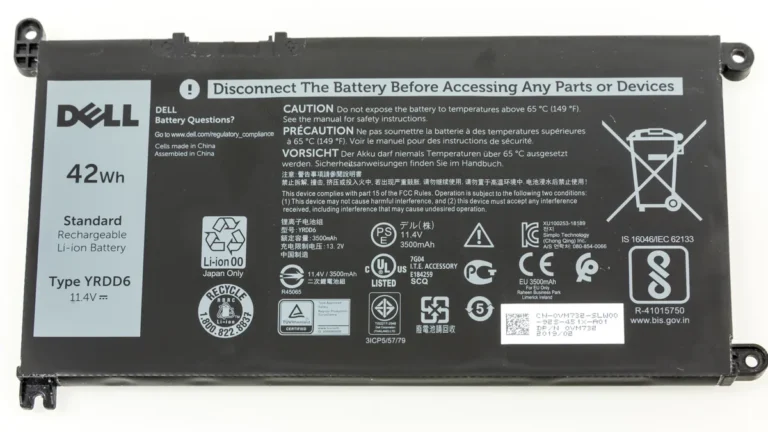
A swollen battery is an urgent fault. Signs include a trackpad that feels raised, a bottom case that no longer sits flat, a keyboard that bulges, or a gap opening along the case edge.
Stop using and charging the laptop, do not puncture or press the battery, and arrange service through the maker or an authorised repairer. Heat plus a swollen battery is not a cleaning job.
A charger or cable that is damaged, frayed, or unusually hot is also a stop and replace item. Use only the maker charger or a maker approved equivalent with the correct wattage.
A weak or wrong charger can make the laptop work harder on battery, and a damaged cable is a safety risk on its own.
Thermal paste drying out is a slower fault. It usually shows after years of use: cleaning no longer helps, fans run hard during moderate work, and temperatures stay high even on a clean machine with Balanced power. Replacing paste means opening the laptop, removing the heatsink, cleaning old paste, and applying new paste correctly.
Lenovo lists this as an advanced solution and advises a professional technician if you are not comfortable doing it. That advice applies to every brand. If the laptop is still under warranty, contact the maker first, because opening it yourself can affect warranty cover.
Finally, a laptop that stays hot while idle, with no heavy process, clean vents, and current updates, needs a diagnostic rather than another pad. A sensor fault, a board fault, or a fan control fault can all present this way.
A technician can measure temperatures, test the fan, and check the battery in one visit, which is faster than guessing through more software changes.
How to Keep a Laptop Cool Day to Day
Prevention is less work than a rescue clean. Keep the laptop on a desk for heavy work, even if you move it around the house for light work. Check the vents when you notice fan noise rising, not when the laptop starts shutting down.
Close apps you have finished with, especially browsers with many tabs and tools that sync in the background. Keep Windows or macOS, drivers, and BIOS current through the maker tool, and restart the laptop at least once a week so temporary processes do not pile up.
For dusty homes, a quick monthly vent check is enough. For a laptop that travels, check after trips where it sat in a bag with lint and dust. For a gaming laptop, clean more often and check the maker profile before long sessions.
Keep the room ventilated, keep the laptop out of direct sun and off radiators, and avoid charging a very hot laptop in a bag or a closed case.
The habit that matters most is noticing change. A laptop that was quiet last month and loud this month is telling you something changed: dust, a new app, an update, or a failing fan. Check in that order, airflow, cleaning, workload, updates, and you will usually find it before it becomes a shutdown.
Frequently Asked Questions
Why does my laptop overheat when I use it on my bed?
A bed, blanket, or cushion blocks the bottom and side vents, so hot air cannot leave and cool air cannot enter. Dell, HP, Lenovo, and Apple all warn against soft surfaces for this reason. Move the laptop to a hard, flat surface, clear the vents, and let it cool before heavy work. A rigid lap desk helps only if it keeps the vents open.
Is it normal for a laptop to feel hot during gaming?
Warmth during gaming or video rendering is normal, because the processor and graphics chip are working hard and the fans are designed to run loud under load. It becomes a problem if the laptop slows down sharply, stutters, shuts down, or stays hot long after the game ends. In that case, clean the vents, check the maker cooling profile, cap frame rate, and check for a hardware fault.
Can I use a vacuum cleaner to clean laptop vents?
No. Dell warns against vacuum cleaners and blowers because they can create static that may damage electronic components, and blowing with your mouth adds moisture. Use canned compressed air only, with the laptop off and unplugged, in short bursts, holding the can upright. Do not poke tools into the vent grille.
Does a cooling pad really stop a laptop from overheating?
A cooling pad can help, especially for a gaming laptop or a laptop in a warm room, because its fans supplement the built in fans and improve airflow. It will not fix dust packed inside the vents, a fan that has stopped, or a runaway app. Clean the vents, fix the workload, and then use a pad or stand as extra airflow for heavy sessions.
Should I replace thermal paste to fix overheating?
Only if cleaning, airflow, workload, and updates have not helped and the laptop is old enough for paste to have dried out. Replacing paste means opening the machine and removing the heatsink, so it is technician work for most owners. Contact the maker first if the laptop is under warranty, and do not attempt it if the battery is swollen or the fan is already faulty.
The Verdict
Stop overheating by fixing airflow first, cleaning second, and workload third. Put the laptop on a hard, flat surface, clean the vents with canned compressed air while it is off and unplugged, close runaway apps, set Balanced power for everyday work, and keep drivers and BIOS current through your maker tool.
Add a stand or cooling pad for heavy sessions, use the maker cooling profile for games, and let a hot laptop cool before restarting it after a shutdown.
If the fan grinds or stops, the battery swells, or shutdowns continue after cleaning and updates, that is a hardware fault, not a settings problem. Get it diagnosed promptly rather than pushing through more heat. A cooler laptop is quieter, faster for longer, and far less likely to lose your work to a sudden shutdown.