Thunderbolt 4 vs USB4 on Laptops, Explained Simply
Quick Answer: Thunderbolt 4 is USB4 with every important feature made mandatory. Both use the same USB-C shape and both can reach 40 Gbps, but a Thunderbolt 4 port guarantees 40 Gbps, two 4K displays at 60 Hz and 32 Gbps of PCIe bandwidth for storage and eGPUs, because Intel tests and certifies every port. A USB4 port might do all of that, or it might run at only 20 Gbps with one display and no PCIe, because the USB4 spec leaves those features optional. If you run a dock, two monitors or a fast external drive, buy Thunderbolt 4. If you only charge the laptop and plug in a mouse, USB4 is fine.
Thunderbolt 4 vs USB4 at a glance
The two names sit on the same USB-C connector, and that is exactly why they confuse people. The table is the short version. The sections after it explain which rows actually change what you can plug in.
| Feature | Thunderbolt 4 | USB4 |
|---|---|---|
| Top speed | 40 Gbps, always | 20 Gbps or 40 Gbps, depends on the laptop |
| Minimum guaranteed speed | 40 Gbps | 20 Gbps |
| PCIe for storage and eGPUs | Required, at least 32 Gbps | Optional, often missing |
| External displays | Two 4K at 60 Hz, or one 8K | Optional, often one display only |
| Charging through the port | USB Power Delivery, docks up to 100W | USB Power Delivery, wattage varies |
| Certification | Mandatory, tested by Intel | USB-IF logo program, not always tested |
| Wake from sleep via dock | Required | Optional |
| Works with USB-C devices | Yes | Yes |
| Typical laptops | Intel laptops, MacBook Pro | AMD laptops, many budget Intel laptops |
| Best for | Docks, dual monitors, fast storage, eGPUs | Charging, basic USB devices, one monitor |
What Thunderbolt 4 actually is
Thunderbolt 4 is Intel’s connection standard for laptops, launched in 2020. It is built on top of the USB4 specification, plus PCIe and DisplayPort, and it adds a strict list of minimum requirements that every certified port has to meet. A laptop maker cannot put the Thunderbolt 4 logo on a port unless Intel has tested it and confirmed it hits every number in the list.
That list is the whole point. Every Thunderbolt 4 port runs at 40 Gbps. Every one supports two 4K displays at 60 Hz, or a single 8K display. Every one carries at least 32 Gbps of PCIe bandwidth for external storage and graphics docks. Every one can wake the laptop from sleep when you press a key on a docked keyboard. And every Thunderbolt 4 cable is certified, so a cable with the logo does what the box promises.
Thunderbolt 4 is not a new speed over Thunderbolt 3. Thunderbolt 3 already ran at 40 Gbps. What Thunderbolt 4 changed is the guarantee: Thunderbolt 3 ports were allowed to run slower and to skip features, so two laptops with Thunderbolt 3 could behave very differently. Thunderbolt 4 removed that variation. The number on the box is the number you get.
What USB4 actually is
USB4 is the open standard from the USB Implementers Forum, the group that writes the USB specifications. It was published in 2019 and it is the base that Thunderbolt 4 is built on. It uses the USB-C connector, it can carry data, video and power down one cable, and it can reach 40 Gbps in its fastest form, called Gen 3×2. Its slower form, Gen 2×2, runs at 20 Gbps.
The difference is that USB4 is a menu, not a fixed meal. A laptop maker can implement the 40 Gbps speed and skip PCIe tunneling. It can implement the display output and skip the second monitor. It can ship a USB4 port that only runs at 20 Gbps and still call it USB4, because 20 Gbps meets the minimum. The USB-IF runs a logo program that labels ports by speed, USB 20Gbps and USB 40Gbps, but many laptops do not print those labels clearly, and some do not print them at all.
That is why two laptops that both say USB4 can feel like different machines. One might drive two 4K monitors and a fast external SSD without breaking a sweat. The other might run a single 1080p monitor and move files at half the speed. Both are honest USB4 ports. The spec allows both.
Speed: 40 Gbps on paper, different in practice
Both standards advertise 40 Gbps, and that number is real for both of them at their best. The difference is what happens below the best case. Thunderbolt 4 is 40 Gbps on every port, with no slower option. USB4 starts at 20 Gbps and only reaches 40 Gbps on the laptops where the maker paid for the faster implementation. If you buy a laptop with a USB4 port and never check which speed it runs at, you may be buying a 20 Gbps port without knowing it.
In real file transfers, a 40 Gbps link moves data at about 3 GB/s with a fast external SSD, after encoding and protocol overhead take their share. A 20 Gbps USB4 port moves the same files at roughly half that, about 1.2 to 1.5 GB/s. That gap matters when you copy a 100 GB video project or back up a photo library. A 100 GB copy takes about 35 seconds at 3 GB/s and about 80 seconds at 1.2 GB/s, and the gap grows with every extra file.
For everyday use, the speed difference is invisible. A mouse, a keyboard, a webcam and a printer use almost no bandwidth, and even a single external hard drive rarely pushes past 20 Gbps. The speed question only bites when the port is doing heavy work: a fast NVMe SSD in an enclosure, a big file backup, or a dock carrying storage, video and a network connection at the same time. Our comparison of SSD vs HDD in a laptop explains why the drive itself is usually the limit before the port is, and why an old spinning drive will never show you the difference between 20 and 40 Gbps.
Displays: two 4K monitors vs maybe one
Displays are where the two standards split most clearly, and where most buyers get caught out. A Thunderbolt 4 port is required to drive two 4K displays at 60 Hz, or one 8K display. That is a tested requirement, not a hope. If the laptop says Thunderbolt 4 and the dock says Thunderbolt 4, two 4K monitors at 60 Hz is a given.
A USB4 port has no such requirement. Display output over USB4 is optional, and even when it is present, it is often limited to a single display. Some USB4 laptops drive two monitors fine. Others drive one and leave the second black, or mirror the same picture onto both screens. The only way to know is to read the exact model’s specifications or test it, because the USB4 label alone does not promise a number of displays.
This matters most for desk setups. A single 4K monitor at 60 Hz needs about 12.5 Gbps of display bandwidth, which even a 20 Gbps USB4 port can usually carry. Two 4K monitors at 60 Hz need about 25 Gbps, which fits inside a 40 Gbps Thunderbolt 4 link with room to spare, but not inside a 20 Gbps USB4 link alongside anything else. That is why a dock with two 4K monitors is the classic Thunderbolt 4 use case, and why our guide to how to connect two monitors to a laptop starts by checking what the laptop’s ports can actually drive before buying anything.
Panel quality is a separate question from the port. A 4K monitor fed by a Thunderbolt 4 port still looks bad if the panel is dim or washed out, and a good 1080p panel on a USB4 port can look better than a cheap 4K one. Our comparison of 4K vs 1080p on a laptop explains the resolution side, and our guide to IPS vs OLED laptop screens covers the panel type, which changes the picture more than the port does. And if you are choosing the laptop itself by screen size, our guide to laptop screen sizes puts the display in the context of the whole machine.
External storage and eGPUs: the PCIe gap
PCIe tunneling is the feature that separates a fast port from a merely fast USB port, and it is the biggest practical difference between the two standards. PCIe is the same connection your laptop’s internal SSD and graphics card use. When a port can tunnel PCIe, an external NVMe SSD in an enclosure talks to the laptop almost like an internal drive, and an external graphics card in an eGPU enclosure can run games and renders on the laptop’s screen.
Thunderbolt 4 requires PCIe tunneling at a minimum of 32 Gbps, which is equivalent to a PCIe 3.0 x4 link. That is enough for a fast external SSD to run near its full speed, and enough for an eGPU to work well at 1080p and 1440p, though a desktop graphics card still loses some performance to the link. USB4 makes PCIe tunneling optional. A USB4 port without it will still move files over plain USB, but an eGPU enclosure plugged into it simply will not work, and a fast NVMe enclosure will fall back to slower USB speeds.
If you plan to use an external GPU, this is the rule that decides everything: buy Thunderbolt 4, and check that the laptop maker lists eGPU support for the exact model. If you only use external drives, check whether the port supports PCIe before paying for a fast NVMe enclosure, because a plain USB4 port will cap the drive at USB speeds no matter how good the drive is. Our explainer on what DLSS is on a laptop GPU covers the other half of the gaming picture, because an eGPU still needs the laptop’s own graphics setup to make sense, and our guide to how to check VRAM on a laptop will tell you whether the laptop’s own graphics memory is the real limit. The MUX switch in a gaming laptop matters here too, because it decides whether the external graphics card can talk to the screen directly, and our comparison of gaming laptop vs gaming desktop settles whether an eGPU setup is even the right buy against a desktop.
Heat is the quiet partner in this story. A laptop driving an eGPU or a fast external drive for hours runs hotter than one doing office work, and a machine that throttles under sustained load will give back some of the speed the port promises. Our guide to what thermal throttling is on a laptop explains how to spot it, and our guide to how to keep a gaming laptop cool covers the practical fixes.
Docks and one-cable setups
A dock is where Thunderbolt 4 earns its price. One cable from the laptop to the dock carries two monitors, a keyboard, a mouse, an external drive, a network cable and laptop charging, all at once. Thunderbolt 4 docks can do this because the 40 Gbps link, the guaranteed PCIe bandwidth and the dual-display support are all part of the same tested package. The CalDigit TS4 Thunderbolt 4 dock on Amazon is a good example of the category: a single Thunderbolt 4 dock with two display outputs, plenty of USB ports and laptop charging through the same cable.
A USB4 dock can look identical and cost less, but it may not do the same job. A USB4 dock on a 20 Gbps port can still run one monitor, a keyboard and a mouse happily, and it can charge the laptop. What it often cannot do is run two 4K monitors plus a fast drive at the same time, because the total bandwidth is not there. If your desk is one monitor and a keyboard, a USB4 dock is fine and cheaper. If your desk is two monitors, a drive and a wired network, buy the Thunderbolt 4 dock and the Thunderbolt 4 laptop to match it.
One warning applies to both: the dock is only as good as the weakest link. A Thunderbolt 4 laptop with a plain USB-C cable between it and a Thunderbolt 4 dock will drop to USB speeds, because the cable cannot carry the Thunderbolt signal. Always use the cable that came with the dock, or a certified Thunderbolt cable, and keep the cable short. The same logic applies to streaming setups, where a dock carries a capture card and a second monitor: our roundup of the best laptops for live streaming covers machines built for that workload.
Charging: what the port can power
Both standards charge through USB Power Delivery, and both can charge a laptop from a dock or a wall charger through the same port that carries data and video. Thunderbolt 4 docks commonly deliver up to 100W of charging, which is enough for most ultrabooks and business laptops. USB4 ports also support Power Delivery, but the wattage varies by laptop, so a USB4 port on one machine might deliver 100W and on another only 15W to accessories.
Check the wattage before you rely on dock charging. A 14-inch ultrabook that needs 65W will charge happily from almost any Thunderbolt 4 dock. A 16-inch gaming laptop that needs 140W or more will not charge from a 100W dock while gaming, and may slowly lose charge even while plugged in. The charger that came with the laptop is still the fastest way to charge it under load. If you travel and charge from odd places, our guide to how to charge a laptop in a car covers the wattage problem from the other side, because a car charger that cannot match the laptop’s draw is the same trap in a different shape.
Cables: the part people get wrong
Cables cause more Thunderbolt and USB4 problems than the ports do, and they are the cheapest thing to get wrong. A Thunderbolt 4 cable carries a small lightning bolt symbol and the number 4. A USB4 cable may carry a 20 or 40 Gbps marking, or no marking at all. A plain USB-C charging cable looks identical to both and carries neither, and it will drop a Thunderbolt 4 connection to plain USB speeds the moment you plug it in.
Length matters too. Passive Thunderbolt 4 cables only hold full 40 Gbps speed up to about 1 metre. Longer Thunderbolt 4 cables have active chips built in to keep the signal clean, and they cost more. A cheap 2-metre cable from a market stall is almost certainly a plain USB-C cable, not a Thunderbolt cable, and it will silently cap your dock at USB speeds while everything looks connected. If a dock or a drive suddenly runs slowly, the cable is the first thing to swap, not the laptop.
Buy cables from a known brand, check for the lightning bolt and the number, and keep a short certified cable with the dock instead of sharing one cable between everything. Our roundup of essential laptop accessories worth buying covers the cables and adapters that are actually worth owning, and the ones that are a waste of money.
Compatibility: what plugs into what
The good news is that everything fits. Thunderbolt 4, USB4 and plain USB-C all use the same connector, and they are designed to work together at the speed of the slowest part. A Thunderbolt 4 laptop accepts USB4 devices, USB 3 devices and plain USB-C accessories. A USB4 laptop accepts Thunderbolt 4 devices too, but they run at USB4 speeds and lose the Thunderbolt-only guarantees, so a Thunderbolt 4 dock on a USB4 laptop behaves like a USB4 dock.
Thunderbolt 3 devices also work on Thunderbolt 4 ports, at Thunderbolt 3 speeds, and Thunderbolt 4 devices work on Thunderbolt 3 ports with the same caveat. The one combination that does not work is the one people assume will: a Thunderbolt-only device, like some eGPU enclosures, plugged into a USB4 port without PCIe tunneling will not work at all, because the device needs the PCIe link that the port does not provide. Always check the device’s requirements, not just the connector shape.
Apple adds one wrinkle worth knowing. Some base-model Macs list their ports as Thunderbolt / USB 4 rather than full Thunderbolt 4, because the base chip supports only one external display. The port is still fast, but the display limit is the chip’s, not the port’s. Check the display count in the Mac’s technical specifications, not just the port name.
How to tell which port your laptop has
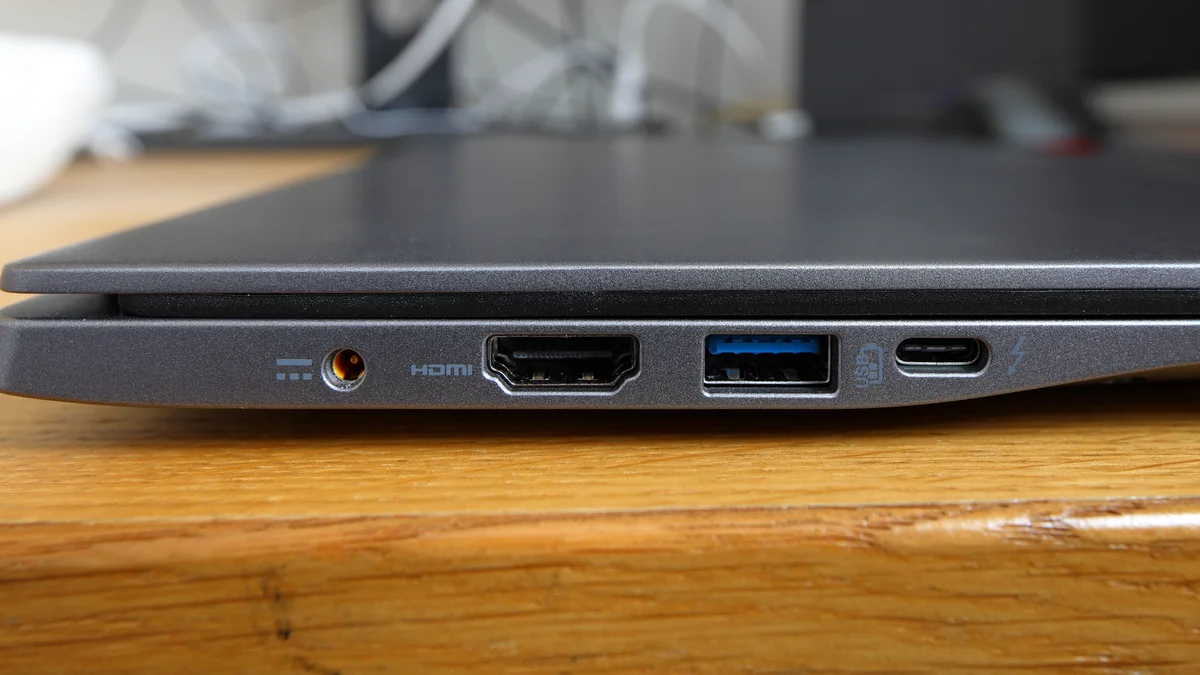
Start with the marks printed next to the port. A lightning bolt symbol means Thunderbolt. A lightning bolt with the number 4 means Thunderbolt 4. A small DisplayPort symbol, a D with a P inside it, means the port carries video. A USB4 port often has no mark at all, or a small USB symbol with 20 or 40 next to it. No mark does not mean no feature, it just means the maker did not print one, so check the spec sheet for the exact model on the manufacturer support site.
On Windows, open Device Manager and look under System Devices for a Thunderbolt controller. If it is there, the laptop has Thunderbolt. Intel’s Thunderbolt Control Center, which comes with most Thunderbolt laptops, shows connected devices and whether each one is running in Thunderbolt or USB mode. On a Mac, hold the Option key, click the Apple menu, choose System Information, and look under Thunderbolt / USB4 in the sidebar: it lists each port and what is connected to it.
To check the actual speed a port is running at, plug in a fast external SSD and copy a large file while watching the transfer speed in Task Manager on Windows or Activity Monitor on a Mac. A 40 Gbps link with a fast drive shows about 3 GB/s. A 20 Gbps link shows about half that. If the numbers are far lower, swap the cable first, then try a different port, because a laptop with two USB-C ports can have one fast port and one slow one.
Which laptops have Thunderbolt 4 and which have USB4
The split follows the processor. Intel laptops usually ship Thunderbolt 4, because Intel builds the controller into its Core Ultra chips and certifies the ports. Intel’s Core Ultra Series 3 platform, launched at CES 2026 under the Panther Lake name, integrates a Thunderbolt 4 controller, so Thunderbolt 4 is the default on new premium Intel laptops. AMD laptops usually ship USB4 instead, because AMD does not use Intel’s Thunderbolt branding: Ryzen 6000 and newer chips include USB4, and the speed and features depend on the laptop maker.
Apple sits in the middle. MacBook Pro models with the base M4 and M5 chips carry Thunderbolt 4 ports at 40 Gbps, while the M5 Pro and M5 Max models step up to Thunderbolt 5. The MacBook Air carries Thunderbolt 4. The exact port count and display limit still depend on the chip, so check the model’s technical specifications rather than the marketing name.
Budget laptops are where USB4 shows up most. A laptop under $600 with a USB-C port is usually USB4 at 20 Gbps, or plain USB 3.2 in a USB-C shape with no video at all. That is fine for charging and a mouse, but it is not a dock port. Our guide to how much a laptop costs breaks down what each price tier actually includes, and the pattern holds: the port quality rises with the price, just like the screen and the keyboard do. The Lenovo ThinkPad T14 Gen 6 on Amazon is a typical example of a business laptop where Thunderbolt 4 comes as standard, and it is the kind of machine where a one-cable dock setup actually works as advertised.
Convertible and 2-in-1 laptops follow the same split, and the port is easy to overlook when the hinge gets all the attention. Our explainer on what a 2-in-1 laptop is covers the form factor, but the port check is the same: look for the lightning bolt, then read the spec sheet. Big desktop-replacement laptops are the other place to check, because a 17-inch machine has room for more ports but does not always use it: our roundup of the best 17-inch laptops notes which models actually give you the full port selection.
Thunderbolt 5 and USB4 2.0: should you wait?
Both standards already have a faster successor. USB4 Version 2.0, published by the USB-IF in October 2022, raises the ceiling to 80 Gbps, with an asymmetric mode that pushes 120 Gbps in one direction for displays. Thunderbolt 5, announced by Intel in September 2023, is built on USB4 Version 2.0 and guarantees 80 Gbps on every certified port, with a 120 Gbps boost mode, 64 Gbps of PCIe bandwidth and up to 240W of charging.
The same pattern repeats: Thunderbolt 5 guarantees the speed, USB4 Version 2.0 offers it as an option. On Apple’s side the split is already visible, with M5 Pro and M5 Max MacBook Pros carrying Thunderbolt 5 while the base M5 model keeps Thunderbolt 4. On Windows, Thunderbolt 5 is still mostly a premium and gaming laptop feature, because it needs a separate controller chip that makers have to choose to add and pay for.
For most buyers, waiting for Thunderbolt 5 is not worth it. A 40 Gbps Thunderbolt 4 port already handles two 4K monitors, a fast external SSD and a full dock at the same time, and almost no everyday workload saturates it. Thunderbolt 5 matters if you move very large files off fast external storage every day, or drive three high-refresh displays down one cable. Everyone else should buy the Thunderbolt 4 laptop now and spend the difference on RAM or storage, which change the daily experience far more.
Which should you buy?
There is no single right answer, only the right answer for the desk you actually use. Match yourself to the list below and the choice makes itself.
Buy Thunderbolt 4 if you:
- Run a dock with two monitors, a keyboard, a drive and charging on one cable.
- Use a fast external NVMe SSD for video, photo or backup work.
- Plan to use an eGPU enclosure with the laptop.
- Want the port to just work, without reading the fine print on every accessory.
- Keep the laptop for years and want the port to stay useful as docks get faster.
USB4 is enough if you:
- Plug in one monitor, or none, and work mostly on the laptop screen.
- Use the port mainly for charging and ordinary USB devices.
- Copy files to a normal external hard drive, not a fast NVMe enclosure.
- Want the lowest price and the laptop’s screen, keyboard and battery matter more than its ports.
- Already own USB4 accessories and have no Thunderbolt-only device to plug in.
If you are still unsure, buy Thunderbolt 4. It costs a little more, usually as part of a better laptop rather than as a separate option, and it removes the one question that causes the most returns and the most support threads: why does this dock not work with my laptop? A USB4 laptop is a fine buy when the price is right and the port list is checked. A Thunderbolt 4 laptop is the buy that never makes you check.
Frequently Asked Questions
Is Thunderbolt 4 the same as USB4?
No. Thunderbolt 4 is built on top of USB4 and uses the same USB-C connector, but it is a stricter, certified version. Every Thunderbolt 4 port guarantees 40 Gbps, two 4K displays at 60 Hz and at least 32 Gbps of PCIe bandwidth, because Intel tests and certifies each port. USB4 is the broader standard and leaves those features optional, so a USB4 port might match Thunderbolt 4 or might run at only 20 Gbps with one display and no PCIe. Every Thunderbolt 4 port is a USB4 port, but not every USB4 port is Thunderbolt 4.
Is Thunderbolt 4 faster than USB4?
At its best, USB4 is just as fast as Thunderbolt 4: both reach 40 Gbps. The difference is the guarantee. Thunderbolt 4 is always 40 Gbps, while USB4 can be 20 Gbps or 40 Gbps depending on the laptop. A 20 Gbps USB4 port moves files at roughly half the speed of a Thunderbolt 4 port, about 1.2 to 1.5 GB/s against about 3 GB/s with a fast external SSD. If you do not know which speed your USB4 port runs at, assume the slower one until you test it.
Can a USB4 port run two monitors?
Sometimes, but it is not guaranteed. Thunderbolt 4 is required to support two 4K displays at 60 Hz, so two monitors are a given on any Thunderbolt 4 port. USB4 leaves display support optional, and many USB4 laptops support only one external display. Before buying a dual-monitor dock for a USB4 laptop, check the exact model’s specifications for the number of supported displays, or test it, because the USB4 label alone does not promise a second screen.
Do I need Thunderbolt 4 for an external SSD?
Not always. A normal external hard drive or a basic SATA SSD never pushes past 20 Gbps, so a USB4 port handles it fine. You need Thunderbolt 4 when the drive is a fast NVMe SSD in an enclosure and you want its full speed, about 3 GB/s, because that needs the 40 Gbps link and the PCIe tunneling that Thunderbolt 4 guarantees. A fast NVMe drive on a 20 Gbps USB4 port will still work, but it will run at roughly half speed.
Can I plug a Thunderbolt dock into a USB4 laptop?
Yes, it will fit and it will work, but at USB4 speeds and without the Thunderbolt guarantees. The dock’s monitors, USB ports and charging will run, but a Thunderbolt 4 dock on a USB4 laptop behaves like a USB4 dock: you may get only one display, and a fast drive may run slower. The reverse also works: a USB4 dock on a Thunderbolt 4 laptop runs at the dock’s speed. The one combination that fails is a Thunderbolt-only device, like some eGPU enclosures, on a USB4 port without PCIe tunneling, because the device needs a PCIe link the port does not provide.
Is Thunderbolt 5 worth waiting for?
For most buyers, no. Thunderbolt 5 doubles the speed to 80 Gbps, with a 120 Gbps boost for displays, 64 Gbps of PCIe bandwidth and up to 240W of charging. But a 40 Gbps Thunderbolt 4 port already handles two 4K monitors, a fast external SSD and a full dock at once, and almost no everyday workload saturates it. Thunderbolt 5 matters mainly if you move very large files off fast external storage every day or drive three high-refresh displays down one cable. Buy the Thunderbolt 4 laptop now and spend the difference on RAM or storage.