How to Increase FPS on a Gaming Laptop: 12 Settings That Work
Quick Answer: Yes, you can raise FPS on a gaming laptop without spending money. Plug the laptop in, switch Windows to Best performance, update the GPU driver, make sure the game uses the dedicated GPU, turn on DLSS or FSR upscaling, and lower shadows and ray tracing first. Together they commonly recover 20 to 40 percent of lost frame rate on a misconfigured or overheating laptop, though the exact gain depends on the game and the hardware.
Measure your FPS before you change anything
Note your FPS in the same scene, with the same settings, before you change anything, then check again after. Three free ways to show the number on screen: the Steam FPS counter under Steam, then Settings, then In Game; the NVIDIA App performance overlay with Alt plus R; or the Xbox Game Bar Performance widget with Windows key plus G.
For most games, 60 FPS is the smooth-play target. Competitive shooters feel better at 120 FPS or more, but only if the screen refresh rate can actually show those frames.
The 12 settings that actually raise FPS
These are ordered roughly by impact, with the free fixes first and hardware last. Work through them in order and re-check your FPS after the big ones.
1. Plug in and switch to Best performance
On battery power, Windows and the GPU cap their speed to save charge, and FPS falls off a cliff, so always game plugged in. Then set Settings, then System, then Power and battery, then Power mode to Best performance. The same setting lives in Control Panel under Hardware and Sound, then Power Options, then High Performance.
Only use it while plugged in. If the laptop lives on a desk charger all day, our guide to limiting laptop battery charge to 80 percent shows how to cap the charge so the battery does not sit at 100 percent all day.
2. Update your GPU drivers
Old drivers are a common reason a new game runs badly. NVIDIA releases Game Ready drivers tuned for new titles, and AMD and Intel do the same. Update through the NVIDIA App or GeForce Experience, AMD Software: Adrenalin, or Intel Arc Control.
3. Make sure the game runs on the dedicated GPU
Some laptops quietly run games on the weak integrated graphics instead of the dedicated GPU, and the result is single-digit FPS in a game the laptop should handle easily. Check it in Settings, then System, then Display, then Graphics: pick the game, choose Options, and select High performance.
Some gaming laptops also have a MUX switch, which connects the dedicated GPU straight to the screen. Turning it on in the maker's control center, such as Lenovo Vantage, Armoury Crate or MSI Center, can add a few percent. We explain what the switch does, how much FPS it adds, and how to turn it on in our MUX switch guide.
4. Turn on DLSS, FSR or XeSS upscaling
Upscaling is the biggest free FPS lever on a modern laptop. The game renders at a lower internal resolution, then AI reconstructs the image at your screen resolution. DLSS needs an NVIDIA RTX graphics card with Tensor Cores. DLSS 3 Frame Generation needs an RTX 40 series GPU or newer, and DLSS 4 Multi Frame Generation needs an RTX 50 series GPU and can generate up to three extra frames for every rendered frame. AMD FSR and Intel XeSS do the same job and work on most GPUs.
In the game's graphics settings, start with the Quality or Balanced preset and switch to Performance only if you still need more frames. One honest trade-off: frame generation adds a little input lag, because some of the frames on screen were predicted rather than rendered, so competitive players usually leave it off.
5. Lower shadows, ray tracing and anti-aliasing first
Shadows, ray tracing, volumetric lighting and fog, reflections, and draw distance are the most expensive effects in most games. Turn those down first, and switch off motion blur and depth of field too: both are cosmetic effects that cost frames.
Texture quality is different: it depends more on video memory than on GPU speed, so lowering it only helps if the card is running out of VRAM. If textures pop in late or stutter, our guide to how to check VRAM on a laptop shows how to see how much the game is using.
| Setting | Performance cost | What to set first |
|---|---|---|
| Shadows | Very high | Low or Medium |
| Ray tracing | Very high | Off unless DLSS is on |
| Anti-aliasing | High | FXAA, or off at 1080p |
| Draw distance | Medium to high | Medium |
| Texture quality | Depends on VRAM | Medium if VRAM is short, else High |
6. Drop the resolution or render scale
A 1920 by 1080 display renders about 2.1 million pixels per frame. At 2560 by 1440 that rises to about 3.7 million, nearly 80 percent more work, and 4K is about 8.3 million, four times 1080p. If the laptop has a 1440p or 4K screen, set the in-game resolution to 1080p, or use the render scale slider at 75 to 85 percent. The FPS jump is usually the largest single gain in this list.
7. Turn on Game Mode and switch off background recording
Windows Game Mode tells the operating system to prioritize the game over background processes. Turn it on under Settings, then Gaming, then Game Mode. In the same area, open Settings, then Gaming, then Captures, and set Record in the background while I am playing a game to Off: background recording keeps a video encoder running for the whole session, and that encoder eats CPU and GPU time on every frame.
8. Close background apps and overlays
A browser with twenty tabs, Discord, Spotify and three launchers can quietly eat a quarter of the CPU before the game even starts. Press Ctrl plus Shift plus Esc to open Task Manager, sort by CPU, and close what the game does not need. Overlays deserve their own check: Discord, Steam, GeForce and Xbox overlays each take a small slice of performance, and together they add up, so turn off the ones you do not use while playing. Our guide to how to reduce CPU usage while gaming walks through the same cleanup in more detail.
9. Keep the laptop cool
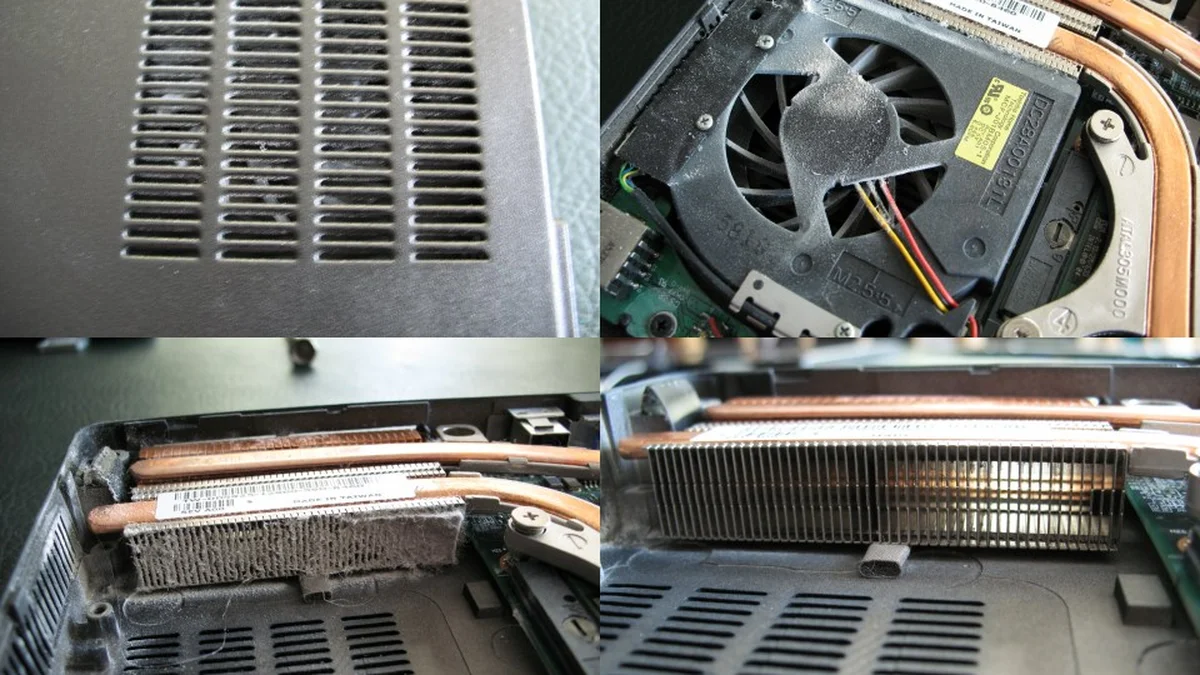
When the CPU or GPU gets too hot, it slows itself down to protect the hardware, and FPS drops after ten or twenty minutes of play even though the first minutes were fine. That is thermal throttling, and cooling is the fix.
Use the laptop on a hard, flat surface and lift the rear a couple of centimeters so air can get under it. Never game on a bed or a cushion, because soft surfaces block the intake vents. Blow dust out of the vents with compressed air every few months, and if the laptop is a few years old, a cooling pad helps: a laptop cooling pad on Amazon lifts the machine and pushes extra air through the vents. Our guide to keeping a gaming laptop cool covers the full routine, and our guide to stopping a laptop from overheating covers the warning signs. To confirm heat is the problem, our guide to how to check laptop temperature shows how to read the numbers, and our guide to what a good GPU temperature is gives the ranges to compare against: a GPU sitting above 85 to 90 degrees under load is throttling territory.
10. Cap FPS to match your screen and turn VSync off where it hurts
Frames above the screen refresh rate are invisible, so cap them. If the screen is 60 Hz, cap at 60 FPS; if it is 144 Hz, cap at 144. Use the in-game FPS limit, or the Max Frame Rate setting in the NVIDIA Control Panel or AMD Software. A cap also lowers heat and fan noise, because the GPU stops rendering frames nobody can see. VSync needs a separate decision: with it on, the GPU waits for the screen, which removes tearing but can add input lag and halve FPS when the GPU dips below the refresh rate.
11. Update Windows and turn on hardware-accelerated GPU scheduling
Windows updates include game fixes and driver updates, so install them before blaming the hardware. Then check Settings, then System, then Display, then Graphics, then Default graphics settings, and turn on Hardware-accelerated GPU scheduling. It helps most on RTX 30 series and RX 6000 cards and newer. On much older GPUs it can hurt, so test it for a session and turn it back off if FPS drops.
12. Add RAM only when you are actually short of it
Extra RAM only raises FPS when RAM was the bottleneck. In 2026, 16 GB is the practical minimum for a gaming laptop, and 8 GB machines stutter in modern games as Windows and the game fight over the same memory. Open Task Manager, then Performance, then Memory while gaming: if it sits above 90 percent, an upgrade to 16 GB or 32 GB will help, and if it sits at 60 percent, more RAM will change nothing. A faster SSD shortens load times, but it does not raise FPS, because frame rate is decided by the CPU and GPU, not the drive. Our RAM guide gives the numbers by game type, our DDR4 vs DDR5 comparison explains which memory your laptop can take, and our storage guide covers drive space.
When settings are not enough
Every laptop has a hardware ceiling: a low-wattage GPU, a five-year-old graphics card, or a machine bought for office work will not run new AAA games at high settings no matter how many toggles you flip. A laptop GPU's wattage decides how much of its rated speed it can actually hold, and our guide to what TGP means in a gaming laptop explains why two laptops with the same GPU can perform very differently. At that point the honest options are to play at 1080p with the settings above, to stick to lighter games, or to plan an upgrade. Our RTX 4050 vs RTX 4060 comparison shows what the current entry-level gaming GPUs can actually do, and our best gaming laptops under 700 dollars lists machines that hold 60 FPS in popular games without breaking the bank.
A CPU upgrade is almost never an option on a laptop, because the processor is soldered to the board, and our guide to upgrading a laptop processor explains why. RAM and storage are the only realistic internal upgrades.
How much FPS gain to expect
| Fix | Typical gain | When it helps most |
|---|---|---|
| Plug in and Best performance | 10 to 30 percent | Laptop was on battery or Balanced |
| Dedicated GPU fix | Large | Game was running on integrated graphics |
| DLSS or FSR Quality preset | 30 to 70 percent | GPU-bound games that support it |
| Shadows and ray tracing off | 15 to 40 percent | Demanding AAA titles |
| Resolution 1440p to 1080p | 30 to 50 percent | GPU-bound games |
| Cooling fixed | 10 to 25 percent | Only if the laptop was throttling |
These are typical ranges reported in guides and reviews, not measurements from this site, so always measure before and after on your own machine.
Frequently Asked Questions
How can I increase FPS on my laptop for free?
Plug the laptop in, switch Windows to Best performance, update the GPU driver, make sure the game uses the dedicated GPU, turn on DLSS or FSR upscaling, and lower shadows and ray tracing.
Does Game Mode increase FPS on a laptop?
Game Mode helps a little, usually a few percent and better frame-time consistency rather than a big FPS jump. It is worth turning on, but it will not fix overheating or a game running on integrated graphics.
Does more RAM increase FPS on a gaming laptop?
Only if RAM was the bottleneck. Moving from 8 GB to 16 GB helps a lot when memory sits above 90 percent while gaming. Going from 16 GB to 32 GB changes almost nothing in most games.
Why is my FPS low even though my laptop is new?
Usually the game is running on integrated graphics, Windows is set to Balanced power mode, the laptop is on battery, the GPU driver is old, or blocked vents are causing thermal throttling. Check those five before assuming the hardware is weak.
Does a cooling pad increase FPS?
A cooling pad only raises FPS if the laptop was thermal throttling, which happens when heat forces the CPU or GPU to slow down. If temperatures were already fine, a cooling pad changes nothing. Above 85 to 90 degrees under load means cooling is worth fixing.