How to Connect AirPods to a Windows Laptop
Quick Answer: Yes. AirPods work with any Windows 11 or Windows 10 laptop that has Bluetooth, because they pair like ordinary Bluetooth headphones. Put the AirPods in pairing mode until the status light flashes white, then go to Settings, Bluetooth and devices, Add device, Bluetooth, and select your AirPods. Music and calls work, but Siri, automatic switching and firmware updates stay Apple only.
Before you start: what you need
You need three things: a laptop with Bluetooth, AirPods with some charge in the case, and about two minutes. Almost every Windows laptop sold in the last ten years has Bluetooth built in. If Settings shows no Bluetooth switch at all, your laptop may need a Bluetooth driver from the laptop maker, or a small USB Bluetooth adapter.
Charge the case first. A flat case will not enter pairing mode, and the status light is the only signal that tells you pairing mode is active. Keep the AirPods close to the laptop and switch Bluetooth off on your iPhone or iPad for a minute first. AirPods jump back to the Apple device they know best, and that is the most common reason a Windows pairing attempt fails halfway.
One note on Windows 10. Microsoft ended support for Windows 10 on 14 October 2025, so Windows 11 is the better bet, but the pairing steps below still work on Windows 10. The menu names are slightly different, and they are covered in their own section.
If your AirPods are part of a bigger desk setup, this guide pairs well with our walkthrough for connecting two monitors to a laptop.
Step 1: Put your AirPods in pairing mode
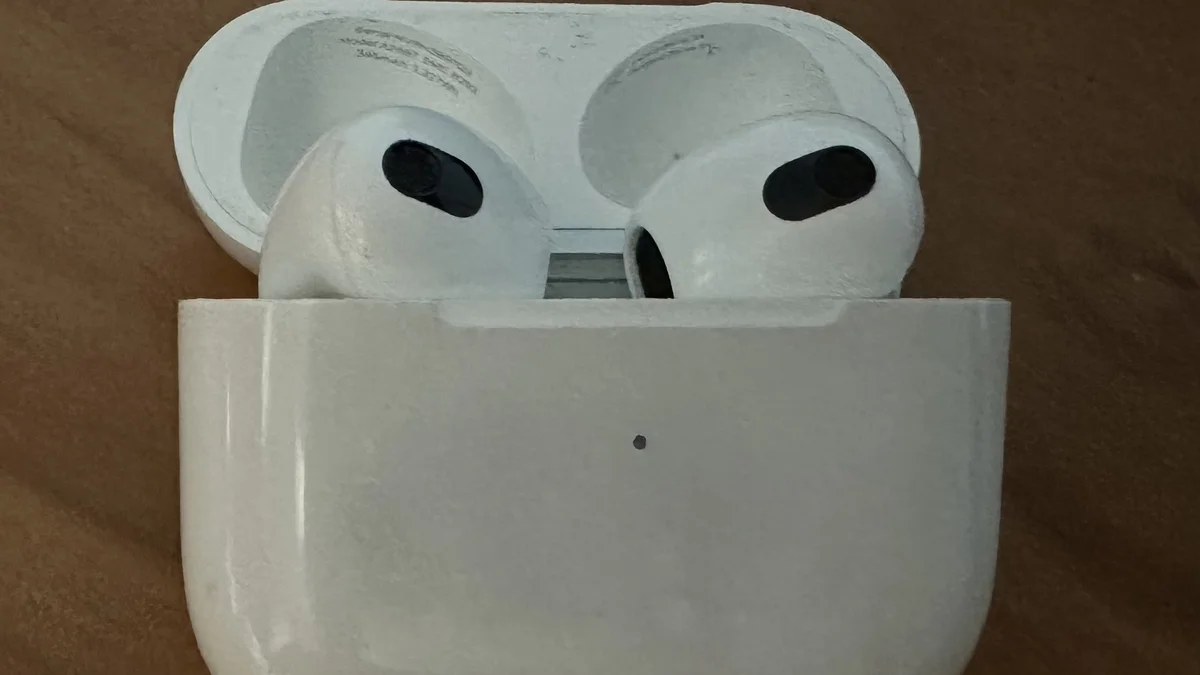
Windows can only find AirPods in pairing mode. Opening the lid is not enough. Use the gesture for your model, from Apple’s own pairing guide, and wait for the status light to flash white.
| AirPods model | How to start pairing mode |
|---|---|
| AirPods 1st, 2nd or 3rd generation, AirPods Pro 1st or 2nd generation | With both AirPods in the case and the lid open, press and hold the setup button on the back for about 5 seconds, until the status light flashes white. |
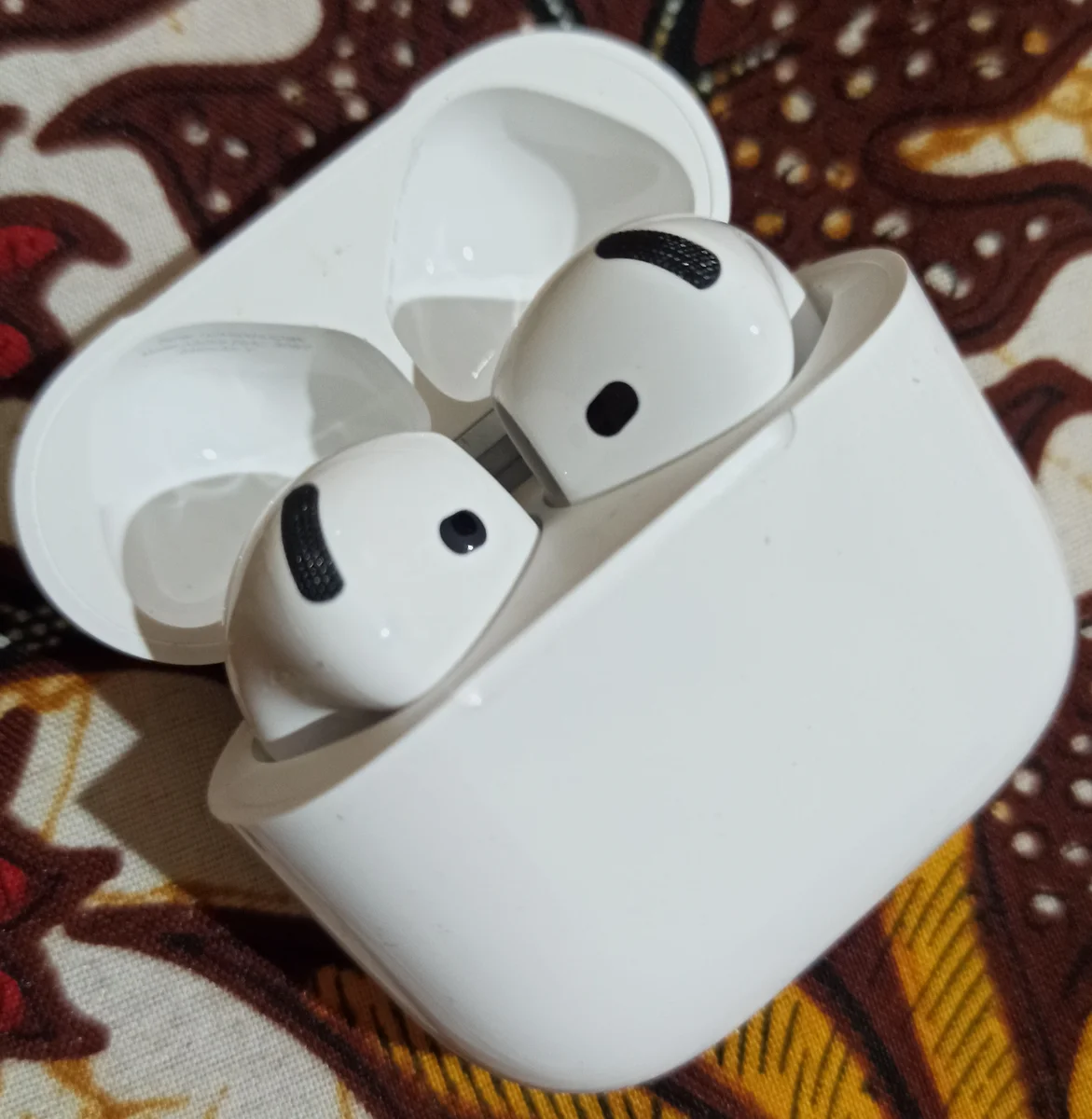
| AirPods 4, AirPods 5, AirPods Pro 3 | No setup button on these cases. Open the case with the AirPods inside, hold it next to the laptop, and double-tap the front until the status light flashes white. |
| AirPods Max | Press and hold the noise control button for about 5 seconds, until the status light flashes white. |
Step 2: Pair the AirPods on a Windows 11 laptop
Quick Settings is the fastest route in Windows 11.
- Turn on Bluetooth. Click the Network, Sound or Battery icon next to the clock on the taskbar. Make sure the Bluetooth tile is highlighted, which means it is on.
- Open the device list. Click the arrow on the Bluetooth tile, labelled Manage Bluetooth devices.
- Put the AirPods in pairing mode. Use the steps for your model above and wait for the white flashing light.
- Select your AirPods. They appear under New devices with the name they use on your iPhone.
- Finish pairing. Follow any prompts, then click Done. Your AirPods now show as connected.
If you prefer the full Settings app, or Quick Settings does not show the Bluetooth tile, the path is Start, Settings, Bluetooth and devices. Turn Bluetooth on, click Add device, choose Bluetooth, then pick your AirPods from the list and click Done.
You only pair once. After that, the AirPods reconnect on their own whenever Bluetooth is on and the case lid opens nearby.
Pair the AirPods on a Windows 10 laptop
The idea is the same, only the menu names differ. Select Start, Settings, Devices, Bluetooth and other devices. Turn Bluetooth on, click Add Bluetooth or other device, choose Bluetooth, then put the AirPods in pairing mode and select them from the list. Windows 10 uses the same two sound profiles as Windows 11, so the sound notes below apply to both versions.
Step 3: Set the AirPods as your sound output and microphone
Pairing is only half the job. Windows sometimes leaves the laptop speakers as the output, so check the setting before you press play.
- Click the speaker icon on the taskbar.
- Click the arrow next to the volume slider, labelled Select a sound output.
- Choose your AirPods.
For the microphone, go to Settings, System, Sound. Under Input, choose your AirPods. That makes them the mic for Zoom, Teams and Discord calls. If you stream, pick the mic before you go live; our guide to the best laptops for live streaming covers the rest of a streaming setup.
The same setup works in a classroom or meeting room, where a projector shows the slides and the AirPods keep the sound to yourself.
Windows uses two Bluetooth profiles for headphones, and this is where most confusion comes from. The Stereo profile carries full quality music. The Hands-Free AG Audio profile carries calls, and it sounds noticeably worse, because it drops to mono and a lower bitrate to leave room for the microphone. Windows switches between them when a call starts, then switches back when it ends.
What works on Windows and what does not
Apple is clear that AirPods work with a non-Apple device as a Bluetooth headset, and that Siri does not work in that setup.
| Feature | On a Windows laptop |
|---|---|
| Listening to music and videos | Yes, in stereo |
| Microphone for calls | Yes, through the Hands-Free profile |
| Siri | No |
| Automatic switching between your devices | No, you connect manually |
| Battery level shown in Windows | No, Windows does not show it |
| Firmware updates | No, needs an iPhone, iPad or Mac |
| Spatial audio | No |
| Noise control button on AirPods Pro | Yes, it works on the earbuds themselves |
If you do not own AirPods yet, the AirPods Pro 2 is the safest pick for Windows, because its USB-C case charges from the same cable as most modern laptops. You can check the latest listing for AirPods Pro 2 on Amazon.
Students get the most from this setup in lectures. A quiet pair of earbuds plus a good pen laptop makes recorded lectures easy to replay anywhere, which is why our guide to the best laptops for note taking weighs battery life and weight so heavily.
AirPods connected but no sound? Try these fixes
Work through these in order. Most problems are fixed by the first three.
- Check the output device first. Click the speaker icon on the taskbar and make sure your AirPods, not the laptop speakers, are selected. If the laptop speakers sound fine but the AirPods do not, the problem is in the Bluetooth connection. If the built-in speakers are the ones crackling, our guide to cleaning laptop speakers covers that.
- Check which profile Windows picked. In Settings, System, Sound, the output should read Stereo when you are listening to music. If it reads Hands-Free AG Audio while no call is running, disconnect and reconnect the AirPods.
- Remove the AirPods and pair again. In Settings, Bluetooth and devices, open the three dot menu next to your AirPods and choose Remove device. Then put the AirPods back in pairing mode and add them again.
- Restart the laptop. A restart clears Bluetooth services that get stuck. See our short guide to rebooting a laptop if you want the safe way to do it.
- Reset the AirPods. Put them in the case, close the lid for 30 seconds, open it, then follow Apple’s reset steps for your model until the light flashes amber, then white. If that still fails, update the Bluetooth driver from your laptop maker’s support site.
Gamers hit one extra quirk. Voice chat in a game forces the Hands-Free profile, so game audio drops in quality while you talk. If that bothers you, set the mic input to the laptop’s built-in microphone and keep the AirPods on the Stereo profile for game sound. Our guide to reducing CPU usage while gaming covers the other settings that keep voice chat smooth, and our guide to keeping a gaming laptop cool covers the habits that keep long sessions steady.
How to disconnect or remove AirPods
To disconnect for now, put the AirPods back in the case and close the lid, or turn Bluetooth off on the laptop. They will reconnect next time the lid opens nearby. To remove them for good, go to Settings, Bluetooth and devices, open the three dot menu next to your AirPods and choose Remove device. Do this before you sell or give away the AirPods, and reset them too, so the next owner starts clean.
Frequently Asked Questions
Can you connect AirPods to a Windows laptop?
Yes. AirPods pair with any Windows 11 or Windows 10 laptop that has Bluetooth, because they work as standard Bluetooth headphones. Put them in pairing mode, then add them under Settings, Bluetooth and devices, Add device, Bluetooth.
Why won’t my AirPods show up in Bluetooth on Windows?
They are probably not in pairing mode. Opening the lid is not enough. Hold the setup button for about 5 seconds on older models, or double-tap the front of the case on AirPods 4, AirPods 5 and AirPods Pro 3, until the light flashes white.
Why do my AirPods sound bad on Windows?
Calls use the Hands-Free AG Audio profile, which drops to mono and a lower bitrate so the microphone can work at the same time. Music uses the Stereo profile and sounds normal. If sound is muffled with no call running, disconnect and reconnect the AirPods.
Can I use the AirPods microphone on a Windows laptop?
Yes. Set the input to your AirPods under Settings, System, Sound. The mic works for Zoom, Teams and Discord, but calls run through the Hands-Free profile, so music quality drops during a call.
Do AirPods work with Windows 10?
Yes. Pair them through Settings, Devices, Bluetooth and other devices, Add Bluetooth or other device, Bluetooth. Microsoft ended Windows 10 support on 14 October 2025, so it gets no more security updates, but Bluetooth pairing still works.
How do I remove AirPods from my Windows laptop?
Go to Settings, Bluetooth and devices, open the three dot menu next to your AirPods and choose Remove device. Then reset the AirPods using Apple’s reset steps for your model.
The bottom line
Connecting AirPods to a Windows laptop is a two minute job once you know the pairing gesture for your model. The setup button models need a five second hold, the newest cases need a double-tap, and AirPods Max needs the noise control button. After that, Windows treats them like any other Bluetooth headset. The only real limits are the Apple-only features that stay behind: Siri, automatic switching, battery display and firmware updates.
Sources
Apple Support: Pair AirPods with a non-Apple device