How to Use a Laptop With the Lid Closed (External Monitor Setup)
Quick Answer: Yes, you can use a laptop with the lid closed. Connect an external monitor, keyboard and mouse, plug the laptop into power, then tell the laptop to do nothing when the lid closes. On Windows 11, open Control Panel, go to Power Options, click “Choose what closing the lid does”, and set “When I close the lid” to “Do nothing” for both battery and plugged in. On a MacBook, clamshell mode starts on its own once the Mac is plugged in with an external display, keyboard and mouse connected. On a Chromebook, turn off “Sleep when lid is closed” in Power settings. Keep the laptop somewhere air can reach it, because a closed lid traps some of the heat.
Why your monitor goes dark when you close the lid
Every laptop has a small lid switch. When the lid closes, the switch tells the operating system to sleep, hibernate or shut down. That is the default on Windows, macOS and ChromeOS, and it is there to save battery and to stop the laptop cooking itself inside a bag.
So the fix has two parts. First, change what closing the lid does, so the laptop keeps running. Second, make sure the external monitor is the display the laptop actually uses, so your windows, taskbar and notifications do not end up on a screen you cannot see. Skip the first part and the monitor dies with the lid. Skip the second part and the laptop stays awake but shows everything on the wrong screen.
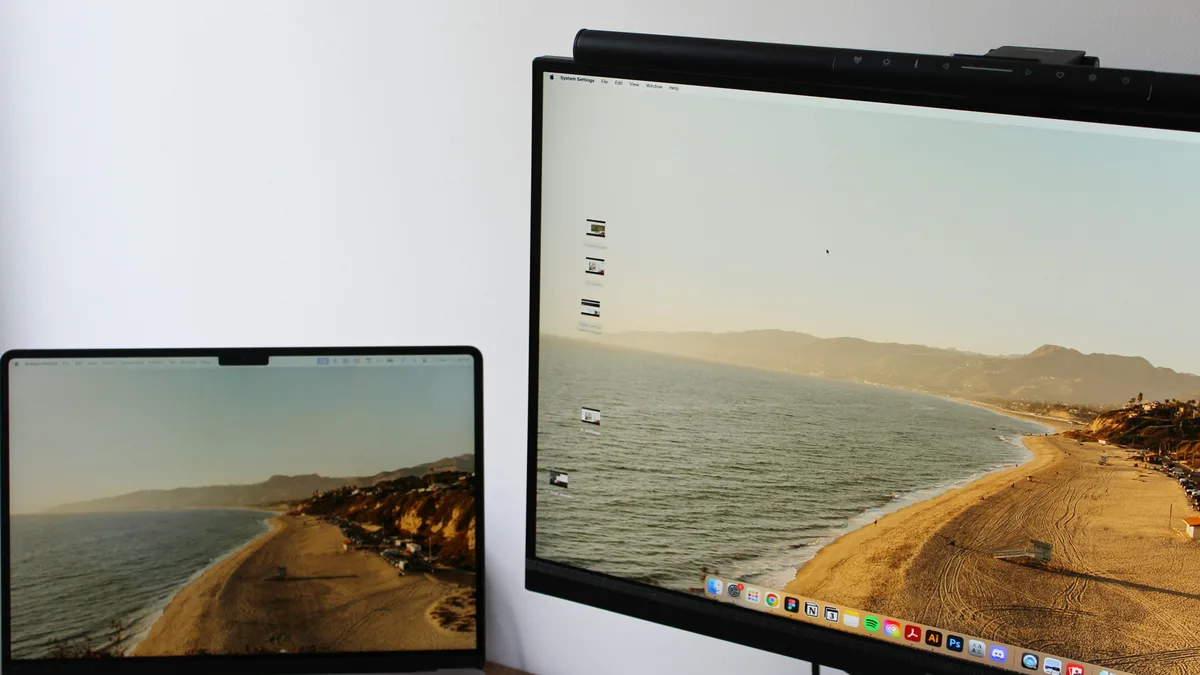
This setup is often called clamshell mode, after the way a laptop folds shut like a shell. It is the same idea on every system: the laptop becomes a small desktop computer, and the monitor, keyboard and mouse do all the work. The steps below cover Windows 11 and 10, macOS, ChromeOS and Linux, then the heat and troubleshooting parts that the short guides leave out.
What you need before you close the lid
You need four things, and you probably own three of them already.
- An external monitor with a working connection. HDMI, DisplayPort, USB-C or Thunderbolt all work. If the monitor does not show your laptop screen while the lid is open, it will not work with the lid closed either, so fix that first. A bigger screen also helps more than a sharper one for desk work, and our comparison of 4K vs 1080p on a laptop explains when the extra pixels are worth paying for. Panel type matters too: our guide to IPS vs OLED laptop screens covers which one suits long desk sessions, and our laptop screen sizes guide puts the monitor size in the context of the whole setup.
- An external keyboard and mouse. Once the lid is shut, the built-in keyboard and touchpad are out of reach. Wired USB devices are the safest choice because they work the moment the computer wakes. Bluetooth devices work too, as long as they are already paired. If you want one cable to carry the monitor, keyboard, mouse and charging, a USB-C hub does the job on most modern laptops, and you can find an Anker USB-C hub on Amazon that covers the common port mix. Our roundup of essential laptop accessories lists the other desk gear that is actually worth buying.
- Power. Run the laptop plugged in. A closed-lid setup on battery drains fast, because the screen, the processor and the external monitor are all drawing power at once, and a MacBook simply refuses clamshell mode without power. Staying plugged in all day is fine for modern laptops, but if you dock the same machine every day, read our guide to limiting laptop battery charge to 80 percent so the battery is not held at full charge for months. Our guide to checking battery health on Windows 11 shows how to tell whether the battery has already lost capacity.
- The right cable and port. A USB-C port only carries video if it supports DisplayPort Alt Mode or Thunderbolt, and a plain USB-C charging port will leave the monitor black. Our comparison of Thunderbolt 4 vs USB4 explains how to tell which kind of USB-C port your laptop has before you buy a dock or a cable.
Before you touch any setting, plug the monitor in with the lid open and confirm three things. The monitor shows your desktop, not a “no signal” message. The keyboard and mouse both respond. And the laptop is charging. If a Bluetooth mouse is asleep, wake it now, not after the lid is closed and you cannot reach the touchpad.
How to use a laptop with the lid closed on Windows 11
Windows 11 is the easiest system to set up for this, because the lid behavior is a plain setting you can change in under a minute. The same steps work on Windows 10, with only the menu names differing slightly.
Step 1: Connect the monitor and choose how the displays behave
Plug the monitor into the laptop and switch the monitor to the correct input. Press Windows key + P to open the projection menu. You will see four choices: PC screen only, Duplicate, Extend and Second screen only.
Choose Second screen only if you want the external monitor to be your only display. This turns off the laptop screen and sends everything to the monitor. Choose Extend if you want to keep both screens active while the lid is open for now; the built-in display will simply switch off once the lid is closed. If you plan to run two external monitors from the same laptop, our guide to how to connect two monitors to a laptop walks through the ports and the display settings first. The same lid setting also works when you present through a projector instead of a monitor, and our guide to connecting a laptop to a projector with USB covers that connection.
Step 2: Change what closing the lid does
- Open Control Panel. The fastest way is to type “control panel” in the taskbar search and open it from the results.
- Go to Hardware and Sound, then Power Options.
- Click Choose what closing the lid does in the left pane. If the options are greyed out, click Change settings that are currently unavailable at the top first.
- Under “When I close the lid”, set both On battery and Plugged in to Do nothing. If you only ever dock at a desk, setting Plugged in alone is enough, but setting both avoids surprises when you close the lid on battery by mistake.
- Click Save changes.
That is the whole setting. Close the laptop lid and the external monitor should stay on. Move the mouse or press a key on the external keyboard to confirm the system did not fall asleep anyway.
Step 3: Set the external monitor as the main display
If your taskbar, desktop icons or new windows keep opening on the laptop screen, the external monitor is not the main display yet. Open Settings, go to System, then Display, click the external monitor in the diagram, tick Make this my main display, and click Apply. Do this with the lid open, so you can see both screens while you work. Once the external monitor is the main display, closing the lid changes nothing about where your windows live.
One more Windows detail is worth knowing. If your laptop has both integrated and dedicated graphics, the lid-close setting sits in the Windows power plan, not in the graphics driver, so changing it in one power plan does not change it in another. If the monitor goes dark only sometimes, check the setting again while the laptop is on the power plan it actually uses, usually Balanced, and save it there.
How to use a MacBook with the lid closed
Apple calls this closed-display mode, and on a Mac it needs no setting change at all. It starts on its own once four conditions are met.
- The MacBook is connected to power with its charger.
- An external display is connected and powered on.
- An external keyboard is connected, by USB or Bluetooth.
- An external mouse or trackpad is connected, by USB or Bluetooth.
Close the lid and the external display takes over. If the display stays dark for a few seconds, press a key on the external keyboard or click the external mouse and it should wake. To go back, open the lid or unplug the display.
Two Mac details catch people out. First, the Mac must be plugged into power. A MacBook on battery will not enter closed-display mode at all, and closing the lid will put it to sleep. Second, the external keyboard and mouse must be connected before you close the lid. A Bluetooth keyboard that is paired but asleep will not wake the Mac, so press a key on it while the lid is still open and confirm it types.
If the external display works but shows the wrong resolution or the wrong arrangement, open System Settings, go to Displays, and set the resolution and arrangement there. The Mac remembers the arrangement per display, so you only set it once for each monitor.
How to use a Chromebook with the lid closed
ChromeOS has one setting for this, and it is off by default. Click the time at the bottom right, open Settings, select System preferences on the left, then open Power. Turn off Sleep when lid is closed. Connect the monitor, keyboard and mouse, then close the lid.
Chromebooks are the most limited of the four systems here. Some school or work Chromebooks have this setting locked by an administrator, and on those machines the lid will put the Chromebook to sleep no matter what you change. If the toggle is greyed out, that is the reason, and there is no supported workaround. On a personal Chromebook the toggle works as described.
One useful Chromebook trick: if you only want the external monitor and not the built-in screen, press and hold the decrease brightness key until the built-in display turns off. The external monitor stays on, which is handy when the lid must stay open for airflow but you do not want the second screen glowing.
How to use a Linux laptop with the lid closed
Linux depends on the desktop environment, so the steps are less uniform than on Windows or macOS. On Ubuntu with GNOME, install GNOME Tweaks, open it, go to General, and turn off Suspend when laptop lid is closed. Then connect the monitor, keyboard and mouse, set the external monitor as the primary display in Settings, and close the lid.
On other distributions the same setting lives in the power manager of the desktop you use, usually under a name like “lid close action” or “when the lid is closed”. If your distribution has no graphical toggle, the setting is a one-line change in the login manager configuration, but that is beyond this guide and varies by distribution, so check your distribution’s own documentation before editing system files.
Will a closed laptop overheat?
This is the real risk of a closed-lid setup, and the one the short guides skip. A laptop still generates heat with the lid closed, and the lid blocks some of its airflow. Many laptops pull cool air in through the keyboard deck or the hinge area, and closing the lid covers part of that intake. The laptop will not melt, because every modern laptop throttles itself or shuts down before it gets hot enough to damage anything, but it can run warmer, spin its fans louder and throttle sooner than it would with the lid open.
Three habits keep the temperatures in check. First, give the laptop air. Put it on a stand that lifts the base off the desk, or stand it upright in a vertical dock so both sides are exposed. A vertical laptop stand on Amazon costs little and is the simplest fix for a desk setup, because it leaves the vents and the whole base open to the air. Second, keep the vents clear. Do not push the closed laptop against a wall, a stack of books or the back of the monitor. Third, never run a closed laptop inside a closed drawer, a bag or under a pile of papers. That is the one arrangement that genuinely risks overheating, because the hot air has nowhere to go.
If you want numbers instead of guesses, check the temperatures while you work. Our guide to how to check laptop temperature shows the tools and the safe ranges for CPU and GPU, and our guide to how to keep a gaming laptop cool covers the cooling habits that matter most, including the ones that help a closed laptop too. As a rough guide, a CPU sitting under 80 degrees Celsius under load is fine, and a machine that regularly passes 90 degrees with the lid closed needs more airflow, not a new laptop.
Leaving the lid open a crack is a fair compromise if your laptop runs warm. A gap of a few millimetres is enough to let air move while the display stays off, because the screen switches off well before the lid is fully shut on most models. Test it once: close the lid slowly and watch when the built-in display turns off, then leave it at that angle.
Troubleshooting: the monitor still goes dark
Most closed-lid failures come from one of six causes. Work through them in order.
| Problem | Most likely cause | Fix |
|---|---|---|
| Monitor goes dark the moment the lid closes | The lid is still set to Sleep | Redo the lid setting in Control Panel and click Save changes. Check it on the power plan the laptop actually uses. |
| Laptop stays awake but everything is on the hidden screen | The laptop display is still the main display | Press Windows key + P and choose Second screen only, or set the external monitor as the main display in Settings. |
| Monitor shows “no signal” even with the lid open | Cable, input or port | Try another cable and another port, and switch the monitor to the right input. A USB-C port without video output will never work. |
| Laptop wakes up right after you close the lid | A USB device or wake timer woke it | In Device Manager, open the keyboard and mouse, go to Power Management, and untick “Allow this device to wake the computer” for the devices you do not want waking it. |
| Bluetooth mouse does nothing after the lid closes | The mouse was asleep when the lid shut | Wake the mouse and confirm it moves the cursor before closing the lid. Wired mice avoid this entirely. |
| Laptop runs hot or the fans scream | Blocked airflow | Lift the laptop on a stand or a vertical dock, clear the vents, and check the temperatures with the tools in our temperature guide. |
One more failure is worth a mention because it looks like a hardware fault and is not. On some Windows laptops, closing the lid once works, and closing it again after a restart does not. That is usually a driver or BIOS update resetting the power plan, and redoing the lid setting after the update fixes it. If the setting keeps reverting, check the laptop maker’s support page for a BIOS or chipset driver update before assuming the lid switch is broken.
How to go back to using the laptop screen
Going back is the reverse of the setup. Open the lid and the built-in display should come back on its own. If it does not, press Windows key + P and choose PC screen only or Extend, or press a key on the external keyboard to wake the machine first.
If you only dock at a desk on some days, leave the lid setting on Do nothing. It does no harm when the laptop is used normally, because closing the lid with no monitor attached simply leaves the machine running with the screen off, and opening it brings the screen back. If you carry the laptop in a bag every day, set the lid action back to Sleep first, because a running laptop in a bag is the one arrangement that really does overheat. On Windows that is the same Control Panel page, set to Sleep instead of Do nothing. On a Mac, just open the lid and unplug the display.
Frequently Asked Questions
Can I close my laptop and still use it with a monitor?
Yes. Connect an external monitor, keyboard and mouse, plug the laptop into power, and change what closing the lid does. On Windows, set “When I close the lid” to “Do nothing” in Power Options. On a MacBook, clamshell mode starts on its own once the Mac is plugged in with an external display, keyboard and mouse. On a Chromebook, turn off “Sleep when lid is closed” in Power settings.
Is it bad to use a laptop with the lid closed?
Not if the laptop has airflow. A closed lid blocks some of the air intake on many models, so the laptop can run warmer and its fans can spin louder, but modern laptops throttle or shut down before heat can damage them. Keep the laptop on a stand or in a vertical dock, keep the vents clear, and never run it inside a closed drawer or a bag. If temperatures stay under about 80 degrees Celsius under load, the setup is fine.
Why does my external monitor go black when I close my laptop?
Because the laptop is set to sleep when the lid closes, which is the factory default. On Windows, open Control Panel, go to Power Options, click “Choose what closing the lid does”, set both “On battery” and “Plugged in” to “Do nothing”, and click Save changes. If the monitor still goes dark, check the setting on the power plan the laptop actually uses, and press Windows key + P to choose “Second screen only” so the external monitor is the display Windows uses.
Can I use a laptop with the lid closed on battery?
On Windows you can, by setting “When I close the lid” to “Do nothing” for “On battery” as well as “Plugged in”, but the battery will drain fast because the processor and the external monitor are both drawing power. On a MacBook you cannot: clamshell mode requires the Mac to be connected to power. For regular desk use, keep the laptop plugged in.
How do I wake a laptop with the lid closed?
Press a key on the external keyboard or click the external mouse. Wired devices work immediately. A Bluetooth keyboard or mouse must be paired and awake before you close the lid, so press a key on it while the lid is still open and confirm it responds. If the laptop does not wake at all, open the lid, wake it, and check the lid setting again.
Does closing the lid damage the screen or the hinge?
No. Laptop lids and hinges are built to be opened and closed thousands of times, and using the laptop with the lid closed does not wear them any faster than normal use. What can damage a laptop is heat, not the closed lid itself, so the only real precaution is airflow: keep the vents clear and do not run a closed laptop inside a bag or a drawer.