How to Check VRAM on Your Laptop (Windows 11)
Quick Answer: Press Ctrl + Shift + Esc to open Task Manager, click Performance, then GPU, and read Dedicated GPU memory. That number is your laptop VRAM. On a laptop with a dedicated NVIDIA or AMD graphics card it shows the real VRAM, usually 6 GB or 8 GB on current budget gaming models. On integrated graphics, read Shared GPU memory instead.
What VRAM is, in plain words
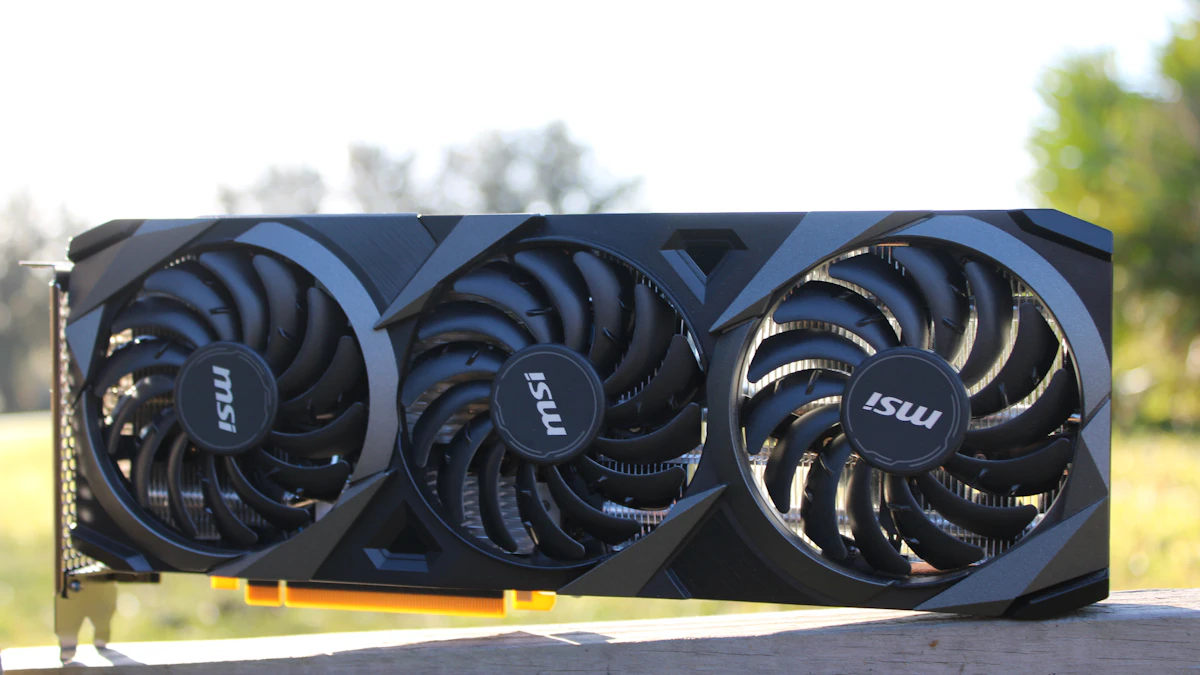
VRAM, short for video memory, is the fast memory built onto your graphics chip. It stores the textures and frame data the GPU needs to draw every frame.
It is not the same thing as system RAM. Your regular RAM, DDR4 or DDR5 memory sticks, serves the CPU, while VRAM serves only the GPU. One cannot cover for the other, so 32 GB of system RAM does not fix a graphics card that is short on VRAM. Our DDR4 vs DDR5 RAM in laptops comparison and our guide to how much RAM you need for gaming cover the system side.
When a game needs more VRAM than the card holds, the GPU spills the overflow into system RAM, which is far slower. The result is stuttering and texture pop-in. VRAM is fixed at purchase on a laptop, soldered onto the graphics chip.
Method 1: Check VRAM in Task Manager (the fastest way)
Task Manager is the quickest check because it shows both the total VRAM and how much is in use right now, live, while a game or app runs.
- Press Ctrl + Shift + Esc to open Task Manager.
- Click Performance in the left sidebar.
- Click GPU 0. If your laptop has two graphics chips, you will also see GPU 1. The dedicated card is the one that matters for gaming.
- Look at the bottom of the panel for Dedicated GPU memory and Shared GPU memory. The first number is your VRAM, shown as used amount out of the total, for example 3.2 of 8.0 GB.
Leave Task Manager open on a second screen, or Alt + Tab back to it after a session, and the graphs show how close to the limit your games run. If the dedicated memory line sits near the top while a game stutters, you have found your bottleneck. For a per-game view, open the Details tab, right-click a column header, choose Select columns, and turn on Dedicated GPU memory. VRAM is only one of the numbers that decides gaming speed, and our explainer on what TGP means in a gaming laptop shows how the power limit shapes the result.
Method 2: Check VRAM in Windows Settings
If you only need the total, and not live usage, the Settings app gives the cleanest single number. Open Settings, go to System and Display, click Advanced display, then click Display adapter properties for Display 1. On the Adapter tab, read Dedicated Video Memory. That is your VRAM.
The same window also lists Shared System Memory, the system RAM Windows lets the GPU borrow. Ignore it on a dedicated card; it only matters on integrated graphics, covered below.
Method 3: Check VRAM with dxdiag
The DirectX Diagnostic Tool is the best option when you need a report to send to support or to a seller. Press Win + R, type dxdiag and press Enter. Click the Display tab. On a laptop with two graphics chips there may be two Display tabs, so check each one. In the Device section, find Display Memory (VRAM). That is your dedicated video memory.
Read the right line. dxdiag also shows Approx. Total Memory, which adds shared system memory to the dedicated figure, so it can look bigger than your real VRAM. The Display Memory line is the one to trust. Click Save All Information if you want the whole report as a text file.
Method 4: Check VRAM with GPU-Z (and your GPU app)
The free tool GPU-Z from TechPowerUp shows the memory size, the memory type such as GDDR6 or GDDR7, and the bus width on one small screen. Download it, run it, and read the Memory Size field near the top. Your graphics card software shows the same figure without any download: the NVIDIA App lists it under System, and AMD Software shows it in the system overview.
Which number should you read?
The tools above show three different memory figures, and mixing them up is the most common mistake in this whole check.
| Figure | What it really is | What to do with it |
|---|---|---|
| Dedicated GPU memory | The VRAM soldered onto your graphics card | Compare this with game requirements |
| Shared GPU memory | System RAM the GPU is allowed to borrow | A backup pool, far slower than VRAM |
| Approx. Total Memory (dxdiag) | Dedicated plus shared memory added together | Ignore it, it overstates the real figure |
Integrated graphics need a special note. Chips such as Intel UHD Graphics and AMD Radeon Graphics have no VRAM of their own. They borrow system RAM as needed, so Task Manager may show a dedicated figure as small as 128 MB. That is only a reserved minimum, not the whole story. On these laptops, judge the graphics by the shared memory figure and your total system RAM instead.
How much VRAM do you need?
Requirements have climbed with textures and resolutions. The table below is a practical guide for 2026.
| What you play | VRAM to aim for |
|---|---|
| 1080p esports and older games | 6 GB |
| 1080p AAA games, high settings | 8 GB |
| 1440p, high or ultra settings | 12 GB |
| 4K, high or ultra settings | 16 GB or more |
| Video editing and local AI models | 12 to 16 GB |
Official game requirements back these numbers up. Indiana Jones and the Great Circle lists 8 GB of VRAM as its minimum, 12 GB in its recommended setup for 1440p, and 16 GB for native 4K, according to Bethesda. Microsoft Flight Simulator 2024 lists 4 GB as its minimum, 8 GB as recommended and 12 GB in its ideal tier.
Most current laptop GPUs land on the right side of these lines. The RTX 4050 laptop GPU carries 6 GB, the RTX 4060 and RTX 4070 carry 8 GB, and the newer RTX 5050 and RTX 5060 carry 8 GB. The jump from the 4050 to the 4060 is partly a VRAM jump, which is why our RTX 4050 vs RTX 4060 laptop comparison spends time on memory, not just clock speeds. Our picks for the best gaming laptops under $700 show what 6 GB and 8 GB buy at that price, and the gaming laptops around $1,000 are where 8 GB becomes standard. VRAM decides more than games: local AI work loads whole models into graphics memory, so our guide to the best laptops for machine learning treats VRAM as a first-class spec.
What to do when you run out of VRAM
A full VRAM meter is not the end of the story. These fixes work in order, from the biggest gain to the smallest.
- Lower Texture Quality one step. Textures are the biggest VRAM user, and dropping from Ultra to High often frees 1 to 2 GB.
- Turn on DLSS or FSR upscaling. Rendering at a lower internal resolution cuts the frame buffer size.
- Lower the resolution or render scale. Try this last, because it softens the whole image.
- Close the browser and background apps. Browsers with hardware acceleration and apps such as Discord hold VRAM too.
- Update the GPU driver. Newer drivers sometimes manage memory better in new games.
On integrated graphics these steps matter more, because every megabyte comes out of your system RAM. Before writing the machine off, our guide to converting a normal laptop into a gaming laptop starts with exactly this kind of honest hardware check.
Can you increase VRAM on a laptop?
On a laptop with a dedicated graphics card, no. The VRAM chips are soldered onto the graphics card, and there is no slot, setting or software that adds more. The only real fix is a laptop with a bigger GPU, so put the VRAM figure on your shortlist before you buy.
On integrated graphics there is one partial exception. Some BIOS menus offer a UMA Frame Buffer Size setting that raises the reserved slice of system RAM, for example from 512 MB to 2 GB, but the gain is small because Windows already shares system RAM dynamically. A second matching RAM stick for dual channel helps far more. If the games you want have moved past an old laptop, our gaming laptop vs regular laptop comparison spells out what a dedicated GPU buys you.
Frequently Asked Questions
How do I check VRAM on a Windows 11 laptop?
Press Ctrl + Shift + Esc to open Task Manager, click Performance, then GPU, and read Dedicated GPU memory. Settings, dxdiag and GPU-Z show the same figure.
How much VRAM is good for a gaming laptop in 2026?
For 1080p gaming, 8 GB is the safe floor. For 1440p at high settings, aim for 12 GB, and for 4K, aim for 16 GB or more. Most current laptop GPUs ship with 6 GB or 8 GB, so 8 GB is the practical minimum for a new gaming laptop.
Is 6GB VRAM enough for gaming?
Yes at 1080p, with settings tuned. A 6 GB card such as the RTX 4050 laptop GPU handles esports titles and most AAA games at 1080p on high settings, but you may need to drop textures one step in new releases. For 1440p, 8 GB is the safer buy.
Can I increase VRAM on my laptop?
Not on a laptop with a dedicated graphics card. The VRAM is soldered onto the GPU and cannot be upgraded. On integrated graphics, some BIOS menus let you raise the reserved memory slice, but the gain is small. The real fix is a laptop with a bigger GPU.
What is the difference between dedicated and shared GPU memory?
Dedicated GPU memory is the VRAM built onto the graphics card, and it is the fast memory games use first. Shared GPU memory is regular system RAM that Windows lets the GPU borrow when VRAM runs short. It is much slower, so it is a backup, not a replacement.
The Verdict
Checking VRAM takes under a minute, and Task Manager is the only tool most people need. Open it, read Dedicated GPU memory, and compare the number with what your games ask for. If the figure is 8 GB, you are set for 1080p and in decent shape for 1440p with tuned settings. If it is 6 GB, you can still play well at 1080p, but keep texture quality in check. On integrated graphics, remember the small figure is only the reserved slice.
The number is fixed once you own the laptop, so check it before the next game purchase, and before the next laptop purchase. A machine like a Lenovo LOQ 15 with an RTX 4060 puts 8 GB of VRAM in a budget chassis, and you can check current Lenovo LOQ 15 RTX 4060 options on Amazon if you are shopping for that tier.