Best Laptops for Engineering Students in 2026
An engineering degree is one of the hardest workloads you can put on a laptop. The same machine has to run CAD in the morning, a MATLAB script before lunch, a simulation in the afternoon, and still have battery left for notes in the last lecture. Buy a laptop that is too weak and you will feel it in every rebuild and every deadline week for the next four years.
The good news is that in 2026 the right formula is well understood. Universities publishing laptop requirements for the 2026-27 year ask for the same recipe: a modern multi-core processor, 16GB of RAM as the minimum, a 512GB SSD, and a dedicated NVIDIA graphics card. Every Windows pick below meets that recipe, and every specification was checked against the manufacturer’s own product pages or a full retailer specification listing.
Quick Answer: The Lenovo LOQ 15 is the best laptop for engineering students for most people in 2026. Its Ryzen 7 processor, RTX 5060 graphics running at a full 115 watts, 16GB of RAM, and bright 300 nit screen cover CAD, simulation, and coding without the premium price of a workstation. If your course leans heavily on SolidWorks and large assemblies and the budget stretches, step up to the Lenovo Legion 5 Gen 10 for its OLED screen, bigger battery, and lighter chassis.
How we picked: We started from the laptop requirements faculties publish for the 2026-27 year, including Louisiana Tech College of Engineering and Science, which set 16GB of RAM, a 512GB SSD and dedicated NVIDIA graphics as the floor. We then checked every pick against manufacturer specification pages from Lenovo, ASUS, HP, Acer, Dell and Apple, and cross-checked configurations against independent reviews and retailer specification listings such as PCWorld and The Verge. We left out true ISV certified workstations because their prices sit beyond student budgets, and we kept only machines that meet the published faculty bar.

The Best Laptops For Engineering Students at a Glance
| Model | CPU | GPU | Best For |
|---|---|---|---|
| Lenovo LOQ 15 | AMD Ryzen 7 250 | RTX 5060 8GB | Best overall value |
| Lenovo Legion 5 Gen 10 | AMD Ryzen 7 260 | RTX 5060 8GB | Heavy CAD and simulation |
| ASUS TUF Gaming A16 | AMD Ryzen 7 260 | RTX 5060 8GB | Toughest build |
| HP Victus 15 | Intel Core i5-13420H | RTX 5050 8GB | Best budget pick |
| Acer Nitro V 15 | Intel Core i7-13620H | RTX 4050 6GB | Low cost, strong CPU |
| Dell G15 5535 | AMD Ryzen 7 7840HS | RTX 4050 6GB | Screen and battery |
| Apple MacBook Air 13 (M4) | Apple M4 (10-core) | M4 10-core GPU | Mac friendly majors |
1. Lenovo LOQ 15: Best Overall Laptop for Engineering Students
The LOQ 15 is where most engineering students should start, because it spends money in the order your coursework actually needs. The current 15AHP10 model pairs an AMD Ryzen 7 250 processor with an NVIDIA GeForce RTX 5060 graphics card, 16GB of DDR5 memory, and a 512GB SSD. On paper, that is exactly the combination engineering departments ask for, with a graphics card a full generation newer than the RTX 4050 machines that filled this category a year ago.
Two details lift it above cheaper rivals. First, the graphics card runs at up to 115 watts, the full power version, so it holds its speed in long SolidWorks sessions and simulation runs instead of throttling back. Second, the screen is better than the budget norm: a 15.6 inch Full HD IPS panel at 144Hz with 300 nits of brightness, full sRGB coverage, and G-SYNC. Lenovo also offers a cheap factory upgrade to 32GB of RAM and 1TB storage configurations, both worth taking if offered at checkout. Students who plan to train models on the side will find the RTX 5060 useful there too, and our guide to the best laptops for machine learning explains how far an 8GB card goes.
The trade-offs are weight and battery. At 5.29 pounds with a 60Wh battery, this is a laptop you carry between classes and plug in when you arrive. The Ryzen 7 250 is also built on an older architecture than the newest chips, which shows in efficiency rather than in raw coursework speed.
Think about the configuration in terms of your final year rather than your first semester. Introductory programming, 2D drawing, and small assemblies run easily on the base specification, but simulation meshes, finite element analysis (FEA) studies, and virtual machines in later years are what push memory and storage. Lenovo’s factory upgrade to 32GB of RAM was quoted at just $65 on Lenovo’s own store, and a 1TB configuration is also sold, so taking the memory upgrade at checkout is the cheapest insurance in this guide.
Pros
- ✓ RTX 5060 runs at full 115W power for sustained CAD and simulation work
- ✓ 16GB DDR5 RAM and a bright 300 nit, 100% sRGB screen as standard
- ✓ Cheap factory upgrades to 32GB RAM and 1TB storage
- ✓ Ethernet port and a full set of USB ports for lab work
Cons
- ✗ Heavy at 5.29 lb, and the 60Wh battery is only average
- ✗ Ryzen 7 250 uses an older architecture than the latest chips
Check the latest price: Lenovo LOQ 15 on Amazon
Best for: Most engineering students who want full power RTX 5060 CAD performance at a mid range price. Not for: Students who need an all day carry, since it is heavy at 5.29 lb with only average battery life.
2. Lenovo Legion 5 Gen 10: Best for Heavy CAD and Simulation
The Legion 5 Gen 10 is the step up pick for students whose degree is heavy on 3D work, meaning mechanical, aerospace, and civil students who will live inside SolidWorks and ANSYS. It uses the same RTX 5060 graphics family as the LOQ but wraps it in a thinner aluminium topped chassis that starts at just 4.19 pounds, with an AMD Ryzen 7 260 processor, 16GB of DDR5 memory, and a 512GB SSD in the common configuration.
The screen is the headline. The 15.1 inch WQXGA OLED panel runs at 2560 x 1600 and 165Hz with full DCI-P3 color coverage, so models and renders look sharper and more accurate than on any budget IPS panel. The 80Wh battery is large for a slim laptop, and rapid charging returns 50 percent in about 30 minutes. On paper it is the closest thing here to a workstation at a student friendly weight, and the same traits suit the site work covered in our guide to the best laptops for construction management.
The resolution earns its keep in daily viewport work, too. At 2560 x 1600, a SolidWorks or AutoCAD window shows more of a drawing or assembly at a readable zoom than a 1080p panel does, which means less panning and zooming during design reviews and lab demonstrations. Storage grows along the same curve: CAD project folders, simulation result files, and a Linux virtual machine for computer engineering modules add up across four years, and the Legion’s second M.2 slot lets you add another drive later instead of replacing the laptop.
You pay for all of it. The Legion costs noticeably more than the LOQ with similar core performance, the OLED panel is glossy, which can reflect in bright lecture halls, and the shorter M.2 2242 SSD format makes second drive upgrades less flexible.
Pros
- ✓ Superb 15.1 inch OLED screen, 2560 x 1600, with full DCI-P3 color
- ✓ Light for its class at 4.19 lb, with a large 80Wh battery and rapid charging
- ✓ Ryzen 7 260 and RTX 5060 handle large assemblies well on paper
- ✓ Aluminium lid and a more professional look than most gaming laptops
Cons
- ✗ Costs more than the LOQ 15 for similar core performance
- ✗ Glossy OLED can reflect overhead lighting in bright rooms
Check the latest price: Lenovo Legion 5 Gen 10 on Amazon
Best for: Mechanical, aerospace and civil students doing heavy SolidWorks and large assemblies who want an OLED screen. Not for: Students on a tight budget or in bright lecture halls, since it costs more and the glossy OLED can reflect.
3. ASUS TUF Gaming A16: The Toughest Laptop Here
Engineering students are hard on laptops. They get carried in stuffed backpacks, balanced on lab benches, and knocked around for four years. The TUF Gaming A16 is built for exactly that life: ASUS tests the TUF range to the MIL-STD-810H military durability standard, covering drops, vibration, humidity, and temperature extremes.
It is not just tough, it is fast. The 2025 FA608 model combines an AMD Ryzen 7 260 processor with an RTX 5060 graphics card running at up to 115 watts, 16GB of DDR5 memory in two upgradeable slots, and a 1TB SSD with a second slot free. The 16 inch screen gives CAD viewports and code more room than a 15.6 inch panel, at 165Hz with G-Sync in the common configuration, and the 90Wh battery is the biggest in this guide, which genuinely helps on long lab days.
One detail worth knowing is the screen’s shape. The standard panel is a taller 1920 x 1200 display in a 16:10 aspect ratio rather than the usual 1920 x 1080, and that extra vertical space shows more lines of code and more of a technical drawing at once, something you feel in every programming and CAD session. ASUS also sells a sharper 2.5K, 165Hz version of this model, and if product design and rendering feature heavily in your degree, that panel is the variant to look for.
The size is the compromise. A 16 inch chassis at about 4.9 pounds fills a backpack, and ASUS sells this model in several configurations, including weaker RTX 5050 versions, so check the exact model code before you buy.
Pros
- ✓ MIL-STD-810H tested durability for daily campus abuse
- ✓ RTX 5060 at up to 115W, with two RAM slots and two SSD slots
- ✓ 90Wh battery, the largest in this guide
- ✓ Bigger 16 inch screen gives CAD and code more breathing room
Cons
- ✗ Big and heavy in a backpack at about 4.9 lb
- ✗ Weaker configurations share the same name, so check the model code
Check the latest price: ASUS TUF Gaming A16 on Amazon
Best for: Students who need a tough laptop that survives four years of backpacks and lab benches. Not for: Students who want a light carry, since the 16 inch chassis weighs about 4.9 lb.
4. HP Victus 15: Best Budget Laptop for Engineering Students
Not every student can spend four figures, and the Victus 15 is the sensible floor for engineering work in 2026. The current model pairs an Intel Core i5-13420H processor with the newer RTX 5050 graphics card with 8GB of dedicated memory, 16GB of DDR5 RAM, and a 512GB SSD. That graphics card matters: it clears the dedicated GPU bar that engineering faculties set, and it is a generation ahead of the RTX 4050 machines often sold at the same money.
The rest of the package suits student life. The 15.6 inch Full HD screen runs at 144Hz and reaches 300 nits, the keyboard includes a number pad, and the 70Wh battery is generous for this price class, with fast charging to about 50 percent in 30 minutes. If the budget will not stretch even this far, our guide to the best gaming laptops under $500 covers the cheaper fallback machines, though most give up the dedicated graphics an engineering course really wants.
The upgrade path is better than the price suggests. The Victus carries two M.2 slots, so a second SSD can go in when project files, virtual machines, and simulation data outgrow the first 512GB, as they usually do by third year. That makes it a particularly sensible buy for electrical and computer engineering students, whose days are mostly code, circuit simulation, and lab reports rather than giant assemblies, and who gain more from that storage headroom than from a faster graphics card.
Be honest about the limits. The Core i5-13420H is an older processor design, fine for coursework but the first thing that will feel dated, and the screen covers a basic 62.5 percent of sRGB, adequate for CAD but not for color critical design work.
Pros
- ✓ RTX 5050 dedicated graphics at a genuinely student friendly price level
- ✓ 16GB RAM, 300 nit screen, and a big 70Wh battery as standard
- ✓ Number pad keyboard and fast charging suit long study days
- ✓ Understated design that fits classrooms and internships
Cons
- ✗ Core i5-13420H is the weakest CPU in this guide
- ✗ Screen color coverage is limited at 62.5% sRGB
Check the latest price: HP Victus 15 on Amazon
Best for: Budget buyers who still need dedicated RTX graphics for engineering coursework. Not for: Color critical design work, since the screen covers only 62.5 percent of sRGB.
5. Acer Nitro V 15: Strong CPU for the Least Money
The Nitro V 15 takes a different route to value: an older graphics card, but a stronger processor than most budget rivals. The ANV15-51 configuration sold worldwide runs an Intel Core i7-13620H, a 10 core chip that is quick in MATLAB, compiling, and simulation setup work, alongside an RTX 4050 graphics card with 6GB of memory at up to 75 watts. With 16GB of DDR5 memory, a 512GB SSD, and a 144Hz Full HD screen, it meets every line of the standard engineering requirement list.
It is also one of the lighter full power laptops here at about 4.63 pounds, and Acer keeps the memory upgradeable and adds a second SSD slot, so it can grow with you into final year projects. The compromises are the smaller 57Wh battery, which you will notice on days with back to back lectures, and a screen that is fast but only average for brightness and color. The RTX 4050 is also a generation behind the 5050 and 5060 cards above it, so heavy GPU simulation is where it gives ground.
What the Nitro does well is sustain its pace under load. Acer rates the RTX 4050 at up to 75 watts, a healthy figure in this class, so GPU accelerated solves and renders hold their speed instead of sagging as a long job runs, and the ten core processor keeps compile times and model rebuilds short between lectures. If you find the 1TB version priced close to the 512GB model, take it: CAD installs, simulation result files, and coursework backups fill a drive faster than most students expect.
Pros
- ✓ Core i7-13620H is the strongest CPU at this price level
- ✓ Upgradeable RAM and a second SSD slot extend its useful life
- ✓ Relatively light at 4.63 lb for a full power laptop
- ✓ RTX 4050 clears the dedicated graphics requirement comfortably
Cons
- ✗ Small 57Wh battery for a laptop this powerful
- ✗ RTX 4050 is a generation behind the newer picks above
Check the latest price: Acer Nitro V 15 on Amazon
Best for: Students who want the strongest CPU at a low price for MATLAB and compiling. Not for: Heavy GPU simulation or long days away from a socket, since the RTX 4050 is a generation behind and the battery is small at 57Wh.
6. Dell G15 5535: Best Budget Screen and Battery
The G15 is Dell’s workhorse gaming line, and the 5535 model earns its place for two things budget laptops usually get wrong: the screen and the battery. Its 15.6 inch Full HD panel runs at 165Hz with 300 nits of brightness and full sRGB coverage, the best display specification at this price, and the 86Wh battery is nearly half again as large as the Nitro’s. Underneath, an AMD Ryzen 7 7840HS processor and RTX 4050 graphics with 16GB of DDR5 memory and a 512GB SSD cover the engineering checklist completely. Dell’s service network is a genuine plus over four years of daily use, and this model is named directly in university suggested laptop lists for 2026-27.
There is no hiding the weight, though. At 6.19 pounds before the hefty power adapter goes in the bag, the G15 is the heaviest laptop in this guide by a wide margin, and its design is the oldest here. Buy it as a desk anchored machine that occasionally travels, not as an all day carry.
Treat it, in other words, as a workstation that happens to fold. The realistic pattern is a fixed desk in a dorm or apartment, with the laptop carried to the lab only when a course demands it, and students who do most of their CAD and simulation work in one place will get the most from it. One planning note: the 16GB of memory arrives as two 8GB sticks, so a later move to 32GB means replacing both sticks rather than simply adding one.
Pros
- ✓ Best budget screen here: 165Hz, 300 nits, 100% sRGB
- ✓ Large 86Wh battery and Dell’s strong service network
- ✓ Ryzen 7 7840HS and RTX 4050 cover the full engineering checklist
- ✓ Named in university suggested laptop lists for 2026-27
Cons
- ✗ Very heavy at 6.19 lb, plus a large power adapter
- ✗ Older chassis design than the other picks
Check the latest price: Dell G15 5535 on Amazon
Best for: Desk based students who want the best budget screen and a large 86Wh battery. Not for: Daily carrying, since at 6.19 lb it is the heaviest laptop in this guide.
7. Apple MacBook Air 13 (M4): Best for Mac Friendly Majors
The MacBook Air belongs on this list with one large, honest condition attached, covered in full in the Mac or Windows section below. If your degree runs on software that works on macOS, meaning coding heavy programs, MATLAB, Python, and browser based CAD like Onshape, then no Windows laptop here matches what the Air does well.
The M4 model is thin and silent at 2.7 pounds, with a 10 core M4 processor, 16GB of unified memory as standard, and battery life rated up to 18 hours. The 13.6 inch Liquid Retina screen is sharp at 2560 x 1664 and bright at 500 nits. Choose the 512GB configuration over the 256GB base model, because engineering software fills space quickly and Mac storage cannot be upgraded later. Keeping that bright screen clean matters too, and our guide on how to clean a laptop screen without streaks applies just as well here.
For coding heavy degrees, the daily experience is hard to beat. The M4 compiles code quickly, the fanless design stays completely silent in lectures and libraries, and the battery realistically carries through a full day of labs, lectures, and study sessions without hunting for a free socket. If your modules involve heavier local workloads, Apple sells 24GB and 32GB memory versions of this same machine, and choosing that extra memory at purchase is the one upgrade worth weighing, because nothing inside can be changed afterwards.
Against that, there is no dedicated NVIDIA graphics, nothing is upgradeable, and SolidWorks and ANSYS do not run natively on macOS. Students in security and virtual machine labs should also read our guide to the best laptops for cyber security students before assuming a Mac covers their lab work.
Pros
- ✓ Featherweight 2.7 lb, silent, and up to 18 hours of rated battery life
- ✓ Fast M4 chip and 16GB of memory as standard
- ✓ Excellent 500 nit screen and build quality
- ✓ Ideal for coding heavy and web based engineering workflows
Cons
- ✗ SolidWorks and ANSYS do not run natively on macOS
- ✗ Nothing is upgradeable after purchase, so buy the 512GB model
Check the latest price: Apple MacBook Air M4 on Amazon
Best for: Coding heavy majors whose course software runs on macOS or in the browser. Not for: Students who need SolidWorks or ANSYS, since neither runs natively on macOS.
How to Choose a Laptop for Engineering
How much RAM do engineering students need?
Treat 16GB as the minimum, not the target. Every university requirement list we checked for 2026-27 sets 16GB as the floor, and several recommend 32GB for advanced modeling and simulation in later years. CAD assemblies, a browser full of research tabs, and a MATLAB session together will use most of 16GB. If a laptop offers a cheap upgrade to 32GB at purchase, like the LOQ 15 does, it is usually the smartest money in the whole configuration. Avoid 8GB entirely, whatever the discount.
Do you need a dedicated GPU for CAD?
For mechanical, civil, aerospace, and any course built around SolidWorks, yes, plan on one. SolidWorks publishes a certified graphics list built around professional NVIDIA cards, and while a GeForce RTX card is not certified, in practice it runs student assemblies far more smoothly than integrated graphics, and it accelerates rendering and ANSYS GPU solving as well. For 2D AutoCAD and lighter degrees, strong integrated graphics can cope, but a dedicated RTX 5050 or better removes the question for the whole degree.
Is a gaming laptop good for engineering?
Yes, and this guide is the proof. Gaming laptops are simply the cheapest way to buy the exact recipe engineering needs: a powerful H series processor, a dedicated NVIDIA graphics card, strong cooling for long loads, and upgradeable memory and storage. You give up the certified drivers and slim build of a true mobile workstation, and you accept more weight and fan noise. For student budgets, that trade is almost always worth it, which is why so many faculties list gaming models in their own recommendations.
Mac or Windows for engineering software?
Windows is the safe default, full stop. SolidWorks has no native macOS version, the free ANSYS Student package is Windows only, and many department software bundles assume Windows. A Mac makes sense only when you have checked your actual course list and everything on it runs on macOS or in the browser: MATLAB, Python, AutoCAD for Mac (with some feature differences), Fusion 360, and Onshape all qualify. If even one required course needs SolidWorks on your own machine, buy Windows and skip the virtual machine workarounds.

The Software That Decides Your Laptop
Specifications only matter because of the programs behind them. AutoCAD in 2D is mostly a CPU and RAM workload and runs well on everything in this guide. SolidWorks is the demanding one: it wants a fast processor for rebuilds, plenty of RAM for assemblies, and a real graphics card for large models, and it is Windows only. MATLAB leans on the CPU and uses an NVIDIA GPU for deep learning tasks where you have one. ANSYS rewards more cores and more RAM, which is why the 32GB upgrade advice keeps appearing. Check your department’s requirement page before you buy, then match it against the table at the top.
Engineering Laptop Terms That Actually Matter
Spec sheets are full of terms that decide how a laptop feels in real coursework but are rarely explained. These are the ones worth understanding before you spend anything.
ISV certification. ISV stands for independent software vendor. Certification means the software maker, Dassault for SolidWorks or Ansys for its simulation tools, has tested a specific graphics card and driver combination and agreed to support it. Certified setups use professional workstation GPUs, such as NVIDIA’s professional RTX cards, rather than gaming cards. A GeForce RTX card runs the same programs, usually just as fast at student scale, but it sits outside the certified list, so official support can blame the card when a driver problem appears. Employers pay the workstation premium for that support; students almost always get better value from the gaming card.
Single core clock speed. Most CAD work is a one core job. Rotating a model, rebuilding a feature tree, and regenerating a drawing all lean on the speed of the fastest single processor core far more than on the total core count, so the boost clock matters when you compare processors for SolidWorks or AutoCAD. Extra cores earn their keep in rendering, simulation solving, and compiling large projects, which spread across every core available. A good engineering processor needs both.
Sustained TDP and cooling. TDP is the power, in watts, that a chip may draw continuously, and it decides what happens ten minutes into a job rather than ten seconds in. Two laptops can carry the same RTX 5060, yet the one that feeds it 115 watts, in a chassis with the cooling to match, holds its speed through a long render or simulation, while a slimmer, lower wattage machine slows as it heats up. The same graphics card name can therefore mean quite different real performance, which is why the wattage figures in this guide are worth checking.
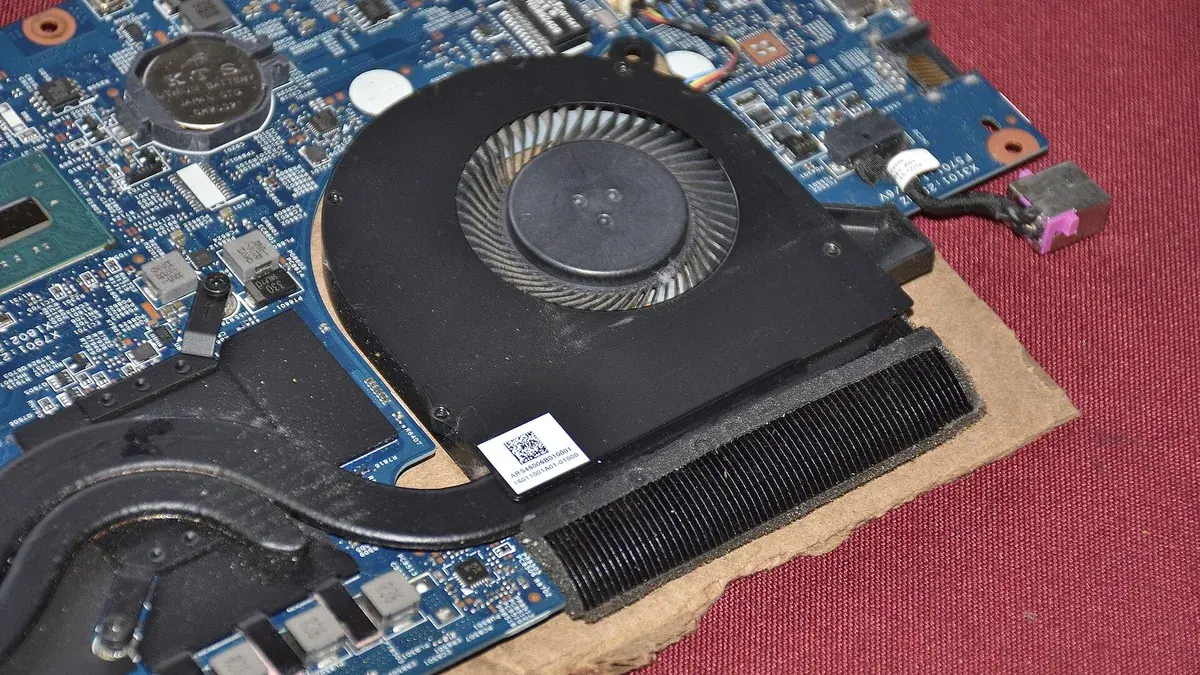
Color accurate displays. Coverage figures describe how much of a color space a screen can show. Full sRGB coverage is the sensible baseline, while wider DCI-P3 coverage matters for product design, visualization, and renders you will present or print. Brightness matters everywhere else: around 300 nits keeps a screen readable under bright lab and lecture hall lighting.
Thunderbolt and docking. Thunderbolt and fast USB-C ports let a single cable turn a laptop into a desk setup, driving a monitor, keyboard, mouse, and wired ethernet in a dorm room or lab. That routine matters more than it sounds across four years: the laptop that docks properly works as a workstation at home and still unplugs in seconds for lectures. Between two otherwise equal models, the better port selection usually ages better.
Why 16GB of RAM is the floor. Memory fills faster than students expect: Windows, a CAD assembly, a browser full of research tabs, and a MATLAB session together sail past 8GB, which is why every serious requirement list starts at 16GB. The arrangement matters as much as the capacity. Memory runs in dual channel mode when two matched sticks share the work, which roughly doubles the bandwidth a single stick provides, and integrated graphics borrow from that same bandwidth. A 16GB machine built from two 8GB sticks therefore feeds its processor and graphics better than one carrying a single 16GB stick, so confirm which arrangement you are buying.
Frequently Asked Questions
What is the best laptop for engineering students in 2026?
For most students, the Lenovo LOQ 15. It combines a Ryzen 7 processor, full power RTX 5060 graphics, 16GB of RAM, and a good screen at a mid range price, which covers CAD, MATLAB, and simulation for a full degree. Students with heavy SolidWorks workloads and a bigger budget should look at the Legion 5 Gen 10.
How much should an engineering student spend on a laptop?
Plan for a mid range budget rather than the cheapest laptop in the store. The machines that meet the standard requirements, 16GB of RAM, a 512GB SSD, and dedicated RTX graphics, cluster in the middle of the market and rotate through student sales. Spending a little more on 32GB of RAM or a 1TB SSD at purchase is usually better value than replacing a weak laptop in third year.
Are 2 in 1 laptops good for engineering students?
They are good for notes and lectures, but very few pair a touchscreen with a dedicated graphics card and strong cooling. Most engineering students are better served by a conventional laptop from this list, and a cheap tablet or paper for handwriting. A 2 in 1 makes sense only for lighter, coding based degrees.
Can a Chromebook run engineering software?
No, not the software that defines most engineering degrees. SolidWorks, ANSYS, and the desktop versions of AutoCAD and MATLAB do not run on ChromeOS. A Chromebook can handle documents and web based tools, but it cannot be your main engineering machine.
Should engineering students buy a laptop with a touchscreen?
It is a nice extra and never a requirement. CAD work is mouse work, and no faculty requirement list asks for touch. Spend the money on RAM, storage, and graphics first, and treat touch as a bonus if a model you already like includes it.
The Verdict
Buy the Lenovo LOQ 15 if you want one recommendation that fits almost every engineering degree: the right processor class, current RTX 5060 graphics at full power, the required memory and storage, and a screen that will not tire your eyes. Step up to the Legion 5 Gen 10 for heavy CAD with a bigger budget, pick the TUF A16 if durability worries you, and look at the Victus 15 or Nitro V 15 if the budget is tight. Choose the MacBook Air M4 only after confirming your course software runs on macOS. Whichever way you go, confirm the exact configuration, keep 16GB of RAM and a dedicated graphics card as your non negotiables, and check the latest price before you buy.