What Is a Good GPU Temperature for a Gaming Laptop?
Quick Answer: A good GPU temperature for a gaming laptop is 30 to 50°C at idle and 65 to 85°C while gaming. Laptops run hotter than desktops by design, so 85 to 90°C under a heavy load is still normal on most models, especially thin ones. Worry only when the GPU sits above 90°C for long sessions, or when high temperatures come with stuttering and frame drops. That combination means the card is throttling, and the cooling needs attention.
What is a good GPU temperature for a gaming laptop?
There is no single magic number, because the right temperature depends on what the laptop is doing. A GPU at rest and a GPU running a demanding game live in different ranges. The table below is the practical guide for a gaming laptop.
| What the laptop is doing | Laptop GPU temperature | What it means |
|---|---|---|
| Idle or light desktop work | 30 to 50°C | Normal. The fans may stop completely. |
| Light gaming or video playback | 50 to 65°C | Normal. Fans spin quietly. |
| Demanding games | 65 to 85°C | The sweet spot. This is where a healthy gaming laptop lives. |
| Heavy load on a thin laptop | 85 to 90°C | Acceptable in stretches. |
| Above 90°C for a long session | 90°C and up | Act now. Clean vents, improve airflow. |
| Above 95°C sustained | 95°C and up | A real problem. Expect throttling. |
The room matters as much as the laptop. A warm room in summer can push the same laptop 5 to 10 degrees higher than a cool room in winter, with nothing wrong inside the machine. The temperature also drops fast: a GPU that reads 88°C in a game can fall to 55°C within seconds of quitting, so check it while the game is running. Our guide to how to check VRAM on a laptop shows the same Task Manager screen, which also reports the GPU temperature.
Why gaming laptops run hotter than desktops
A gaming laptop packs the same class of graphics chip into a body a fraction of the size of a desktop tower. The fans are smaller, the heat pipes are shorter, and the CPU and GPU often share one cooling system.
Laptop GPUs are also tuned to run hot on purpose. The firmware sets a higher temperature target so the card can hold its boost clocks inside that small body. A desktop card with big fans might settle at 70°C in a game, while the laptop version of a similar chip settles at 82°C, and both are working as designed. Thin laptops feel this the most: a slim machine such as a Razer Blade has less room for fans and heat pipes, so 88 to 92°C under load is common there. The chassis is part of the temperature story.
Power plays a part too. Laptop makers set the wattage anywhere from 35 to 115 watts for the same chip name, plus Dynamic Boost on top, so a higher wattage GPU makes more heat. Our explainer on what TGP means in a gaming laptop shows why two laptops with the same RTX badge can run at very different temperatures.
The real temperature limits for NVIDIA and AMD laptop GPUs
Every GPU has a published maximum operating temperature. It is the point where the driver starts trimming boost clocks to hold the temperature steady. You lose a little performance. Nothing is harmed. The card protects itself long before damage becomes a risk.
| GPU generation | Published maximum operating temperature |
|---|---|
| NVIDIA RTX 30 series | 93°C |
| NVIDIA RTX 40 series | 90°C |
| NVIDIA RTX 50 series | 85 to 90°C, varies by model. RTX 5070 lowest at 85°C, RTX 5090 at 90°C. |
| AMD Radeon laptop GPUs | 110°C on the junction (hotspot) sensor |
These figures come from NVIDIA’s own product specification pages, checked in 2026, and from AMD’s published junction limit. Two details matter. First, the limit is not the same for every card in a generation: a 5070 owner using the familiar 90°C figure from the 40 series is working with five degrees of margin that do not exist. Second, laptop makers set the exact throttle point in their own firmware, so two laptops with the same RTX chip can behave differently.
AMD tools show two temperatures: the edge temperature, an average across the die, and the junction temperature, the hottest single point. AMD’s 110°C limit applies to the junction sensor, so do not panic at a 95°C junction reading.
How to check your GPU temperature
Checking takes under a minute. Read the number while a game is running.
Method 1: Task Manager (built into Windows)
Press Ctrl + Shift + Esc to open Task Manager, click Performance, then click GPU. The temperature appears in the panel, along with utilization and memory use.
Method 2: HWMonitor or GPU-Z (free tools)
The free tools HWMonitor and GPU-Z show the current temperature plus the minimum and maximum reached during your session. GPU-Z also shows the hotspot temperature, which is useful on AMD cards.
Method 3: An in-game overlay
For a live reading without leaving the game, turn on an overlay. The NVIDIA App and AMD Software both have one, and MSI Afterburner shows temperature and frame rate in a corner of the screen.
One last note: modern laptops stop their fans completely at idle, a mode called zero RPM, and the fans only start above roughly 50°C. A silent laptop at 45°C is not a broken fan. Our guide to how to reduce CPU usage while gaming covers the CPU half of the heat picture.
What makes a gaming laptop GPU run hot
Heat has a cause, and most causes are fixable. These are the usual suspects.
- A high wattage GPU. A 115 watt RTX 4060 makes far more heat than a 60 watt version of the same chip.
- A thin chassis. Less room for fans and heat pipes means less cooling headroom.
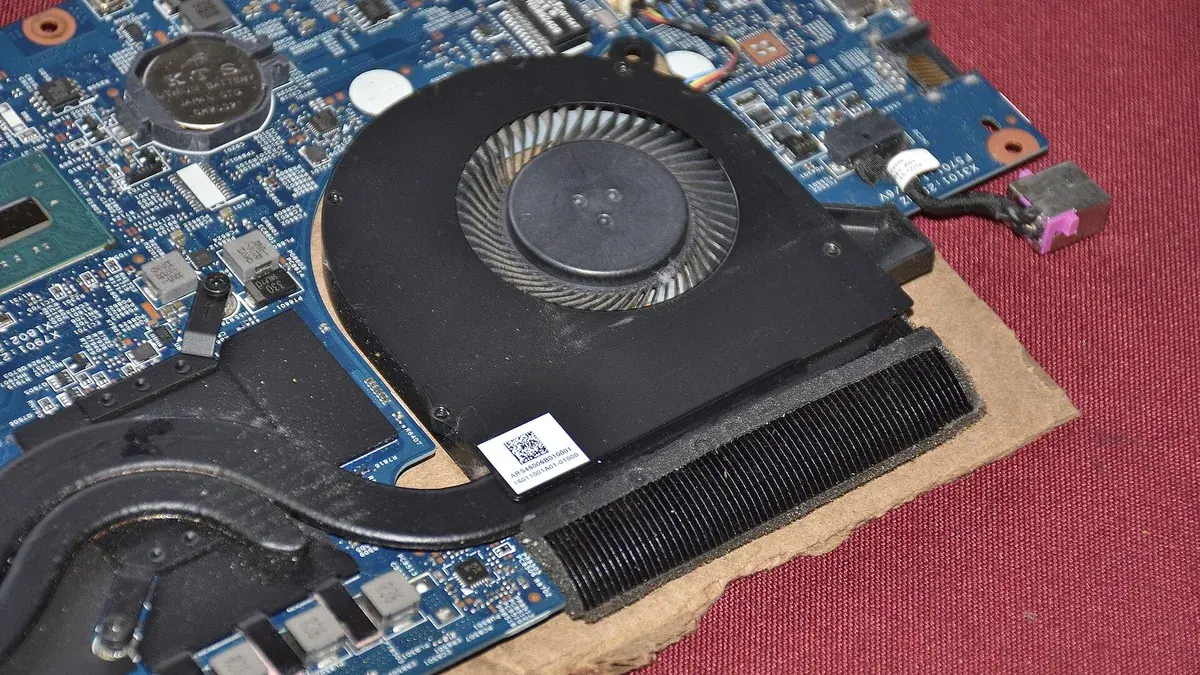
- Dust in the vents and fans. A year of dust on the fins acts like a blanket, and it is the most common cause of a laptop that used to run cool and now does not.
- Blocked intakes. A laptop on a bed or a sofa pulls in hot air instead of cool air. The bottom vents need a hard, flat surface.
- A hot room. Every degree of room temperature adds roughly a degree to the GPU.
- Demanding settings. Ray tracing, ultra textures and uncapped frame rates push the GPU to its limit for hours.
- Background apps. A browser with hardware acceleration and Discord both use the GPU while you play.
Before spending money, work out which of these applies to you. A dusty two year old laptop needs cleaning, not a new cooling pad. If the whole machine feels hot, our guide to how to stop your laptop from overheating covers the full checklist.
How to lower your GPU temperature
Work through these in order.
- Lift the back of the laptop. Raising the rear by a couple of centimeters lets cool air reach the bottom intakes, and this alone can drop temperatures by 3 to 5 degrees.
- Play on a hard, flat surface. Never game on a bed or a blanket.
- Clean the vents and fans. Blow short bursts of compressed air through the vents and fan grilles, with the laptop off. Our guide to cleaning a laptop fan without opening its case walks through the no-tools version.
- Cap the frame rate. A game running at 200 frames per second on a 144 Hz screen is wasted work that turns into heat. Cap the frame rate at your screen refresh rate, or turn on V-Sync.
- Lower settings one step. Drop Texture Quality from Ultra to High, and turn ray tracing down or off.
- Update the GPU driver. Newer drivers sometimes manage power and fan curves better in new games.
- Use a cooling pad. A pad with fans helps most on laptops whose intakes sit on the bottom, usually by 2 to 5 degrees. You can browse laptop cooling pads on Amazon if your laptop has bottom intakes.
- Undervolt, or repaste as a last resort. Undervolting lowers the voltage the GPU runs at, which cuts heat without cutting much speed, but it needs care and testing. Try everything else first.
If you are shopping rather than fixing, put cooling on the shortlist next to the GPU itself. Our guide to which laptop has the best cooling system compares designs, and our roundup of the best gaming laptops under $700 shows what cooling you get at a budget price. Day to day, our guide to keeping a gaming laptop cool covers the habits that keep temperatures down.
Frequently Asked Questions
What is a good GPU temp for a gaming laptop while playing?
65 to 85°C while gaming. Thin laptops often sit at 85 to 90°C under a heavy load, which is still acceptable. At idle, aim for 30 to 50°C.
Is 90°C too hot for a laptop GPU?
Short spikes to 90°C are fine, especially on thin laptops. Sustained 90°C and above with frame drops means the card is throttling, so clean the vents and lower settings.
Is 80°C hot for a GPU?
No. 80°C under load is normal and healthy for a gaming laptop GPU. It only looks hot next to a desktop card with big fans, which often settles lower.
Why is my laptop GPU at 90°C while gaming?
The usual causes are a thin chassis, a high wattage GPU, dust in the vents, blocked bottom intakes, a hot room, or demanding settings such as ray tracing and uncapped frame rates. Clean the vents and cap the frame rate first.
Does a hot GPU damage a laptop?
Modern GPUs protect themselves. They throttle clock speeds at their maximum operating temperature and shut down before heat can damage the chip. Sustained high heat mainly shortens the life of fans and thermal paste, so keeping the GPU under 85 to 90°C is the practical goal.
The Verdict
A good GPU temperature for a gaming laptop is 30 to 50°C at idle and 65 to 85°C while gaming, with up to 90°C acceptable on thin models under a heavy load. The warning sign is not a single high reading. It is sustained heat above 90°C paired with stuttering and frame drops.
Check the temperature once with Task Manager or HWMonitor, compare it with the ranges above, and fix the easy causes first: airflow, dust and settings. Most hot laptops cool down a lot from those three alone. If you are choosing a new machine, put cooling on the shortlist next to the GPU. Our gaming laptop vs regular laptop comparison explains what a dedicated GPU and its cooling are actually for.