What Is a MUX Switch on a Gaming Laptop?
Quick Answer: A MUX switch is a small chip on a gaming laptop’s motherboard that connects the dedicated GPU straight to the laptop screen, bypassing the integrated graphics that normally sit in between. Turning it on, usually called dGPU mode, typically adds around 5 to 10 percent FPS in games, with bigger gains in fast competitive titles, and it also unlocks G-Sync on the built-in screen. The cost is battery life, so use it while plugged in. You cannot add a MUX switch to a laptop that does not already have one.
Why most gaming laptops send graphics through the integrated GPU
Most gaming laptops carry two graphics processors: a weak integrated GPU inside the CPU that sips power, and a far stronger dedicated GPU that drinks power. The laptop switches between them on the fly to balance battery life and performance. NVIDIA calls this switching Optimus, also known as MSHybrid, and AMD has its own version called Switchable Graphics.
In the default hybrid mode, the dedicated GPU renders each game frame, then hands it to the integrated GPU, which acts as the display controller and sends it to the screen. That extra copy step costs a little time on every frame. It also blocks features that need a direct path from the dedicated GPU to the panel, such as G-Sync on the laptop’s own screen.
The detour is small, but it is real, and it is one reason two laptops with the same graphics chip can post different frame rates. The wattage the maker allows the chip to draw matters just as much, which is why we explain how TGP shapes real gaming speed before comparing any two models.
What a MUX switch actually does
MUX is short for multiplexer. The switch is a hardware chip soldered onto the motherboard that physically changes which GPU drives the display. Flip it to dGPU mode and the dedicated GPU talks to the screen directly, with the integrated GPU cut out of the chain. Flip it back to hybrid mode and the laptop goes back to switching automatically to save battery.
Because the change is physical, you cannot install it later with a driver update or a Windows setting. If the motherboard does not have the chip, the option simply does not exist. It is also why the switch rarely appears in store listings: you usually have to check the maker’s own product page, the manual, or a detailed review to confirm it is there.
In dGPU mode the integrated GPU disappears from Windows entirely, and the laptop behaves much like a desktop PC with the monitor plugged straight into the graphics card.
How much faster is dGPU mode in real games?
ASUS measured its own ROG laptops switching to dGPU mode and recorded an average gain of about 9 percent, with Rainbow Six Siege gaining more than 30 percent. NVIDIA’s figures for Advanced Optimus, the automatic version of the same idea, claim 11 to 27 percent more FPS and up to 22 percent lower system latency in select games. Both are manufacturer numbers from favorable conditions, so treat them as the optimistic end of the range.
Independent explainers land in the same place: roughly 5 to 10 percent in most games, with the odd title gaining far more. The size of the gain depends on where the bottleneck sits.
| Game type | Typical gain from dGPU mode | Why |
|---|---|---|
| Competitive shooters at 1080p | 10 to 30 percent | High frame rates expose the copy delay, so removing it shows up clearly |
| Esports titles at 1440p | 5 to 15 percent | Still frame-rate hungry, but the GPU works harder per frame |
| AAA games at high settings | 0 to 5 percent | The GPU itself is the limit, so the display path barely matters |
| Games on battery power | None, and worse battery | dGPU mode keeps the power-hungry chip on, so only use it plugged in |
A MUX switch does not make the GPU itself any more powerful. It removes one step between the GPU and the screen, and that is all. If you want a bigger frame rate jump, the free settings in our guide on how to increase FPS on a gaming laptop matter more. Heat matters too: a laptop that runs hot will throttle no matter which GPU mode it uses, so it is worth knowing what a good GPU temperature looks like and how to check your laptop temperature before chasing small gains.
MUX switch vs Advanced Optimus
A classic MUX switch and NVIDIA Advanced Optimus do the same job, but Advanced Optimus does it automatically. The table below shows the practical difference.
| Feature | Classic MUX switch | NVIDIA Advanced Optimus |
|---|---|---|
| How it switches | You pick the mode by hand in the maker’s app or BIOS | Switches by itself based on what you are doing |
| Restart needed | Yes, every time you change modes | No, it switches on the fly |
| Battery life | Poor in dGPU mode, good in hybrid mode | Best of both, dGPU for games and iGPU for light work |
| Control | Vendor app, BIOS, or NVIDIA Control Panel | Display Mode setting in NVIDIA Control Panel |
| Availability | Common on gaming laptops since about 2022 | Fewer models, usually mid-range and up |
Advanced Optimus uses a hardware Dynamic Display Switch, so it is a smarter MUX rather than a different idea. If you are choosing between two similar laptops and one has Advanced Optimus, take it. A classic MUX switch gives the same gaming gain, but you have to flip it yourself and restart.
How to check if your laptop has a MUX switch
The fastest check is the NVIDIA Control Panel. Open it, go to 3D Settings, then Manage Display Mode. If you see options such as Automatic Select, Optimus, and NVIDIA GPU only, your laptop has a MUX switch or Advanced Optimus. If that page is missing, it almost certainly does not have one.
The second check is the maker’s control app. Open Armoury Crate, Lenovo Vantage, MSI Center, HP OMEN Gaming Hub, or Alienware Command Center and look for a GPU mode or hybrid mode setting. If the app offers a discrete GPU or dGPU-only option, the hardware is there.
Most brands do not list the MUX switch among the headline specs, so check the full product page on the maker’s site, the user manual, or a review that opens the control app. If none of those mention it, assume the laptop does not have one.
How to turn on dGPU mode on each brand
The steps differ by brand, but the idea is the same everywhere: open the maker’s app, find the GPU mode setting, pick the discrete GPU option, and restart when asked. A classic MUX switch needs a reboot before the change takes effect, so save your work first.
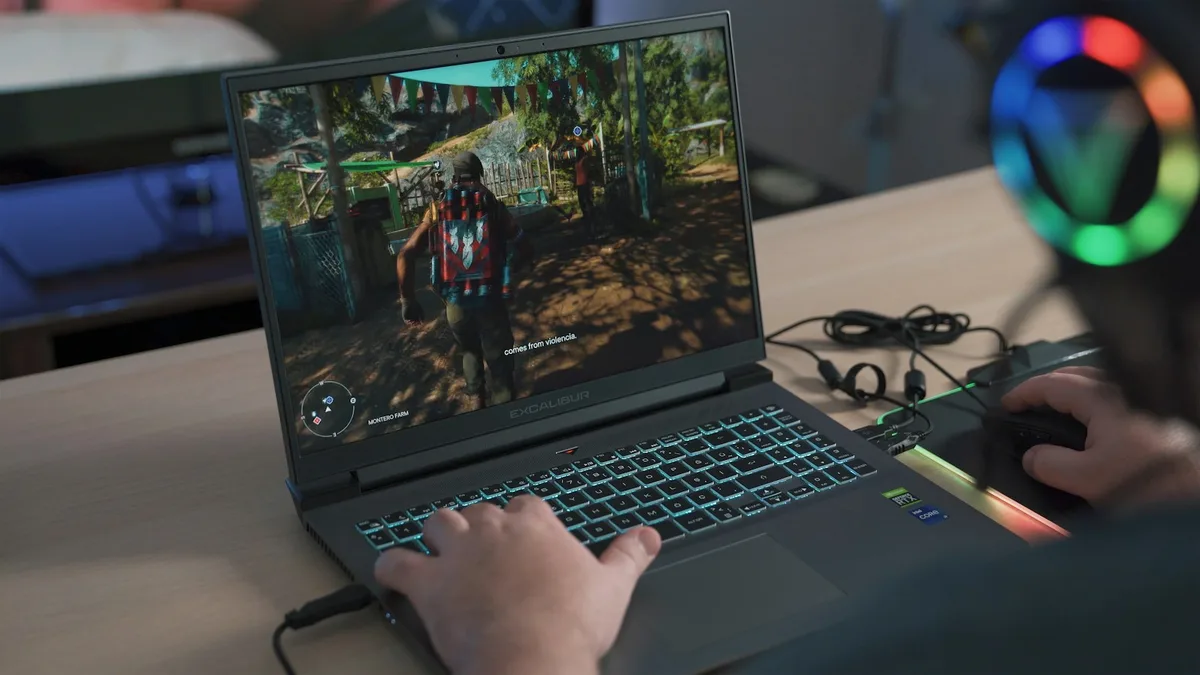
ASUS: In Armoury Crate, open the GPU Mode setting and choose Ultimate. On newer ROG and TUF models the same page offers Standard, Eco, and Ultimate modes.
Lenovo: In Lenovo Vantage, turn Hybrid Mode off. On Legion models this switches the display to the dedicated GPU, and a restart is required.
MSI: In MSI Center, find GPU Switch under General Settings or Features and turn MSHybrid off. The laptop will ask for a restart.
HP: In OMEN Gaming Hub, open Graphics Switcher and choose Discrete or dGPU mode. HP recommends using this mode only while plugged in.
Dell and Alienware: In Alienware Command Center, look for the GPU mode or graphics switcher in the performance section. On some models the same toggle lives in the BIOS under Video settings.
NVIDIA Control Panel: On Advanced Optimus laptops, right-click the desktop, open NVIDIA Control Panel, go to 3D Settings, then Manage Display Mode, and choose NVIDIA GPU only. No restart is needed.
If your laptop has none of these settings, it does not have a MUX switch, and no software trick can add one. The Windows graphics setting is still worth checking, since some laptops quietly run games on integrated graphics. Our FPS guide shows how to force a game onto the dedicated GPU in Windows Settings.
The battery trade-off: when to use each mode
dGPU mode is a plugged-in mode. With the dedicated GPU driving the screen even on the desktop, the battery drains far faster than in hybrid mode. HP and Dell both recommend enabling it only while the charger is connected: dGPU on at the desk, hybrid everywhere else.
For everyday use, hybrid mode is the right default. Web browsing, video, and office work do not need the dedicated GPU, and keeping it asleep is what lets a gaming laptop last a few hours away from the wall. Switching back takes a restart on a classic MUX switch, so most owners set it once for a gaming session and flip it back when they head out.
If your laptop spends most of its life plugged in at a desk, it is worth knowing how to check battery health on a Windows 11 laptop and what battery cycle count means for replacement timing, since a battery held at full charge for months ages faster than one that cycles normally.
Do you need a MUX switch when buying a laptop?
It depends on what you play. A competitive player chasing high frame rates at 1080p or 1440p on a 165 Hz screen will feel the difference, especially in shooters where the gain can pass 20 percent. A player who mostly runs story-driven AAA games at high settings will barely notice it.
Treat it as a tie-breaker, not a deal-breaker. A laptop with a stronger GPU at a higher wattage and no MUX switch will beat a weaker laptop that has one. Check the GPU, the wattage, and the screen first, then let the MUX switch decide between two close options.
One concrete example is the ASUS ROG Strix G16 (G614JV-AS74), which pairs an RTX 4060 with a Core i7-13650HX, 16 GB of DDR5 memory, and a 165 Hz screen, and ships with the MUX switch and Ultimate mode in Armoury Crate. It is the kind of mid-range machine where the feature makes sense: fast enough that the display path actually matters. Our picks for the best gaming laptops under $1,500 include several models with the switch, while the RTX 4050 vs RTX 4060 comparison shows what each GPU tier buys you first.
MUX switch, G-Sync and external monitors
G-Sync on the laptop’s own screen is the second reason to care about a MUX switch. NVIDIA’s G-Sync needs a direct connection between the dedicated GPU and the panel, so on a hybrid-only laptop the built-in screen cannot use it. Switching to dGPU mode unlocks it and cuts screen tearing in fast games.
An external monitor is a different story. The HDMI or DisplayPort output on most gaming laptops is already wired straight to the dedicated GPU, so an external screen gets the direct path with or without a MUX switch. If you mostly play on an external monitor, the switch matters less, and the VRAM your games actually need will limit you sooner than the display path will.
Frequently Asked Questions
Does a MUX switch increase FPS?
Yes, usually by around 5 to 10 percent, with competitive games at 1080p gaining the most. ASUS recorded an average of about 9 percent in its own ROG testing, with Rainbow Six Siege gaining over 30 percent. In demanding AAA games the gain is often close to zero.
Does a MUX switch drain the battery?
Yes. In dGPU mode the dedicated GPU stays on even for light work, so the battery drains far faster than in hybrid mode. Use it only while plugged in, and switch back to hybrid mode on battery.
Can I add a MUX switch to my laptop?
No. The MUX switch is a physical chip soldered onto the motherboard, so it cannot be added with a driver, a BIOS update, or any software setting. If your laptop does not have one, only a different laptop fixes that.
Is Advanced Optimus better than a MUX switch?
For most people, yes. Advanced Optimus changes modes automatically without a reboot, so you get the gaming gain without thinking about it and keep the battery saving the rest of the time. A classic MUX switch gives the same FPS gain, but you have to flip it by hand and restart.
Should I leave the MUX switch on all the time?
No. Leave hybrid mode on for everyday use and switch to dGPU mode only for gaming sessions while plugged in. Leaving it on all the time wastes battery and keeps the fans running for no benefit.